Bulk Create Ornament Mockups for Etsy with Smart Object Templates (Hole & String Stay Visible) | Bulk Mockup Web App Tutorial
This tutorial shows you how to bulk create ornament mockups that keep the hole and string visible: why the Canva and ChatGPT methods go wrong, how to place your design inside a smart object ornament template in Photopea, and how to generate every combination at once with the Bulk Mockup web app (or the Bulk Mockup Photoshop Plugin if you already work in Photoshop). In the video, 10 designs on 10 ornament scenes become 100 mockups in minutes, without placing a single design by hand.
For the web app workflow you need ornament smart object mockup templates (Photoshop PSD files), your design files, and a Bulk Mockup web app account. The web app runs in your browser, so you do not need Photoshop, Canva, or Photopea for the bulk generation step. For the Photoshop Plugin workflow you need Adobe Photoshop CC 2022 or later with the Bulk Mockup Photoshop Plugin installed.
Why Canva ornament mockups go wrong
Dropping your design on top of an ornament photo in Canva looks fine at first, but the design covers the ornament instead of sitting on it.
The design overlay covers the ornament's hole and string, so it looks like a sticker.
It does not pick up the ornament's shadow or shine.
Why ChatGPT ornament mockups go wrong
Asking ChatGPT to place your design on an ornament template fails on speed and accuracy.
It is slow: one image takes 40 to 50 seconds, sometimes over a minute.
It redraws your design and changes the ornament image, so the output is no longer your original design and template.
The fix for both problems is a smart object based mockup template: your design goes inside the template untouched, so the design and text are not redrawn and the ornament's hole and string stay visible.
Part 1: Place a design on an ornament with a smart object template
You can edit a smart object mockup template without owning Photoshop. Photopea (photopea.com) is free and works right in your browser. This step prepares one template; the bulk generation happens in Part 2.
Open photopea.com in your browser.
Drag and drop your ornament smart object template onto the page. The templates are Photoshop files and load automatically.
In the right panel, find the layer named replace me and double-click it to open the smart object.
Hide the replace me layer in the right panel.
Drag and drop your design onto the canvas and position it on the ornament.
Click the checkmark to confirm the placement.
Go to File and click Save smart object, then close it. The ornament mockup is ready.
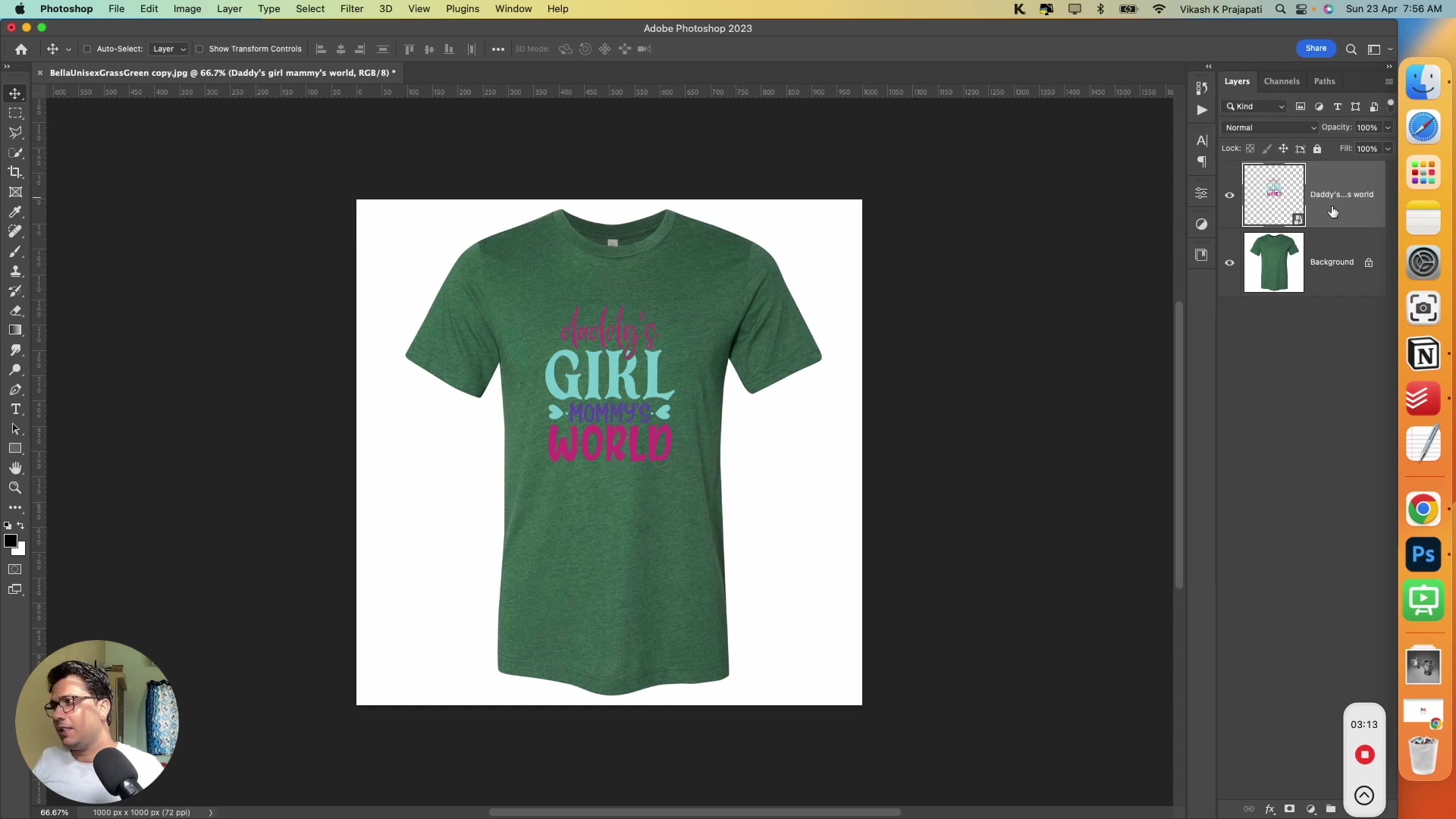
This is the manual method for one design at a time. To create every design on every ornament template at once, use the Bulk Mockup web app.
Part 2: Bulk generate ornament mockups with the Bulk Mockup web app
The Bulk Mockup web app creates all combinations of your ornament templates and designs in one run. In the video, 10 templates and 10 designs become 100 mockups.
Open the Bulk Mockup web app in your browser and log in.
The app has two modes: Mockup API Cloud and On this device. Select On this device so the mockups render on your device.
Scroll to the template step and drag in your ornament smart object templates.
At the designs step, drag in the files from your design folder.
Under Configure canvas, select Standard so the design fits the ornament.
Under export settings, choose JPG as the format, set the quality to 100%, and set the folder structure to by art. Leave the file naming as it is.
Scroll down and click Generate Mockups, then click Start bulk generation.
When the run finishes, download the ornament mockups individually or as a ZIP file.
Part 3: Alternative: the Bulk Mockup Photoshop Plugin
If you already work in Photoshop every day, the Bulk Mockup Photoshop Plugin produces the same result with the same designs and templates:
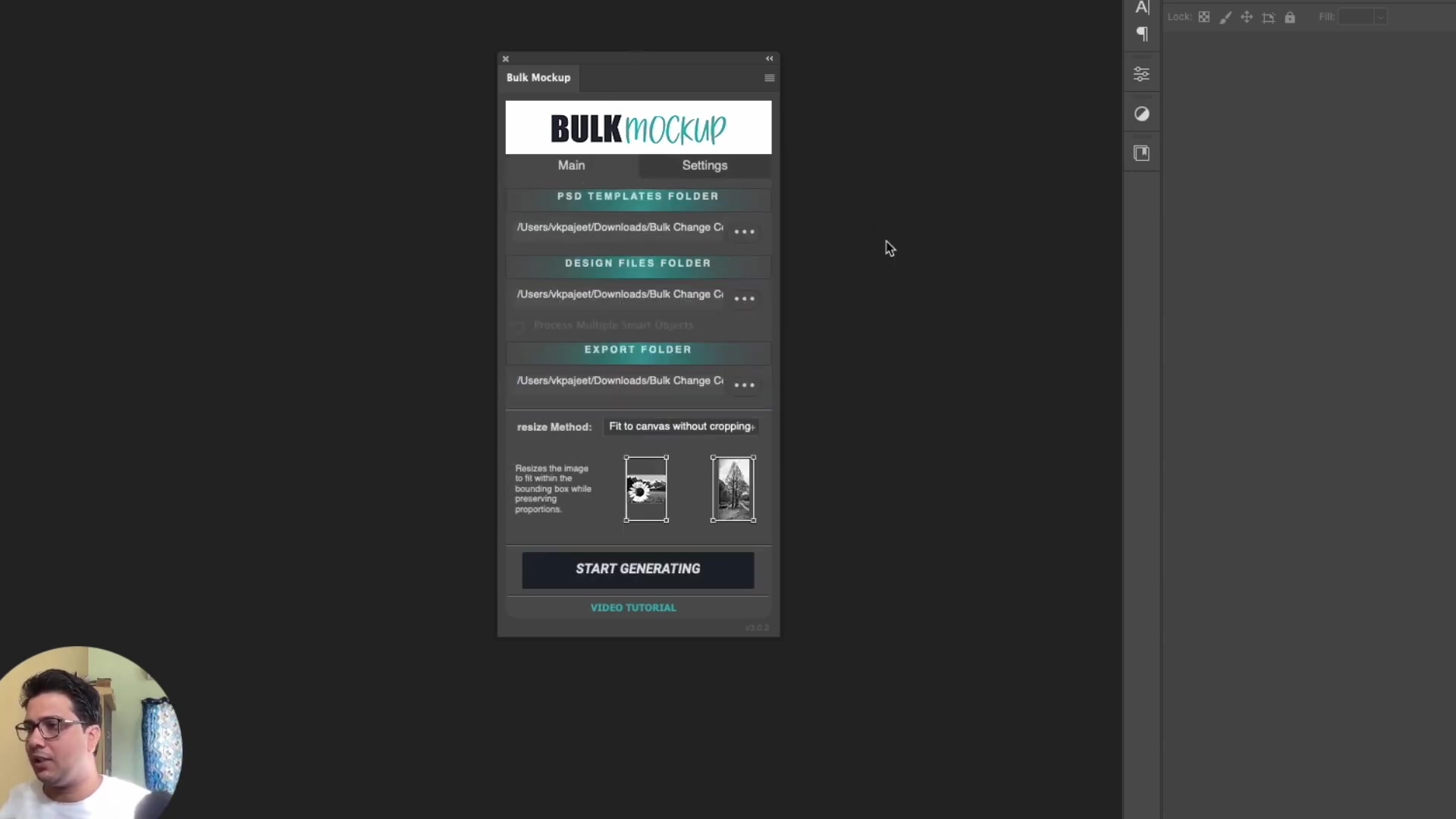
Next to PSD templates folder, click Browse and select your ornament templates folder.
Next to Design files folder, select your design folder.
Next to Export folder, select the folder where the mockups will be saved.
Click Start generating.
Use whichever one fits the way you work.
Watch Similar videos:
Use Cases:
Create a full set of ornament mockups for every holiday design in your Etsy catalog without placing each one by hand
Keep the hole and string visible on every ornament mockup so listing photos show a realistic ornament
See every design on every ornament scene before you pick the photos for a listing
Need More Help?
If you have questions about ornament mockups or encounter any issues, contact the Bulk Mockup support team at [email protected].