
This guide shows you a two-step workaround to successfully generate video mockups with designs appearing on all visible mug surfaces.
Hi, so I am going to recording this video hopefully the audio is being recorded.
So yeah, I will you know share what the issue is there with the template and how to get rid
of this.
So basically this is an animated template.
I mean we only see a normal layer over here but basically if you you know go to window
and timeline you will see the whole work that has been done on this template.
So if I go to window and then select timeline this is the you know work that has done and
that is what it rotates.
So this is how this work works.
This is complex I am not asked you to edit this template but you will find a way to
create a template.
So first thing first I mean bulk knock up looks for a smart object layer.
So if you see this is turn off if you turn this on this is only a place where the smart
object layer the major smart object layers are underneath.
So what I could do is I will turn it off because any way is bulk knock up will turn it
off.
So it will reduce the opacity so that this does not have any impact on the composition.
Now this is the smart object layer we are supposed to change the design.
So we will rename this as add design.
Now if I double click and open this now you see there are two smart object layers.
Again we can see if I open the timeline you will see that these are animations.
So what animations I will show you just now but remember that we cannot place a design
here because this again is a smart object layer.
So this template creator is asking us to go one step deep.
So we are supposed to go one step deep and then we are supposed to change the design.
And though the design does not look here because the opacity is 0 % it will change the
opacity to 100 % and you could look this is what the designer I mean the creator wants.
So if you look now you will see the animation.
Oh yeah here is the animation.
So you will see the animation how it goes and this is how it rotates.
So this is how this is supposed to work.
But the problem is it wants us to go to step deep and again so for bulk knock up to
go to step deep we need to rename this smart object layer as add nested.
This is the one thing that you need to do that we need to rename this as nested and bulk
knock up can go only two steps deep.
Now the problem that comes on this template is when we double pick and open this where
we are supposed to change the design it is actually two copies of the design.
But we cannot place two copies of the design I mean we cannot duplicate the smart object
layer because whenever we place a design it will place a single copy.
Bulbong will place a single copy and we can only make a double copy if there is a smart
object layer.
What I mean is bulbong and it places the design it places as a flattened you know PN
here APG file not as a smart object layer.
So if we place I mean here it is a duplicate copy this one and this one is a duplicate
copy if you make changes here same will be reflected here.
So we can hide this not a problem but this is not a duplicate copy.
We are supposed to add a design something like this I mean what the manual way of creating
the template is we will add something like sorry where did that go.
Yeah this is how the creator of the template want us to do.
Now this is this not we go you see that it is being rotated and both of the sides has
the design that we want.
Okay so this is the issue that it has and to fix this very simple this will name it
add a design and this will name this add a red must it.
Now we will delete this and what I want you to do is if your design files are exact
a wrap along that it you are fine you do not need to make any changes just go ahead with
template and proceed.
I mean this changes that I said that is all and if you have a small design like this I
will ask you is to just create a template out of it.
So what I will do I will just keep one of the smart object here place it here place
control j place it here and now I will turn this off I will save it as a I will go to
download or anywhere I will save it as a vst file save it and then I will delete this
let it as be.
So the template are ready for us the templates are ready okay.
Now if you go to the downloads file we have this new template and now using this template
okay it does not have the design file.
So what I will do is I will bring this smart object over here I will save it now I will
use this template okay I will create a folder I will use this template I am using bulk
of I will create JPG files that are elongated.
So we will run bulk of twice first on this template we will use this other template it
has a smart object layer and it is a duplicate copy.
So if we update one of this smart object so bulk of will go and it will update one of
this smart object we will delete it and maybe add some color consider that we are adding
a blue color or a pink color same pink color doggy.
So if you update one the other one will be updated as well you will just take a look
both will be updated.
It is a PNG file so it is taking time.
Yeah transfer to PNG takes time okay.
Yeah once done it goes this and you see both of them are updated.
So using this template will create input files for our main video template.
So we will run bulk of on this template and then when you have a JPG output of this I
mean two doggies or elongated one will use that as input file for the video template.
So this is how you are supposed to work on this case okay.
So I hope this makes sense let me know if you have any more I know doubts or queries.
Animated rotating mug mockup templates often require your design to appear on multiple visible surfaces as the mug rotates. When your template contains duplicate smart object layers nested deep within the structure, Bulk Mockup can’t automatically create duplicates because it exports designs as flattened files, not linked smart objects. This guide shows you a two-step workaround to successfully generate video mockups with designs appearing on all visible mug surfaces.
Open your animated mug template in Photoshop and examine its layer structure:
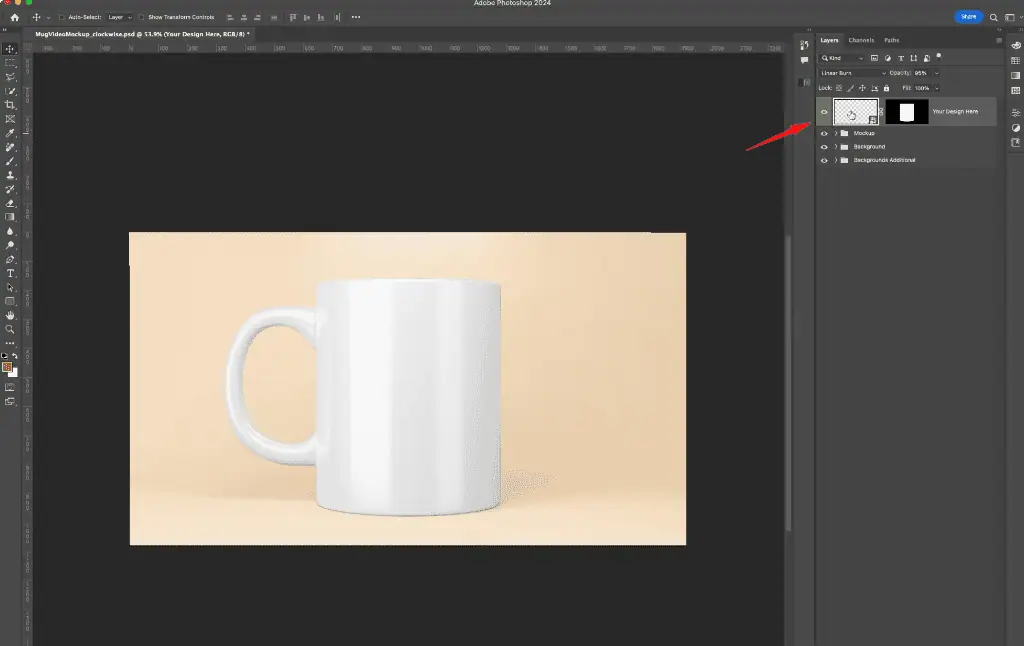
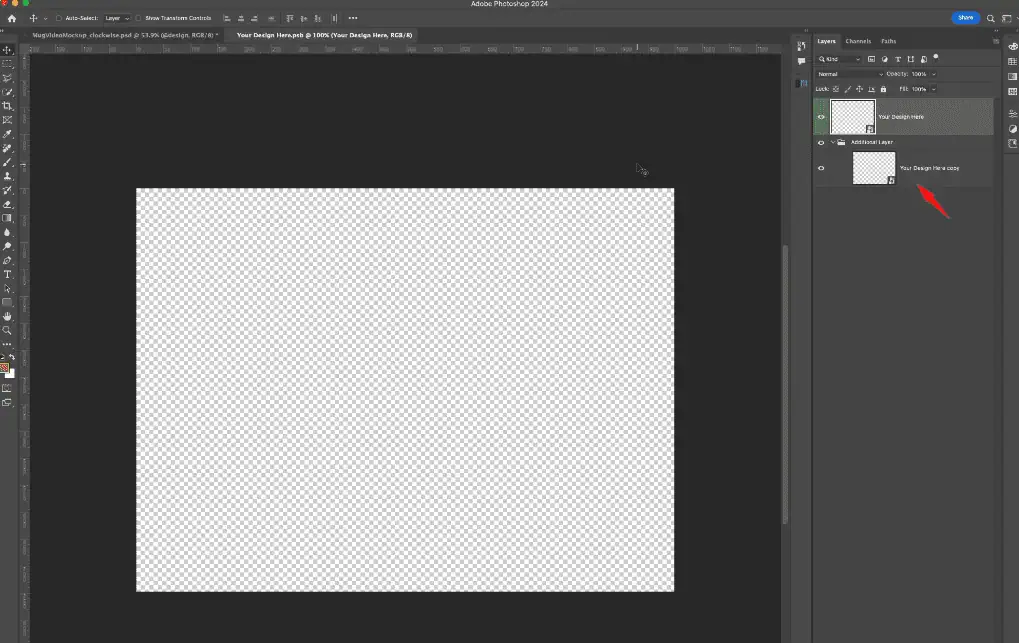
If you see two copies of the design placeholder at the innermost level (often identical smart object layers that are linked), you’ve found the issue. This duplication lets the design appear on both the front and back of the rotating mug.
Prepare your main template for Bulk Mockup’s nested processing:
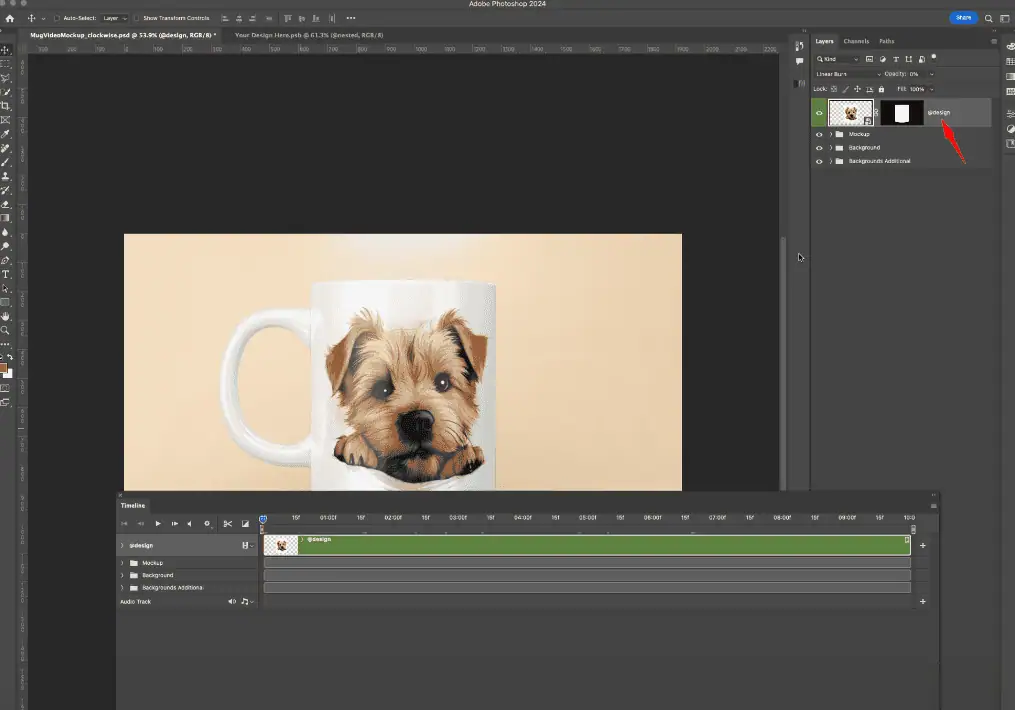
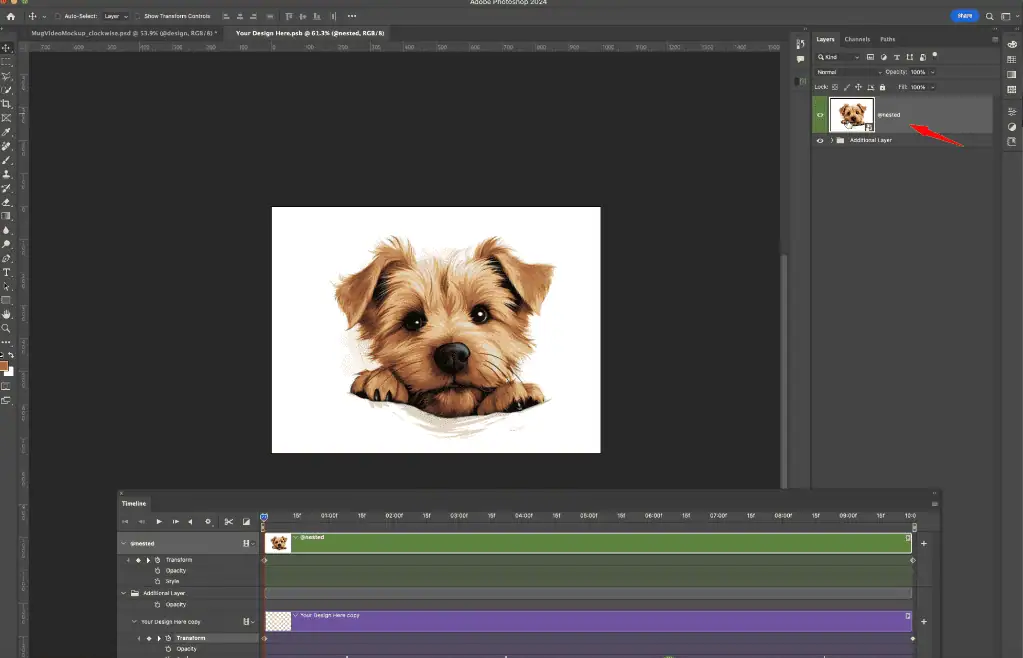
This naming convention tells Bulk Mockup to go two levels deep when replacing designs. Note that Bulk Mockup can only process up to two nesting levels.
Since Bulk Mockup places flattened designs, you need a separate template to create the duplication:
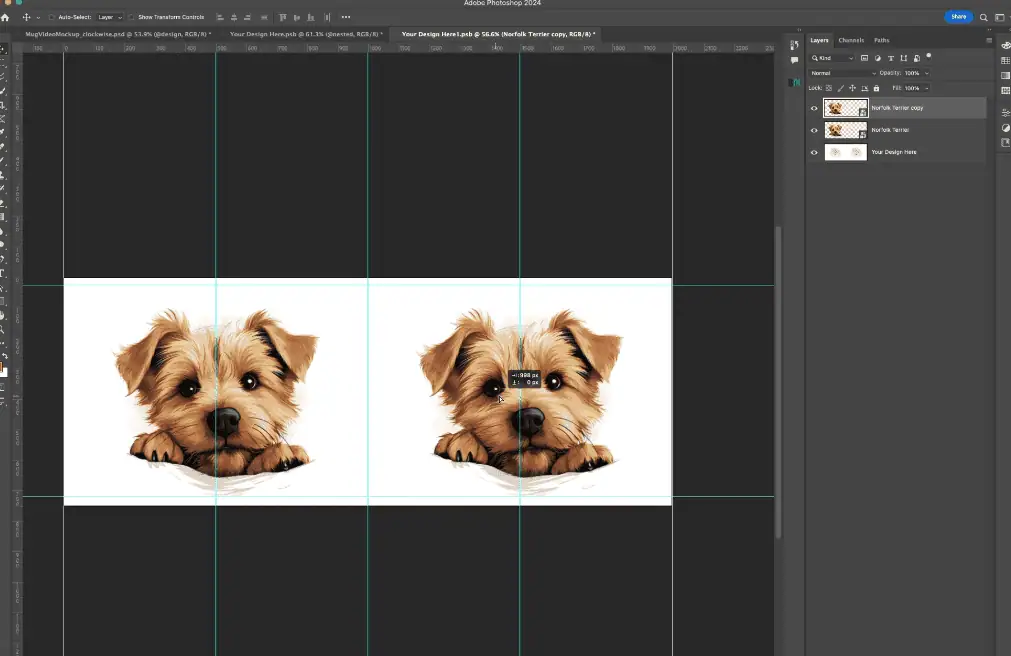
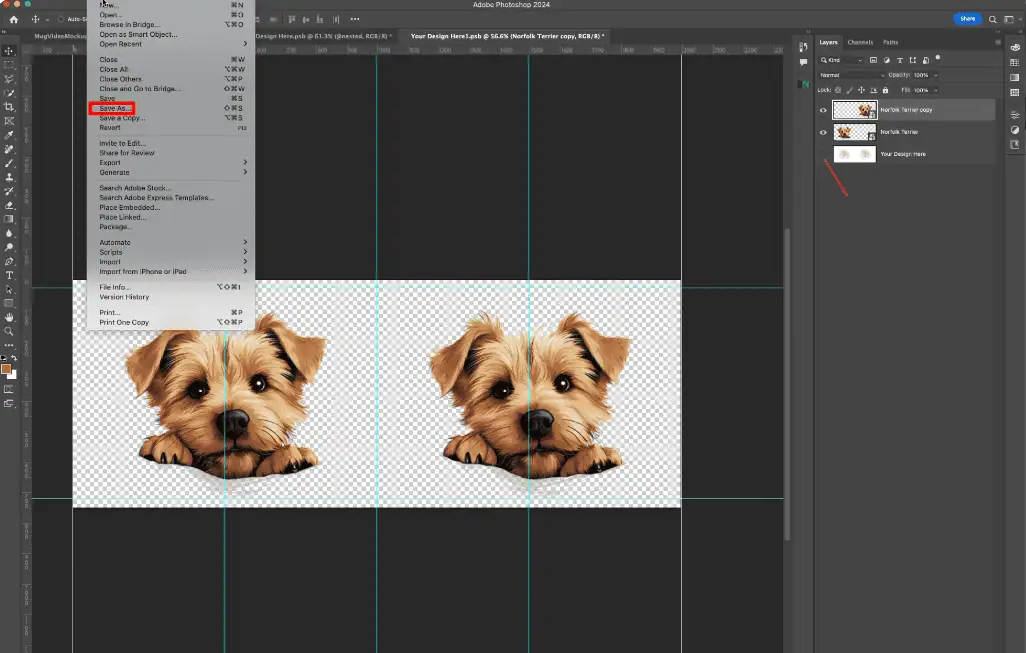
This intermediate template will create elongated, wraparound design files with the proper duplication that your video template requires.
Now, Use Bulk Mockup on this corrected template:
These outputs will now act as input files for the main video/animation template.
Open your original animated video PSD:
This two-stage approach ensures Bulk Mockup outputs match the animation logic. Your final video mockups will now show your design correctly on all visible surfaces as the mug rotates.
If your designs are already full wraparound files:
If you already have elongated wraparound designs that span the entire printable area of the mug, you don’t need the intermediate template step. Just ensure your template’s smart objects are named @design and @add_nested (if nested), then proceed directly with Bulk Mockup.
Check your video template’s rotation:
Before running the full batch, manually test one mockup by opening the Timeline panel and playing through the animation. This confirms your design appears correctly throughout the entire rotation.
Opacity settings matter:
If you see doubled designs or ghosting in your final video, check that any reference layers in your template have 0% opacity or are hidden. These layers are meant as guides and shouldn’t be visible in the final output.
Bulk Mockup places designs as flattened PNG or JPG files, not as linked smart objects. Templates requiring duplicate designs need linked smart objects so changes affect both copies simultaneously. The two-step workflow solves this limitation by creating duplication in an intermediate template first.
Bulk Mockup can process up to two levels of nesting when you use the @add_nested naming convention. If your template requires three or more nested levels, you’ll need to manually flatten some layers or restructure the template before automation will work.
Use JPG for designs without transparency or PNG if your design has transparent areas. The format you choose here becomes the input for your video template, so match it to what your final mockup requires for best quality.
Yes, if you’re comfortable editing the video template’s structure. Delete one of the duplicate smart object layers in the innermost level and ensure only one design placeholder remains. However, this may affect the animation if the template designer intended both copies for specific timing purposes.
The video template likely has keyframe animations tied to specific layer positions. Verify that your @design and @add_nested naming is correct, check that reference layers are at 0% opacity, and ensure your intermediate output files are the correct dimensions for the template’s smart object area.

