
Learn how to create wall art video slide mockups in Photoshop using one smart object and the Timeline, and automate bulk video exports with Bulk Mockup.
I saw the video so this can be done in bulk but there are few conditions as in
I’ll play and I’ll let you know
so up until here we could see that there’s only one smart I mean one design file that is being
here so if you change the design I mean that could be you know that is also possible but again you’ll
have to do a lot of things to manage it so I believe you know it’s better if we could just
work on one design there that could be simple I’ll show you how
what we can do is I will have to create a mock -up template so I’ll go to okay
Photoshop window is too large actually my screen is too big to fit in the recording area
hopefully this is the recording area okay so we’ll go to file and new and then create any
size and the size is perfect okay we’ll not get an output and then go to windows and then we’ll select
timeline so this is where the animation happens in Photoshop and we need to create a video templates
so what we can do I mean we already have a video in YouTube that you may look at
right
a minute
the channel so this is the video I’m talking about others so this one shows
how we can create only a handful okay so this is a I mean this is what you can
use all right follow this video or what we can do is let me see if I have a template
or they’ll show you the images
okay
okay I have one
I’ll open that in Photoshop okay it is actually a video mock -up so I’ll cancel this let me grab the only image part I think
oh this will not work
okay
yeah so this is a one of the smart object template we can directly
go and duplicate here on title one
and then we create a video timeline okay so this is the timeline and there are few options where we put a
slider
there must be a slider too
yeah now I see this so we can decrease the size from here this is 5f that is 5 seconds I guess so this will be the smart object layer 5 seconds and then we could add a different this is new room too right we can open to a new smart object I mean
duplicate it
and now we’ll push this to this so likewise we’ll have to you know
so if I play it and this is the play button
so whatever text you could add we can add it so it’s basically playing and yeah you can look at this this is how it changed or you can also resize this
okay so let’s see if I can add it to the layers
okay there are some drop layers here
okay place it so basically I mean it’s similar to canva I mean more complicated in the sense that you have to play with layers and all
so if you are good with the Photoshop I think this should be an easy way okay you could go to timeline and it’s basically arranging the slides in the timeline okay and as well as you could also add a text layer so if I add a text layer here like you see the animation you see in the canva so I could add a text layer here and then I could also you know optimize the position of the text layer so likewise you could create this slide in Photoshop this is a one time effort
but make sure that we follow I mean same kind of a design I mean same smart object and now I mean we could use bulk mockup to replace the smart object in bulk so yeah that is how this can be done and this can be done in bulk no it’s not an issue music I don’t think we could add I mean I don’t believe Etsy allows music but yeah there’s an option to add music track as well so this is this is a one time effort that you have to create a template for and then you can use bulk mockup to bulk export it so that is how it is and yeah please go ahead
and watch this video to give a better sense of what is possible okay
You can generate animated slide-style videos in bulk with Bulk Mockup, but only if the Photoshop template is built the right way. The key requirement is using one consistent smart object across all slides in a video timeline. If each slide uses different designs or separate smart objects, bulk replacement becomes difficult and error-prone.
This guide explains how to build a reusable wall art video mockup template using the Timeline panel, how to structure smart objects correctly, and how to use Bulk Mockup to replace designs and export videos in bulk with minimal manual work.
For bulk processing, it’s best to keep things simple.
This approach reduces complexity and avoids alignment or sync issues later.
Start by creating a fresh template.
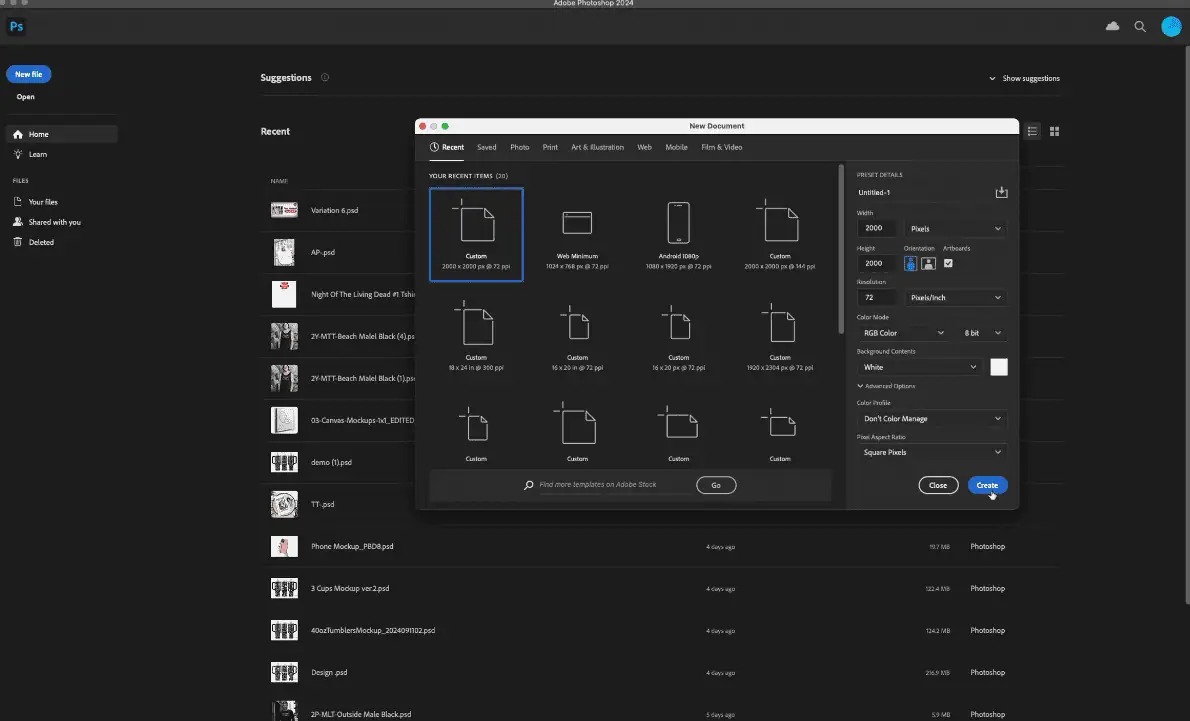
This document will become your reusable wall art video mockup template.
You can also check this YouTube video that explains how to create wall art video templates in Photoshop elaborately.
Photoshop video animation works through the Timeline.
This activates the animation controls needed to build slide-based videos.
Create or place your main design smart object.
Bulk Mockup will later replace this smart object automatically.
Each slide is controlled by its layer duration.
You can preview timing using the Play button.
To create multiple slides:
Do not replace it with a new design
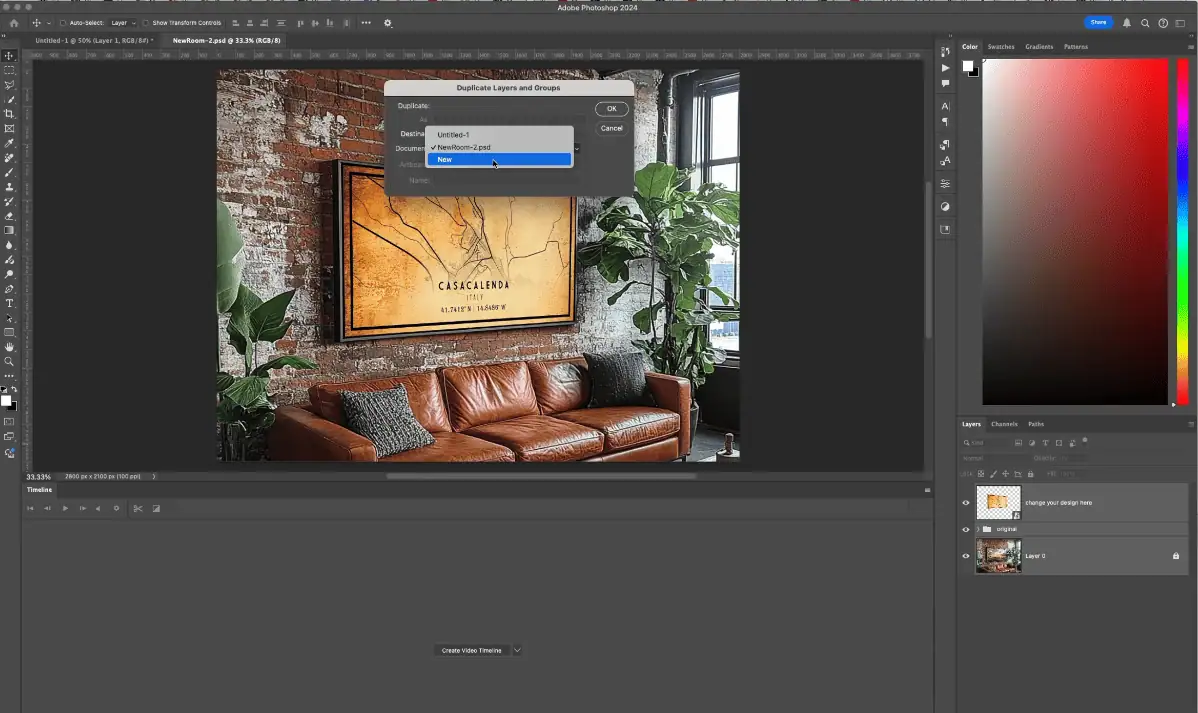
Each duplicated slide still references the same smart object, which is essential for bulk replacement.
You can customize each slide visually.
This works similarly to Canva, but with more manual control via layers.
Use the Timeline to finalize the animation flow.
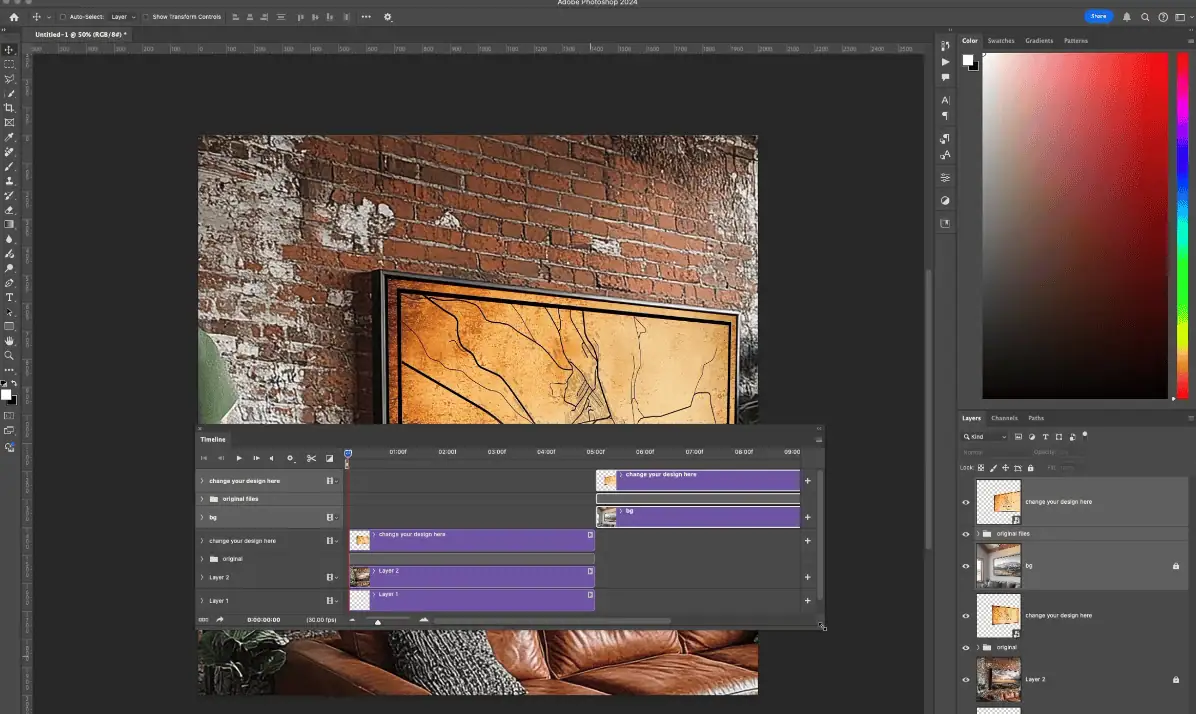
This setup is a one-time effort for the template.
Once the timeline and layers are ready:
You will reuse this wall art video mockup file for all bulk exports.
Now the template is ready for automation.
Bulk Mockup will update the same design across all slides automatically.
After replacement:
Exporting videos is resource-intensive, so allow extra processing time.
You can create your own wall art with Midjourney and use this guide to generate video mockups easily.
Once created, the same template can be reused indefinitely.
Yes, as long as the Photoshop template uses a single reusable smart object. Bulk Mockup can replace that smart object across all slides and export multiple videos efficiently.
Using multiple designs requires extra manual management and breaks bulk automation. One shared smart object keeps the workflow simple and reliable for large batches.
No. Creating the Photoshop video template is a one-time task. Once built, you can reuse it with Bulk Mockup for unlimited designs.
Yes. The Timeline panel controls slide timing, animation flow, and visibility, which is essential for building video-based mockup templates.
Photoshop supports audio tracks, but many marketplaces restrict music usage. Check platform rules before adding audio to exported videos.

