


Updating a few Shopify products is manageable. But what happens when you need to change prices, descriptions, SKUs, or inventory details across hundreds of listings? Opening every product page and making the same edits repeatedly can quickly consume hours.
That is where the Shopify bulk product editor comes in. Shopify’s built in tool lets you modify multiple products and variants in a spreadsheet style interface. You can also use CSV files or third party apps when your editing needs become more complex.
For print on demand sellers, managing product information is only part of the work. Preparing mockups for an entire collection adds another task, which dedicated mockup automation tools can simplify.
In this guide, you’ll learn how Shopify’s bulk editing options work, what you can change, and which approach makes the most sense for your store.
You can use Shopify’s native bulk editor directly from your Shopify admin without installing an additional app. Here’s how to bulk edit products in Shopify in five simple steps.
Log in to your Shopify admin dashboard and click Products in the left navigation menu.
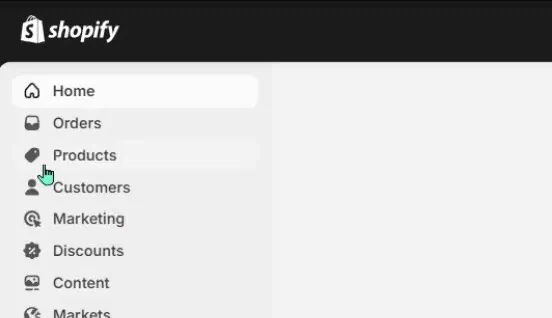
You’ll see your existing product catalogue, including product names, statuses, and other details. Use the search bar or available filters to find the items you want to update.
Tick the checkboxes beside the products you want to modify. You can select individual listings or multiple products together.
Shopify also offers filters for criteria such as collections, product types, and vendors, depending on your available options.
Once you’ve selected the products, Shopify displays the relevant bulk actions. Review your selection carefully, especially when products have similar titles.
Note: If you need to change individual variant prices or SKUs, make sure you’re editing the correct variants rather than applying changes to unrelated options.
Click Bulk edit or Edit products, depending on the action displayed in your Shopify admin.

The Shopify bulk editor opens a spreadsheet style table containing your selected products or variants.
Click Columns to choose the information you want to edit, such as:
Deselect unrelated columns to keep the table organised. Available editing fields may differ for products, variants, inventory, and other Shopify resources.
Click any editable cell and enter the updated information. You can modify prices, SKUs, tags, or other supported properties directly within the table.
To apply changes faster, Shopify supports several editing shortcuts:
Once you’ve finished editing, click Save. Shopify checks the submitted values and displays errors if any information is invalid. Correct the affected fields and save again.
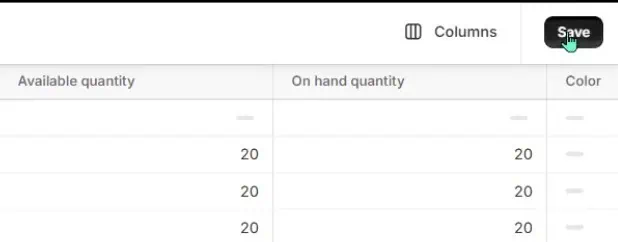
Wait for the changes to finish saving before leaving the editor. Then open a few updated products to confirm their details.
When updating your branding or correcting inconsistent listings, you can standardise product names and descriptions across your catalogue.
For example, you might rename “Black Tee Large” to “Classic Cotton T Shirt | Black | Large” to follow a consistent naming structure.
Shopify supports editing product information through its admin tools, but larger text changes may be easier through CSV files or specialist apps. These can offer additional functions, including:
Be careful when editing descriptions containing HTML, tables, or embedded content. Incorrect changes can affect how the information appears on your storefront.
You can change selling prices across multiple listings using Shopify’s native editor. The Price field contains the amount customers pay, while Compare at price shows a higher reference price when an eligible sale or price comparison applies.
For example, increasing a product’s price by 15% changes it from $40 to $46.
You can enter fixed amounts directly or adjust individual variant prices. For percentage changes across a larger catalogue, use spreadsheet formulas or a Shopify bulk price editor app that supports mathematical operations.
Shopify products can have multiple variants based on size, colour, or other options. While product titles apply to the overall listing, each variant can have its own SKU, barcode, price, and inventory details.
You can update these properties through Shopify’s variant editing interface. However, changing option names or values requires extra care, particularly when using CSV imports, as changes may affect variant records and connected applications.
Shopify tracks inventory by variant and location. For products with variants, you can update stock quantities through Products > Inventory.
Select the relevant variants and locations, then enter the required quantities. Remember that setting stock to 20 is different from adding 20 units to the existing quantity.
The bulk inventory editor sets quantities directly and does not provide the same movement history as inventory adjustment workflows that record reasons.
Before saving, verify the warehouse location. Stores using supplier synchronisation or recurring stock imports may need more advanced inventory management tools.
Product tags, types, and categories serve different purposes in Shopify. Tags support catalogue organisation and automated collection conditions, product types provide custom classifications, and Shopify’s standardised categories identify product characteristics.
You can edit supported fields across selected listings to:
Preserve tags that existing collections or automations depend on. Removing or replacing them could unintentionally change how products appear in your store.
Metafields store custom product information, such as fabric composition, care instructions, dimensions, warranty details, and compatibility specifications.
To edit them in bulk, first configure the relevant metafield definitions. Then select your products, open the bulk editor, and choose the required fields from Columns > Metafields.
Keep these points in mind:
A product’s visible title and description differ from its SEO title and meta description, which help describe the page in search results.
You can update SEO information through supported product editing workflows, CSV imports, or compatible apps. Group products by type and relevant attributes to create accurate, distinct metadata instead of applying identical descriptions across your catalogue.
During larger SEO updates, remember:
Different Shopify tools handle catalogue updates, product imports, and mockup creation. Your choice depends on which tasks need automation.
BulkMockup helps Shopify and print on demand sellers create multiple product listings, generate mockups, configure product information, and publish products directly to their stores. It combines these tasks into one workflow, reducing repetitive catalogue setup.
Key features include:
To get started, create a template, configure variants and prices, upload your designs, generate mockups, and publish the products.
Unlike a conventional Shopify bulk product editor app focused on updating existing listings, BulkMockup specialises in creating and publishing new products.
Ablestar Bulk Product Editor helps Shopify merchants update large catalogues using advanced filters, editing rules, and scheduled changes. It supports prices, tags, descriptions, SEO fields, variants, and metafields.
Key features include:
Ablestar suits merchants managing recurring sales, large catalogues, or complex product updates. Before choosing a plan, check supported fields, scheduling limits, edit history retention, and restoration coverage.
Hextom Bulk Product Edit provides filtering and automation tools for editing products, variants, and other supported store information.
Key features include:
The number of products you can edit per task and access to certain functions vary by plan.
For stores that manage product information in external spreadsheets, Matrixify offers a structured way to import, export, migrate, and update Shopify data. It supports products, variants, collections, metafields, and other store resources.
Instead of editing individual cells in Shopify, you can export catalogue records, modify them in Excel or compatible software, and import the updated file.
Key features include:
Accurate field mappings, product identifiers, and variant structures are essential to prevent unintended changes. Matrixify also requires familiarity with Shopify’s data formats.
Seasonal sales and frequent price adjustments require accurate timing and consistency. NA Bulk Price Editor focuses specifically on updating product and variant prices, making it useful for merchants who need pricing automation rather than extensive catalogue management.
Key features include:
Before scheduling promotions, verify variant prices, existing discounts, compare at values, and restoration settings to prevent conflicting changes.
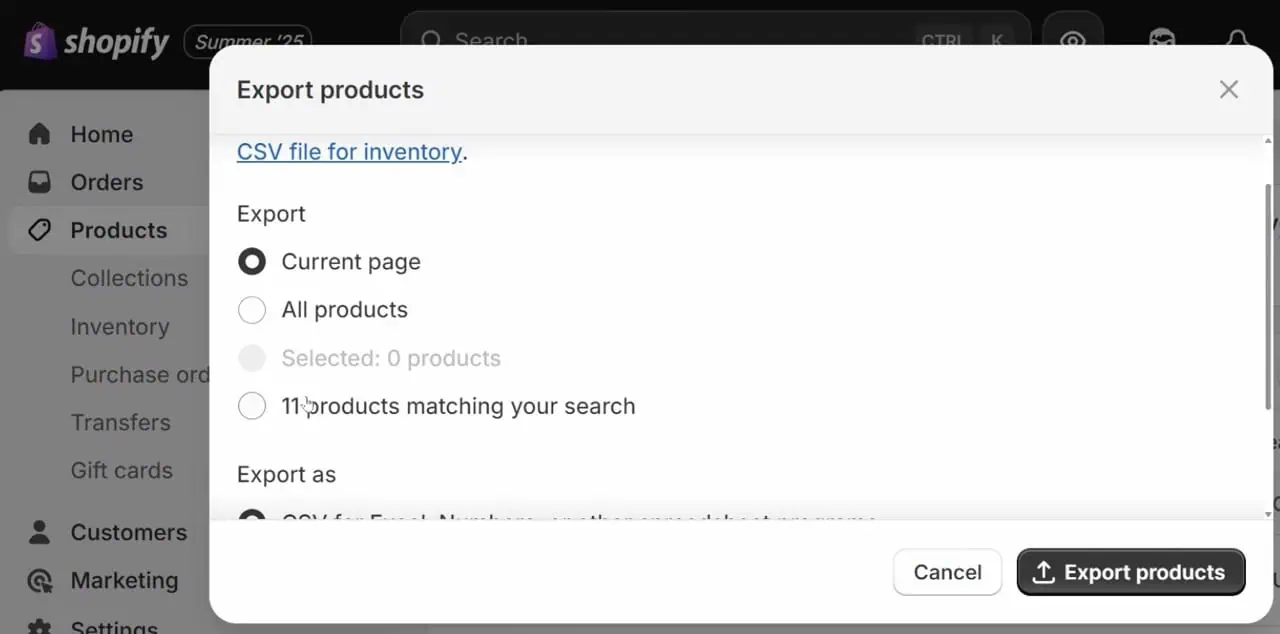
Open the downloaded file in Microsoft Excel or Google Sheets. Shopify organises product attributes into columns, with additional rows for variants and images.
When modifying the file:
Save the completed file in a compatible CSV format.
Return to Products > Import, upload your revised CSV, and select the option to overwrite existing products with matching handles.
Before importing the complete catalogue:
Review Shopify’s import results for errors or unsuccessful updates.
Inspect a sample of affected listings, checking product prices, SKUs, variants, descriptions, and images. Also confirm that fields you intended to preserve remain unchanged.
For customer facing updates, verify storefront visibility and product URLs. If anything looks incorrect, compare the imported data with your original export before preparing a corrected file.
The right editing method depends on your catalogue size, update frequency, and whether you need calculations, automation, or external integrations.
| Feature | Shopify Bulk Editor | CSV Files | Third Party Apps |
| Additional app required | No | No | Yes |
| Direct product editing | Yes | Export and import | Depends on app |
| Percentage price changes | Manual calculations | Spreadsheet formulas | Often supported |
| Scheduled updates | Not natively supported | Requires automation | Available in some apps |
| Conditional filtering | Basic filters | External processing | Advanced options |
| Variant editing | Supported fields | Requires careful mapping | Depends on app |
| Undo changes | No guaranteed rollback | Original CSV backup | Some offer undo |
| Supplier synchronisation | Limited | Manual imports | Available in some apps |
Shopify’s native editor works well for occasional updates to a manageable number of products. You can correct titles, adjust variant prices, or change vendor information without installing another application.
However, it lacks dedicated scheduling, advanced calculation rules, and recurring supplier synchronisation.
Choose CSV editing when your product information already exists in spreadsheets or requires extensive calculations before updating Shopify.
It suits large catalogue changes and supplier imports, provided you preserve product handles, variant structures, and required columns.
Larger imports also require careful validation to prevent unintended changes.
Specialist applications become useful when your store requires recurring updates, conditional rules, or scheduled promotions.
Prioritise features that solve your specific needs, including:
Choose an editor based on your catalogue structure, required updates, and automation needs rather than product count alone.
Identify the fields you need to change, including prices, SKUs, metafields, inventory, or Markets pricing. Check variant limits separately, as 200 products with 10 variants each represent 2,000 variant records.
Confirm that the tool supports your required fields and data volume.
For occasional changes, basic editing may be sufficient. Recurring tasks benefit from features such as:
Check whether the editor can exclude specific products and support ongoing data synchronisation.
Review task limits, supported operations, and restrictions on editing history before selecting an app.
For extensive updates, prioritise backups and reliable restoration options. Undo features may have retention periods or exclude certain fields, especially when other applications subsequently modify the same records.
Shopify bulk product editor helps you update multiple products and variants efficiently. CSV files work well for spreadsheet based changes, while dedicated apps offer advanced filtering, scheduling, and automation.
Regardless of the method, check the selected records, understand field limitations, and verify your changes before updating a large catalogue.
For print on demand sellers creating new collections, Bulk Mockup for Shopify offers a complementary workflow. It uses your own smart object PSD templates to generate mockups from multiple artwork designs, prepares product details and variants, and publishes complete listings directly to Shopify.
You can book a demo to explore how the workflow operates.
Yes, Shopify’s native bulk editor is included with your store subscription at no additional cost. Third party applications may offer free plans or require separate subscriptions.
Yes. Shopify does not impose a universal 50 product limit on all bulk editing operations. For larger catalogues, CSV imports or specialised apps may be more convenient.
Yes, through supported image import and management workflows. BulkMockup can generate multiple product mockups, while uploading or assigning images to existing listings requires appropriate Shopify workflows.
Shopify’s native editor doesn’t guarantee undo for saved changes. You can use exported backups for recovery, while some third party apps offer limited restoration features.