

Every image has its own dimensions, but your website, product listings, or social media posts may require something entirely different. Adjusting these files individually in Photoshop takes time, especially when you’re working with a large collection.
And the demand for visual content keeps growing. According to Adobe’s 2025 research, 70% of surveyed marketers said their organisations produce at least 1,000 content assets annually, including images, videos, and other marketing materials.
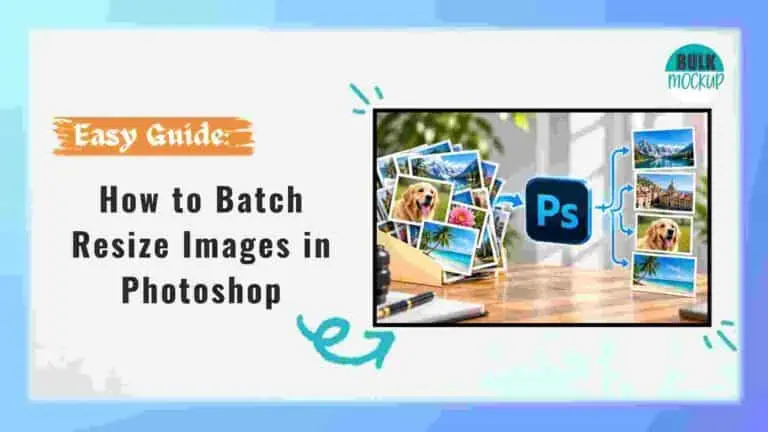
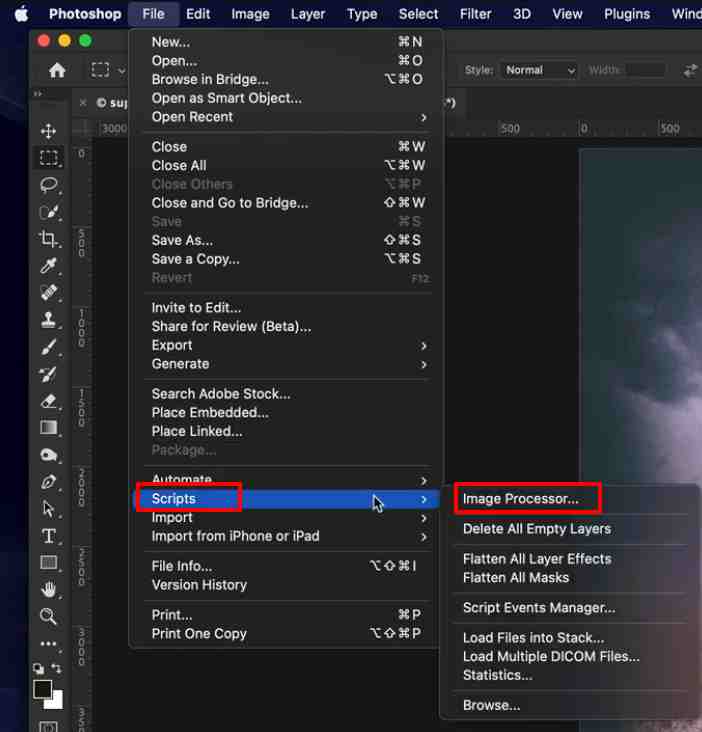
If you’re wondering how to batch resize images in Photoshop, you can use its built in Image Processor or automate customised adjustments with Actions and Batch.
The important part is knowing which method works for your files. Below, you’ll learn how to use both, whether you need to preserve image proportions, control dimensions, or customise exports.
Photoshop’s Image Processor lets you resize an entire folder of images without recording an Action. You can set maximum pixel dimensions, choose JPEG, PSD, or TIFF formats, adjust JPEG quality, and specify where to save the processed files.
The Resize to Fit option preserves each image’s aspect ratio. Your specified width and height act as maximum boundaries, so the final dimensions may vary.
Follow these steps to resize multiple images in Photoshop.
Create a folder on your computer and place all the images you want to resize inside it. You can include landscape, portrait, and square images with different dimensions.
Keep backup copies of the originals and prepare a separate folder for the resized versions. If your images are already open in Photoshop, you can process them directly without creating a source folder.
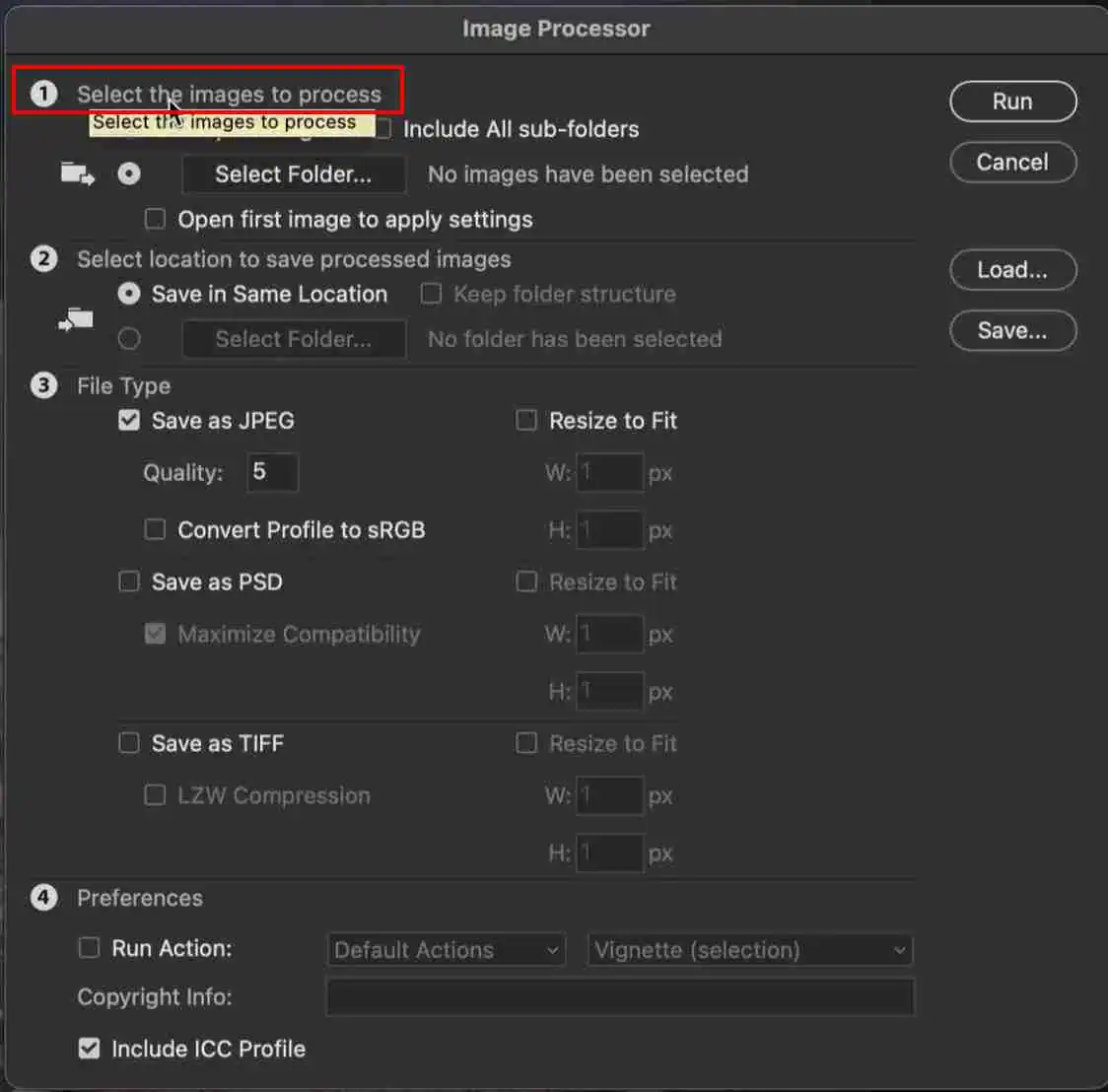

Photoshop automatically creates folders named JPEG, PSD, or TIFF according to your selected formats. Choosing multiple formats produces separate output versions, while Image Processor assigns unique filenames to avoid overwriting processed files.
Under File Type, configure your resize and export settings.
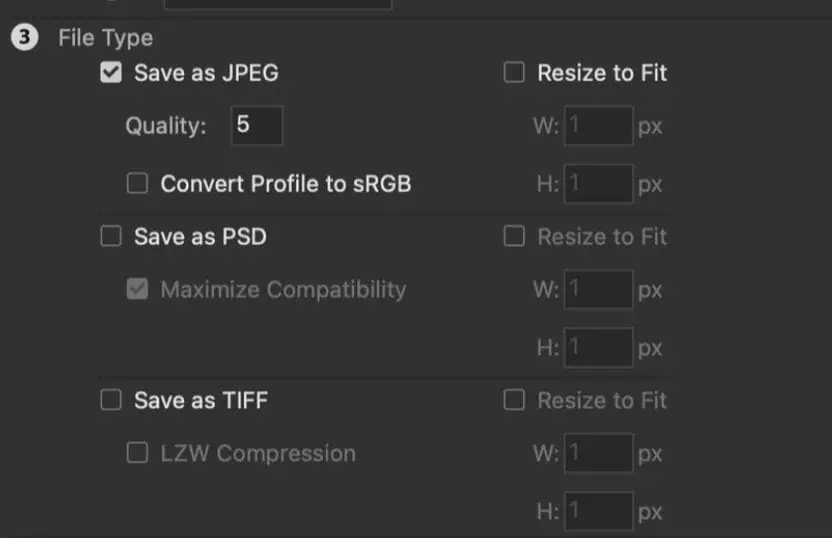
Photoshop maintains the original aspect ratio when resizing. The resulting dimensions fit within your specified boundaries rather than forcing every image to an identical width and height.
Note: The standard Image Processor supports JPEG, PSD, and TIFF output, not PNG. You will need a different export method for PNG files.
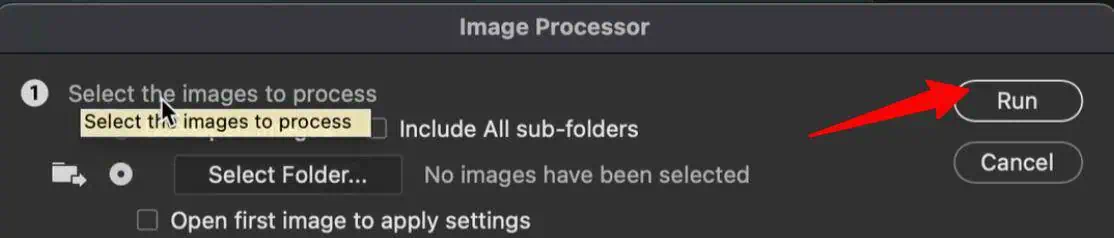
3. Once Photoshop finishes, open the destination folder.
4. Check the exported images for correct pixel dimensions, file formats, and visual quality.
5. Inspect landscape, portrait, and square images to confirm that their proportions remain intact.
Remember that Resize to Fit does not create identical dimensions for images with different aspect ratios. It resizes each image to fit within the maximum width and height you entered.
Photoshop Actions record editing commands that you can apply to multiple files using the Batch feature. This method works well when resizing also requires sharpening, canvas adjustments, or specific save settings.
Here’s how to use Photoshop batch resize using Actions.
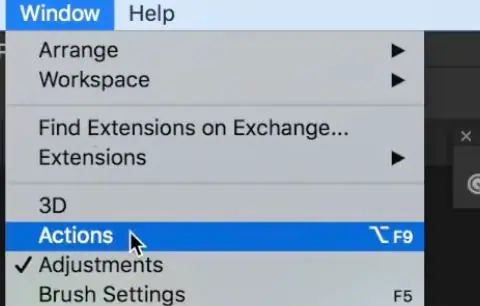
Open an image from your source folder in Photoshop. Navigate to Window > Actions and switch to the traditional Actions panel if necessary.
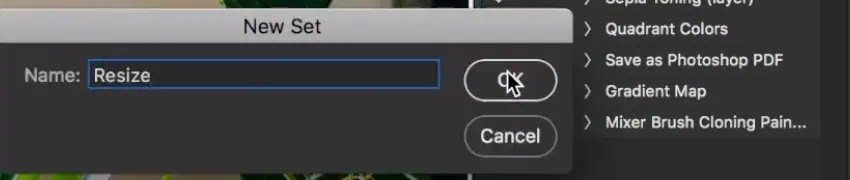
Click Create New Set to organise your Actions, if needed. Select Create New Action and enter a name, such as “Resize Product Images.”
Choose your Action Set and click Record.
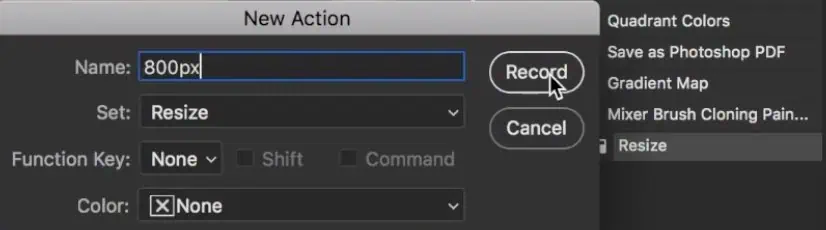
Photoshop will now record the supported editing commands you perform.
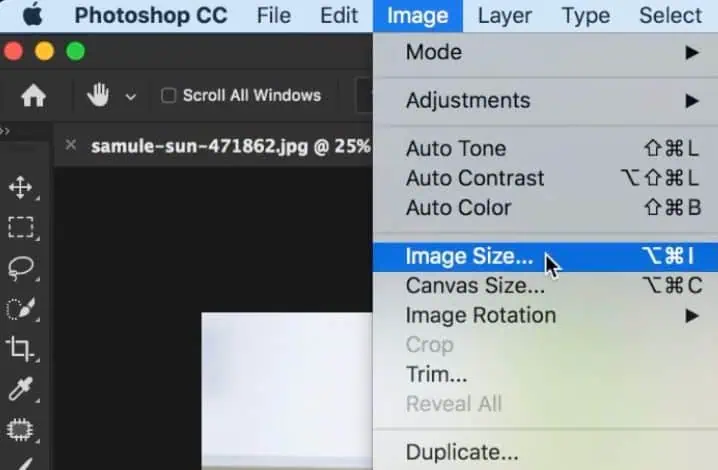
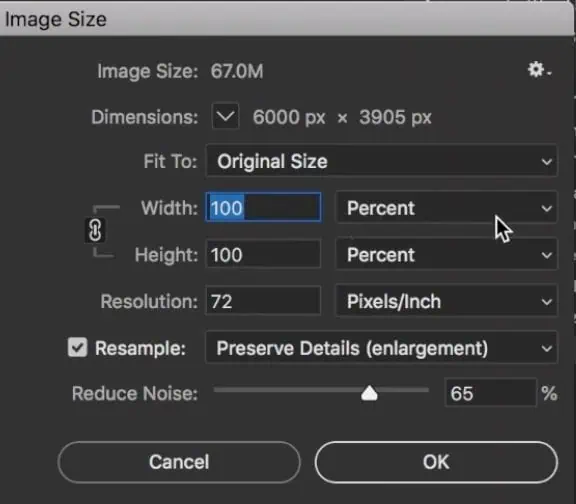
Go to Image > Image Size.
Navigate to File > Save As.
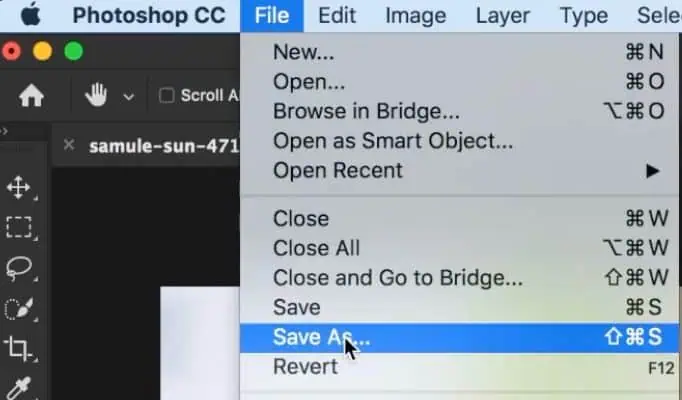
Select the required file format and configure its saving options. Save the image, then click Stop in the Actions panel.
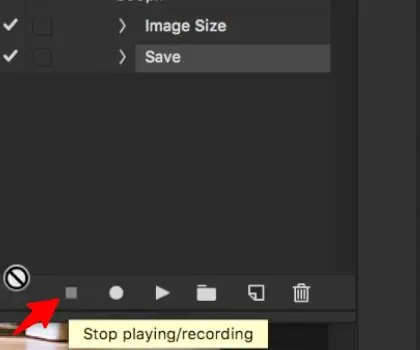
Test your Action on another image with different dimensions.
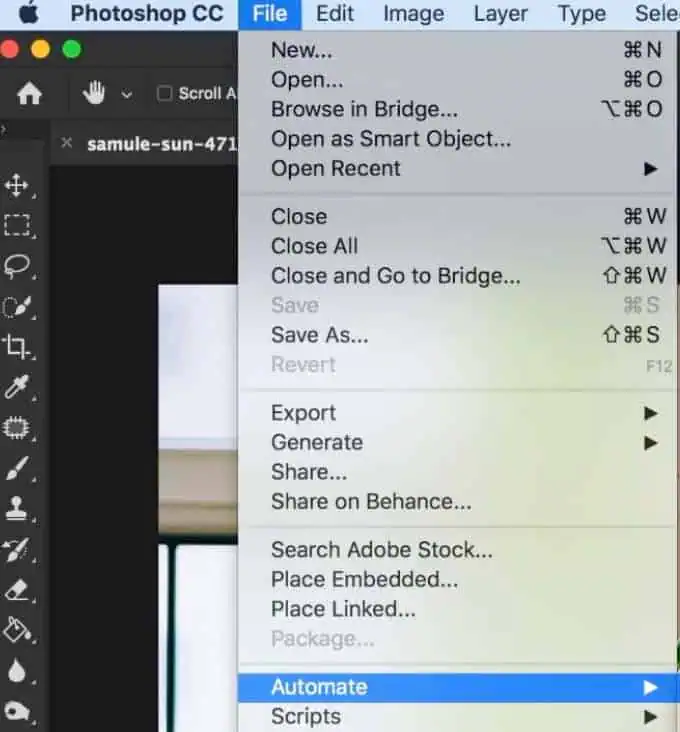
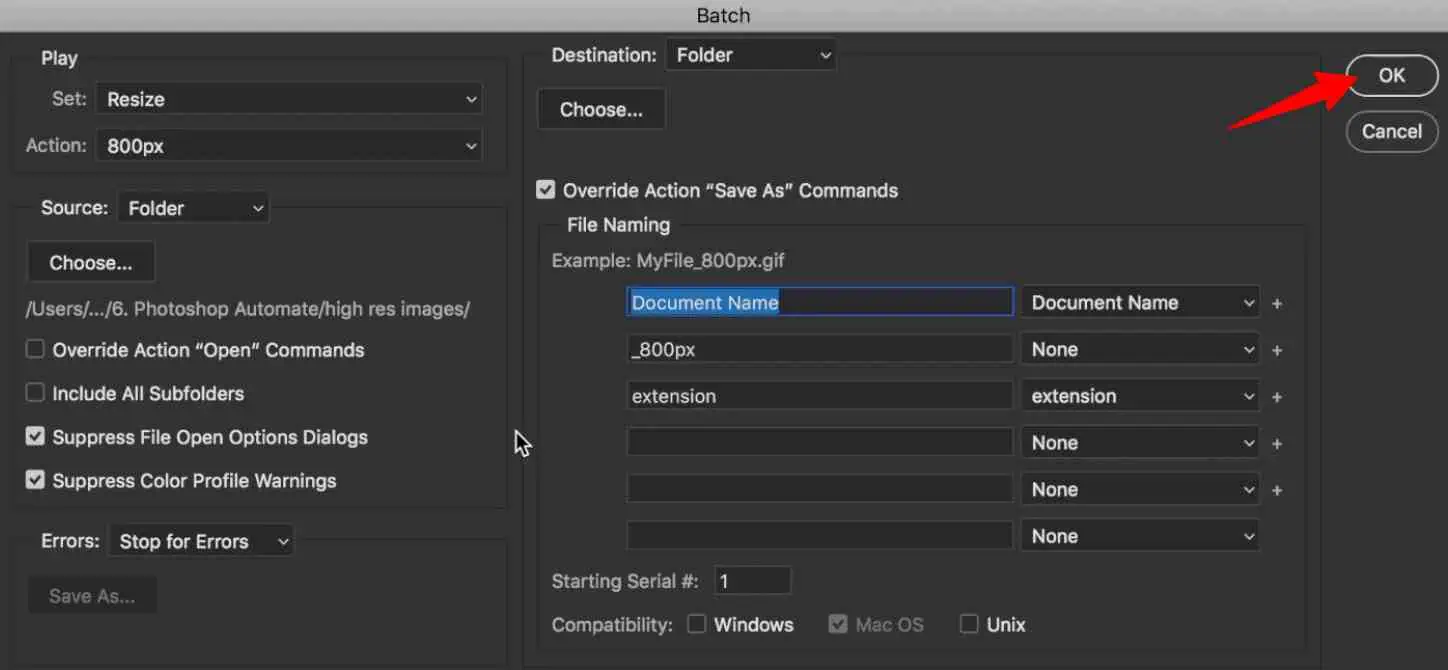
Navigate to File > Automate > Batch.
If you’re learning how to resize multiple images in Photoshop while maintaining image quality, pay attention to resampling, compression, and colour settings. Reducing pixel dimensions removes image information, but choosing suitable settings helps preserve sharpness and detail.
Unexpected image dimensions, missing files, and incorrect save settings can interrupt automated resizing. The table below covers common problems, their possible causes, and how to resolve them.
| Problem | Possible Cause | Recommended Solution |
| Images are not exactly 1000 × 1000 pixels | Resize to Fit maintains the original aspect ratio. | Use a fixed canvas with padding or apply controlled cropping. |
| Portrait images are cropped incorrectly | The recorded Action assumes specific proportions. | Test different orientations and use proportional fitting. |
| Images appear stretched | Width and height were changed independently. | Link both dimensions and use cropping or padding. |
| Some images look blurry | Small originals were enlarged or JPEG compression was excessive. | Avoid unnecessary enlargement and increase export quality. |
| PNG is unavailable in Image Processor | The standard tool does not support PNG output. | Record an Action with a compatible PNG saving method. |
| Photoshop processes the wrong image | A recorded Open command references a particular file. | Enable Override Action “Open” Commands. |
| Files are saved in the wrong folder | The recorded Save As path conflicts with the Batch destination. | Check Override Action “Save As” Commands and select the intended folder. |
| Batch processing pauses repeatedly | Opening dialogs or colour profile warnings require input. | Verify settings, then enable the appropriate suppression options. |
| Original files are overwritten | The saving operation targets existing source files. | Choose a separate destination and retain backups. |
Before processing a large collection, test the workflow on three or four images with different dimensions and orientations. Verify their sizes, formats, and save locations.
Both Image Processor and Actions with Batch automate repetitive image editing tasks. However, Image Processor requires less setup, while Actions provide greater control over resizing, additional adjustments, and saving operations.
| Requirement | Image Processor | Actions + Batch |
| Resize an entire folder | Yes | Yes |
| Requires recording an Action | No | Yes |
| Proportional resizing | Built in | Requires correct settings |
| Additional edits | Can run an existing Action | Records multiple editing steps |
| JPEG, PSD, TIFF output | Supported | Supported with saving steps |
| Custom PNG exports | Not a standard option | Possible with a compatible Action |
| Fixed square canvas with padding | Requires additional processing | Can automate padding |
| Ease of setup | Simpler | Requires more configuration |
Choose Image Processor for basic resizing with maximum dimensions and standard file formats. Use Actions with Batch when you need consistent canvas sizes, additional image adjustments, or customised exports.
Once your images are resized, you may still need to place each artwork design into different product mockups. Doing this manually becomes time consuming when your catalogue contains hundreds of designs.
Bulk Mockup is a Photoshop plugin that handles these tasks using compatible Smart Object templates. It automatically replaces artwork, adjusts its size and position, and exports the finished mockups. You can process multiple designs without opening and editing each template individually.
If creating product mockups is a regular part of your work, explore Bulk Mockup to automate the process.
A successful batch resize starts with knowing how your finished images should look. If you need smaller versions that retain their original proportions, Photoshop’s Image Processor can handle the task. For precise canvas dimensions, additional adjustments, or customised exports, Actions with Batch provides further control.
Before working through an entire folder, check that your chosen settings produce the correct dimensions, format, and visual quality. Testing a few files first can save you from having to repeat the process across hundreds of images.
Yes. Image Processor can resize portrait, landscape, and square images in one operation. Since Photoshop preserves their original aspect ratios, the resulting dimensions may vary within your specified width and height limits.
Yes, with appropriate controls. Enlarging smaller photos can reduce sharpness. Separate undersized files beforehand or use conditional Actions or scripts. Test your workflow to confirm it does not upscale smaller images.
You can run separate batches using different settings to create 1200 pixel and 600 pixel versions of the same photographs. Save each batch in a distinct folder to keep the outputs organised.
Yes. Image Processor works directly with files stored in a selected folder. Photoshop automatically opens, processes, and saves each image internally, eliminating the need to manually open individual files.
Photoshop has no universal batch size limit. Processing capacity depends on available memory, storage, file dimensions, complexity, and editing operations. For particularly large collections, dividing files into smaller batches may improve reliability.