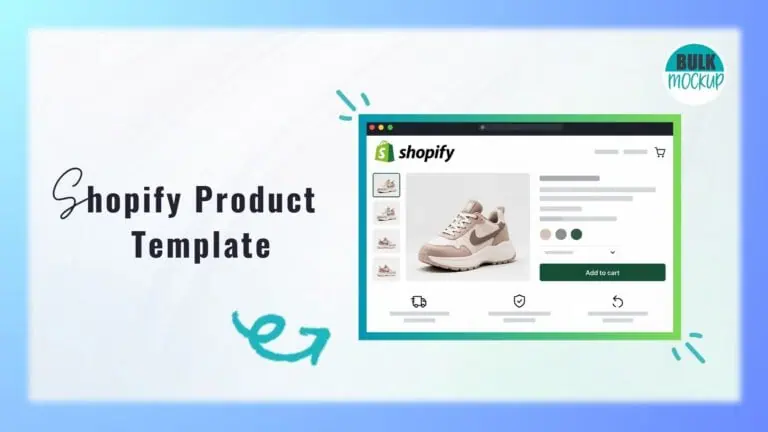


Your Shopify store sells T-shirts, mugs and framed posters, but why should every product page look the same? A shopper choosing clothing wants a size guide, while someone buying wall art may prefer frame options, exact dimensions and photos showing how it looks in a room.
When every item follows the same layout, important details can get lost. A Shopify product template gives you greater control over how different products appear, without having to redesign individual pages.
The best part? You can create and customise layouts through Shopify’s theme editor without touching code, as long as your theme supports these features.
This guide walks you through creating, personalising and assigning templates, adding unique details with metafields, and fixing common issues that may arise.
A Shopify product template is a reusable page layout within your Shopify theme that controls how product information appears to customers. It consists of sections and blocks that determine the placement and presentation of different elements on a product page.
Depending on your theme and installed apps, a template can include:
An important distinction is that the template controls the page design, not the underlying product data. Shopify stores details such as titles, prices and inventory in individual product records and displays the relevant information through the template.
You can create alternate product templates directly in Shopify’s theme editor, provided your theme supports them. Creating a new layout does not automatically assign it to any product.
Follow these 5 steps to create and apply your Shopify custom product template.
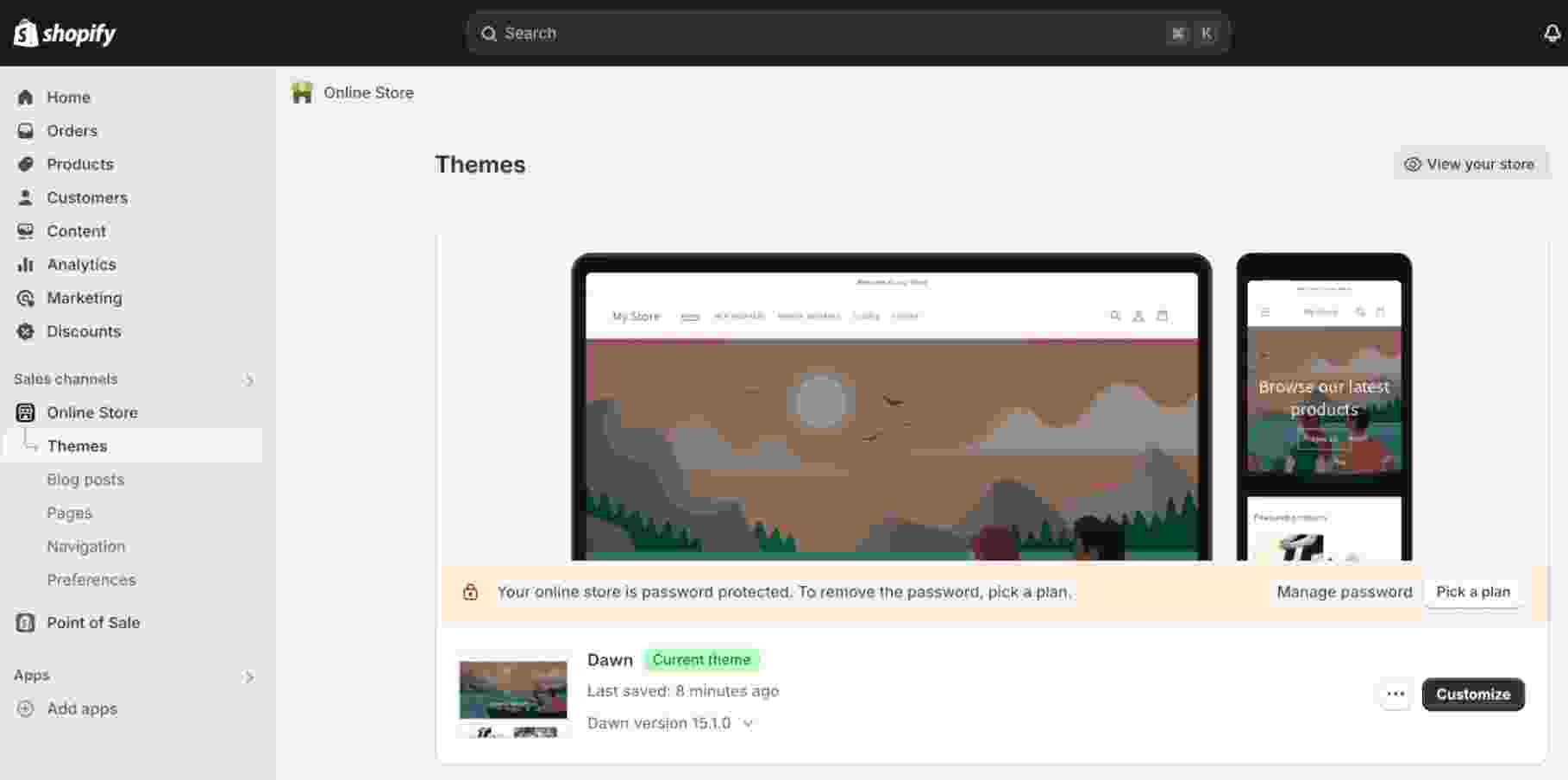
Once the editor opens, follow these instructions:
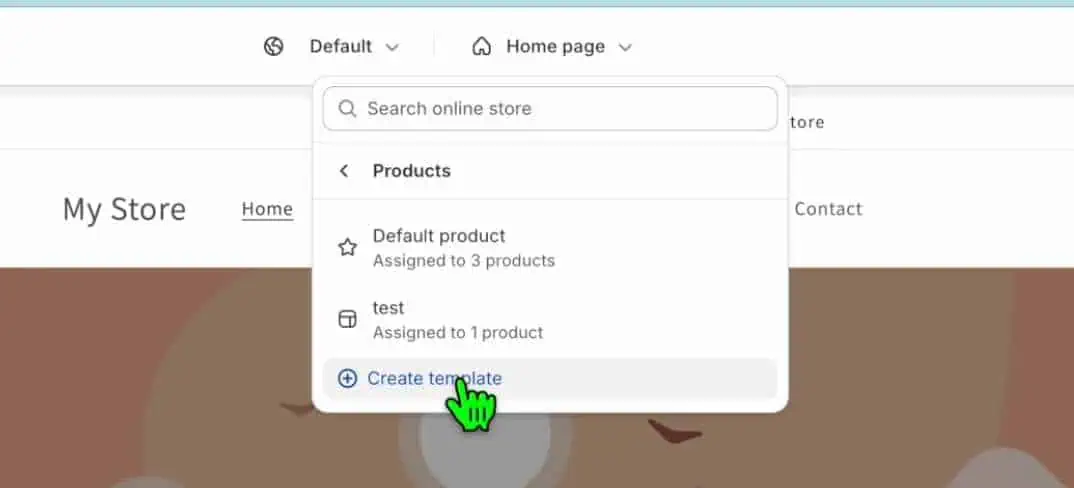
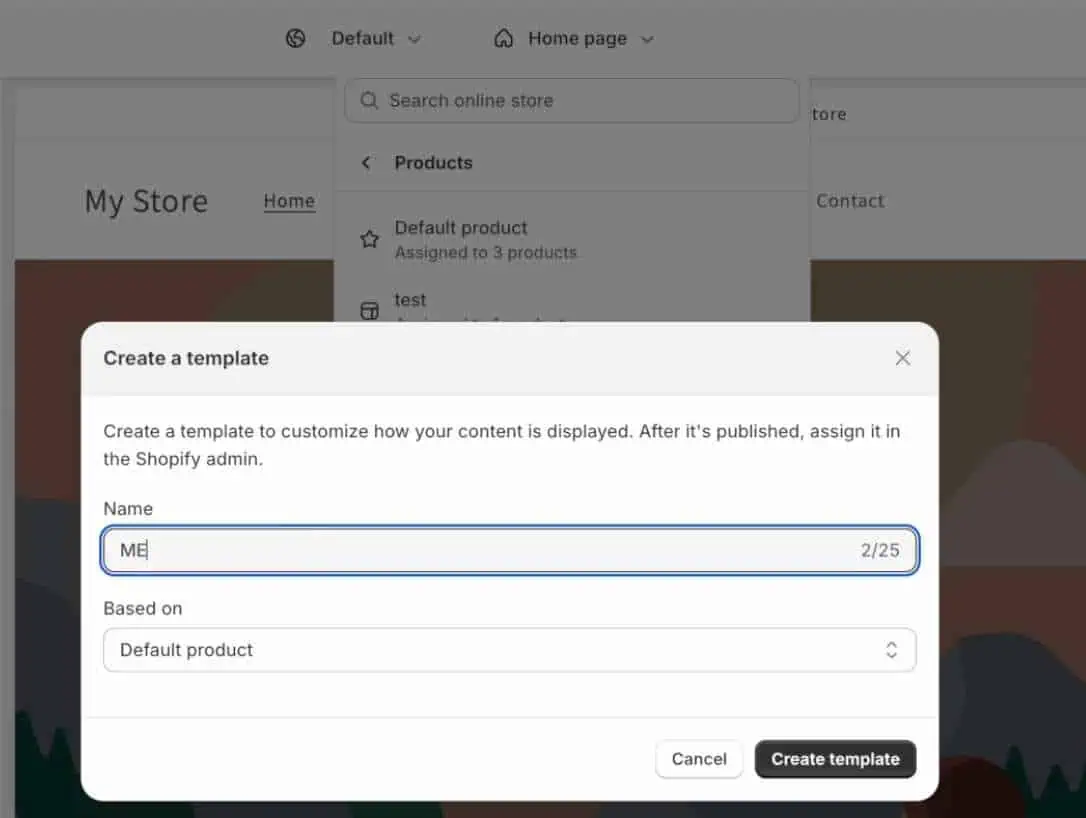
3. Enter a descriptive template name, such as apparel or posters.
4. Under Based on, choose an existing product template to use as your starting point.
5. Click Create template.
Use the editor sidebar to add, remove, hide or rearrange supported sections and blocks.
For an apparel template, you could configure the following elements:
Click Save when the layout is ready.
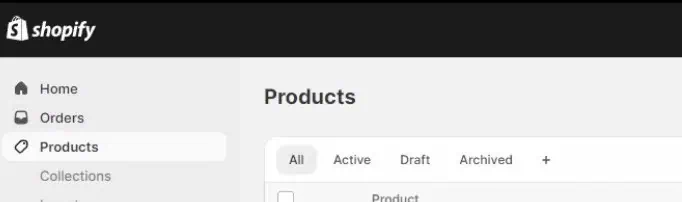
To apply your new template: Return to Shopify Admin → Products.
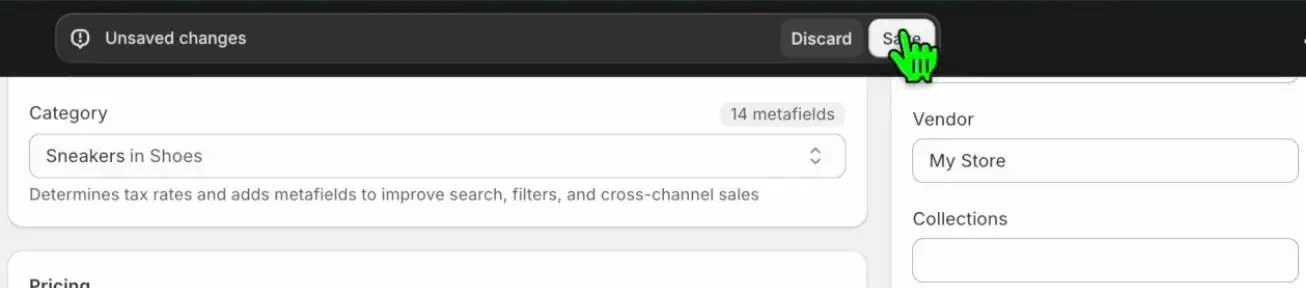
After assigning your template, open the product page and check its appearance and functionality.
You can adapt a Shopify product page template to suit what customers need to see before purchasing. Focus on the images, purchasing options and supporting details most relevant to each product category.
Clear product visuals help customers examine the design, appearance and available options. Choose images based on what buyers need to assess.
| Product category | Recommended visuals |
| Apparel | Front and back views, fabric closeups and lifestyle photos |
| Wall art | Artwork previews, framed versions and room mockups |
| Mugs | Front, side and handle views, plus closeups of printed artwork |
| Personalised products | Examples of custom names, text, colours or designs |
Arrange purchasing details so customers can review the product and select their preferred options without unnecessary scrolling.
Consider these settings when customising the layout:
Some Shopify themes offer dropdown menus, buttons or colour swatches for variants. The available styles depend on your theme and how you configure the product options.
Test products with multiple variants to ensure that selecting an option updates the correct price, availability and purchase selection.
Not every product needs the same supporting information. You can use collapsible rows, text blocks or additional sections to organise category specific details without overcrowding the page.
For example:
Keep general information that applies to every product using a template in static content blocks. For details that vary between individual items, use product fields or connected metafields.
Suppose several products share the same layout but require different fabric details or care instructions. Shopify metafields let you store this information separately for each product without creating additional templates.
With Shopify product template metafields, you can display details such as dimensions, materials and downloadable guides through dynamic sources in compatible themes.
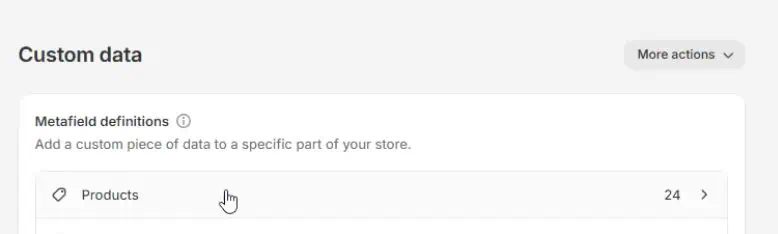
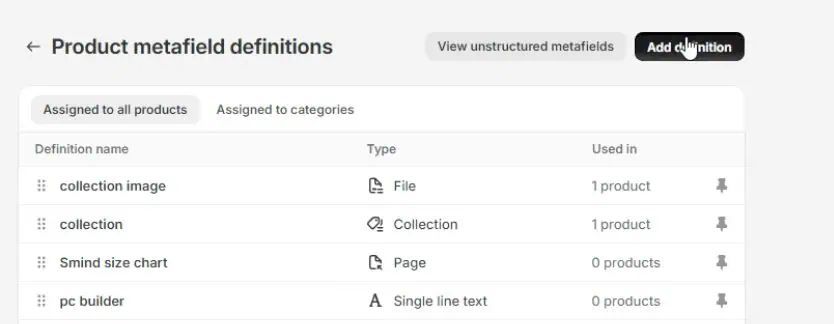
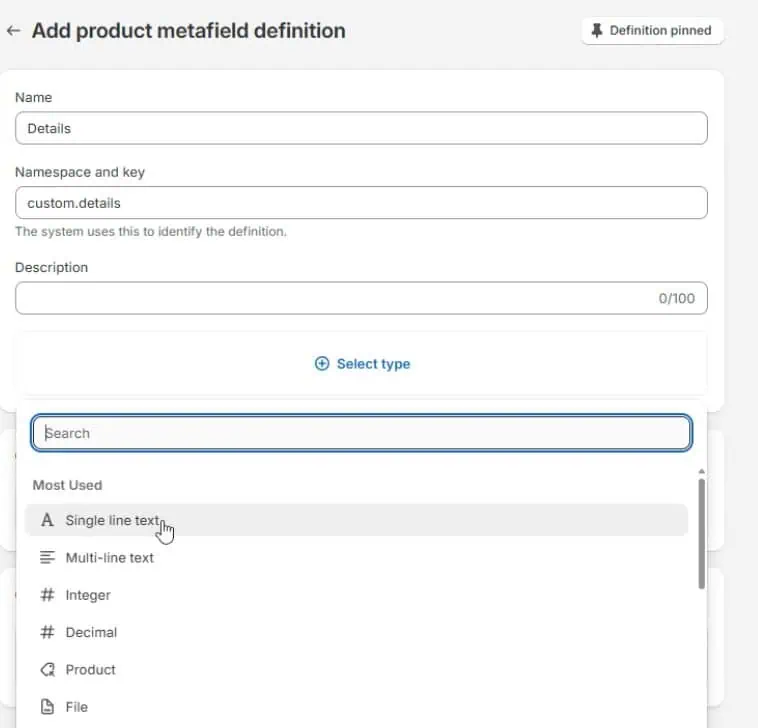
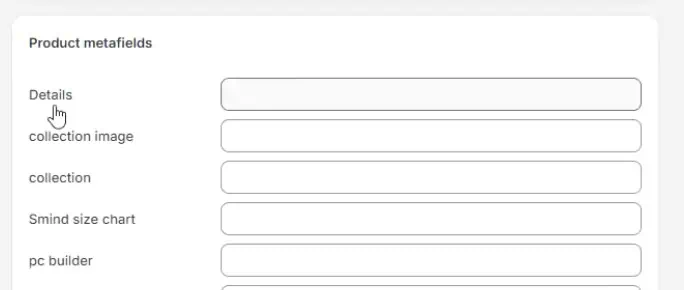
The available dynamic sources depend on your theme, block settings and metafield content type.
For larger catalogues, Shopify’s bulk editor lets you assign an existing template to multiple products without editing each listing separately.
Follow these steps:
If your Shopify product template is not showing or working correctly, the issue may involve template assignments, theme availability, shared content or unsupported settings.
| Problem | Possible Cause | Recommended Solution |
| New template missing from dropdown | Template exists only in an unpublished theme | Check whether it is available in the published theme |
| Product displays the old layout | Incorrect or missing template assignment | Verify the product’s Theme template setting |
| Editing one product page changes others | Multiple products share static template content | Use metafields for unique product information |
| Preview differs from live page | Different theme or preview product selected | Check the published theme and saved assignment |
| Metafield content appears blank | Missing values or incompatible dynamic source | Verify the metafield definition, values and connection |
| Sections are missing or malfunctioning | Theme limitations or errors in custom code | Check supported sections and review recent code changes |
Creating a Shopify product template is one part of organising your store. If you sell print on demand products, you also need to prepare mockup images, add product details and publish listings for every new design. Handling these tasks individually can take considerable time as your catalogue grows.
Bulk Mockup for Shopify helps you manage mockup generation and product creation. You can upload your existing Smart Object PSD templates, configure reusable product details such as titles, descriptions, variants and pricing, and add multiple artwork designs. Bulk Mockup then generates the corresponding product images and prepares complete Shopify listings without requiring Photoshop or CSV imports.
You can preview the finished products before publishing them directly to your store, making it easier to add new designs across categories such as apparel, mugs and wall art.
Want to simplify your product creation process? Book a demo to see how Bulk Mockup works with your Shopify store.
A well organised Shopify store makes it easier for customers to find the information they need and choose the right products. With a Shopify product template, you can maintain a consistent design while accommodating the needs of different product categories.
Start with your theme’s default layout and introduce custom templates only when necessary. Use metafields for individual product details, and check each layout before applying it across your catalogue.
By combining clear product pages with consistent, high quality imagery, you can create a professional storefront that presents your products effectively and makes shopping easier for customers.
Yes. Shopify allows you to create alternate product templates for different layouts and shopping requirements. You can assign these templates to specific products and reuse them across similar items to maintain a consistent storefront design.
Yes. Shopify’s theme editor lets you create and customise templates without coding, provided your theme supports the required sections and settings. More advanced functionality may require custom Liquid code or compatible Shopify apps.
This happens when several products use the same template. Changes to static elements, such as headings or promotional text, affect every assigned product. Use product fields or connected metafields to display individual information instead.
The template may exist only in an unpublished theme. Shopify’s product admin displays templates available in the published theme. Check whether your new template exists in the live theme before investigating other possible issues.
Yes. One template can support multiple products without combining their individual details. Each item retains its own title, price, images and inventory, while connected metafields can display additional information specific to that product.