How to batch Replace Multiple Smart Objects in Photoshop featured image

How to Batch Replace Smart Object In Photoshop For Mockups: A Step-by-Step Guide

Save hours of work by automating smart object replacement in Photoshop mockups. Learn 8 different techniques using the Bulk Mockup plugin with step-by-step inst...
Vikash Kr Prajapati
November 15, 2025
read

This is your
Marketing text

If you need to update many Smart Object layers at once, Photoshop’s default tools won’t save you much time. You can batch replace multiple Smart Objects in Photoshop using an automation plugin, since there’s no built-in one-click batch feature. 

Manually replacing each Smart Object is time-consuming. Don’t worry. This guide will show you a faster solution. We’ll use the Bulk Mockup Photoshop plugin to automatically replace Smart Object content across your mockup files in just a few clicks, saving you hours of work.

Key Takeaways
  • Batch replacing Smart Objects manually in Photoshop is painfully slow.
    Photoshop does not offer a built in bulk replace tool. Doing “Replace Contents” one layer at a time kills your workflow, especially with large batches or multi layer templates.
  • Bulk Mockup automates the entire process and handles complex templates.
    The plugin reads your folder structure, detects how many Smart Objects exist, and replaces each one automatically. It works with single layer templates, multi layer templates, nested Smart Objects, animations, videos, and even confined regions using guides.
  • Proper folder setup is the backbone of every use case.
    The three folder system (Template, Design, Export) keeps everything organized and tells the plugin exactly what goes where. Adding subfolders inside the design folder lets you automate front/back shirts, multi panel designs, or multi layer mockups without extra steps.
  • Resize, alignment, and naming options give you full control.
    The plugin supports multiple resize methods, anchor alignments, guide based placement, and Smart Object naming rules. This prevents stretched art, wrong placements, or broken layer links, even when handling different aspect ratios or unusual templates.
  • For high volume mockup production, this tool is the only practical solution.
    Actions and scripts break easily. Photoshop alone cannot batch replace. Bulk Mockup consistently generates hundreds or thousands of mockups faster, with fewer errors, and works across all POD product categories. If you want the time savings and predictable results the article describes, our Bulk Mockup plugin is the tool that actually gets you there.

Why settle for slow when you can automate?

Other tools: 5-15 minutes per mockup
Bulk Mockup: 100 mockups in 40 seconds

Stop wasting time on manual mockup creation. Join the POD sellers who’ve already made the switch.

Make the switch today
7-day money back guarantee • No setup fees

Batch Replace Smart Object Layers Using Bulk Mockup Plugin in Photoshop (8 Use Cases)

Before diving into the step-by-step tutorial, make sure you have your files organized. For all use cases, you’ll need to follow this basic folder structure to work with the Bulk Mockup plugin:

  • Template folder: contains your Photoshop mockup template(s) (PSD files).
  • Design folder: contains all the new design files or images you want to insert into the Smart Objects.
  • Export folder: an initially empty folder where the plugin will save the output mockup files.

Note: If you’re not familiar with replacing Smart Object contents manually, Photoshop’s fastest method is by right-clicking on a Smart Object layer and choosing Replace Contents. 

However, doing that for every design and every layer quickly becomes impractical. The Bulk Mockup plugin automates this entire process without any scripting or repetitive actions.

Let’s walk through how to use Bulk Mockup in eight common scenarios – from simple product mockups to complex animated templates. Follow these use cases to batch-replace Smart Object layers step by step.

Use Case 1: Basic Rug Design Replacement

This use case will explain the fastest way to replace the smart object layer with rug mockups.

Step 1: Configure Bulk Mockup Plugin.

Open the Bulk Mockup plugin in Photoshop.
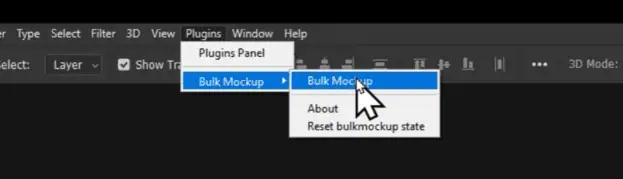
Open the Bulk Mockup plugin in Photoshop

You have already created three main fields: PSD template folder, Design file folder, and Export folder.
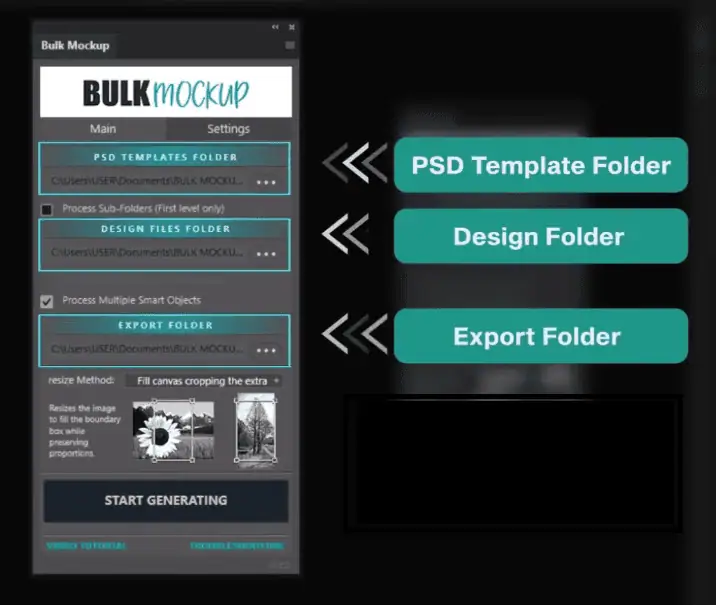
connect UI with three folders

Click each field and select the corresponding folders you created.

Step 2: Configure Export Settings

Click on the Settings option in the plugin. Go to the export format section.
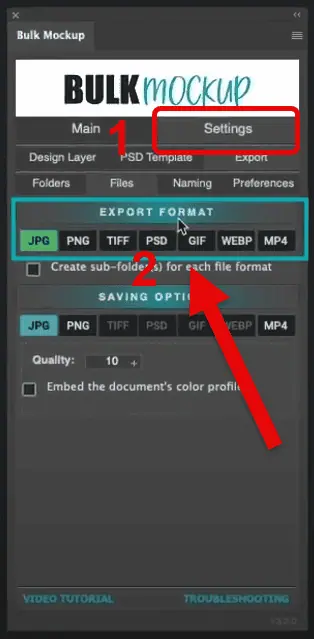
Choose your preferred format export format

Choose your preferred format from: JPG, PNG, TIFF, PSD, GIF, WebP, or MP4. For this example, select the JPG format

Step 3: Generate Your Mockups

Return to the main plugin window and click the “Start Generating” button.
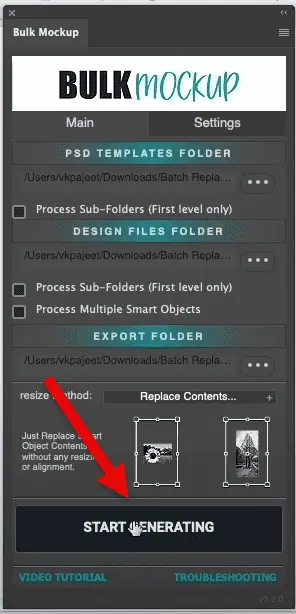
Start Generating mockups automatically

The plugin will automatically replace the rug smart object with each design. Wait for the process to complete. 
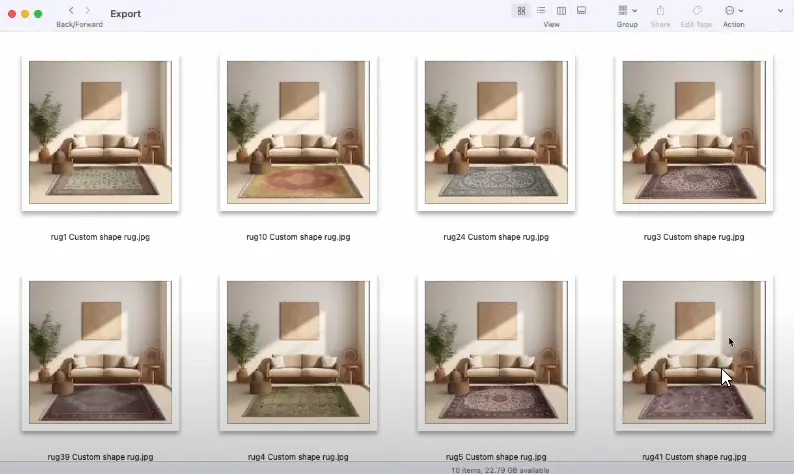
Check exported rug mockups

Check your export folder for the final files.

Use Case 2: Handling Different Aspect Ratios in Wall Art Frame Mockups

This use case explains how to handle different aspect ratios in wall art mockups.

Step 1: Choose the Correct Resizing Method.

First, understand the challenge in this use case. The aspect ratios of the wall art may not match the PSD template frame. 
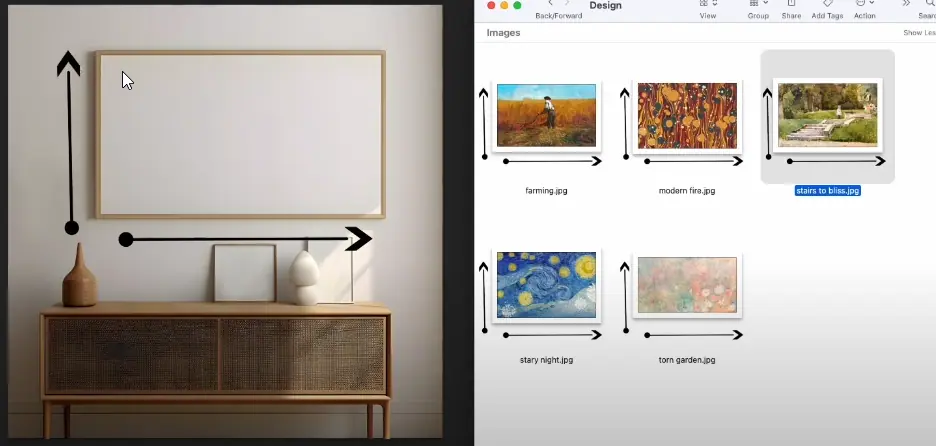
Different aspect ratios of wall art

Bulk Mockup offers seven different resize methods. Each method fits your wall art design on the PSD template as per the description.
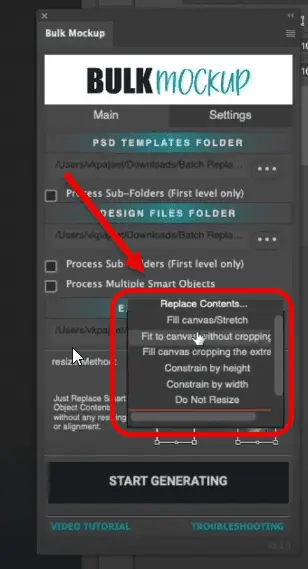
seven resize methods in Bulk Mockup

You can choose between seven different resize methods according to your wall art designs.

  • For stretching artwork: Select “Fill Canvas Stretch”
  • For maintaining the aspect ratio with cropping: Select “Fit Canvas Cropping Extra”

Step 2: Prepare Your Folders.

Create three folders as before, placing your wall art frame mockup templates in the template folder. Add all your artwork files to the design folder, and keep the export folder empty.

Step 3: Input all Three Folder Locations.

Choose your template, design files, and export folders in the plugin’s respective locations.

Step 4: Configure Export Organization.

Go to Settings > Export folder. You will find three different options for exported files.
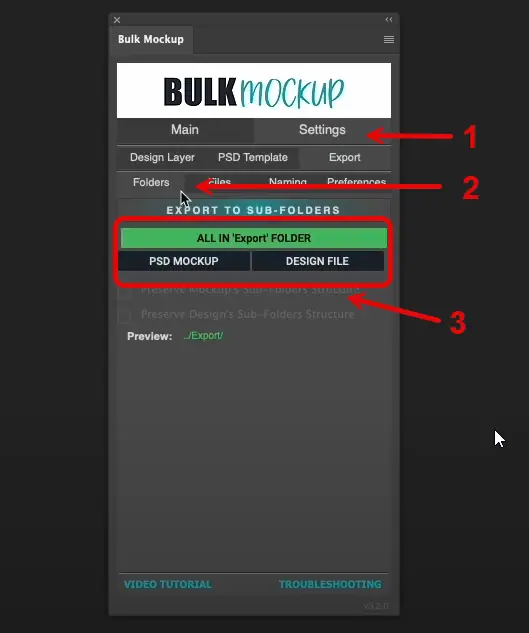
choose how to export mockups in folders and subfolders

Choose how you want your files organized:

  • Option 1: “All in export folder” – Places all files in one location
  • Option 2: “PSD mockup subfolders” – This creates separate subfolders for each PSD template (each folder will contain all mockups created using one template and all wall art designs)
  • Option 3: “Design file subfolders” – Creates separate subfolders for each design (each folder will contain all mockups created using all PSD templates and one wall art design)

Step 5: Generate Your Mockups.

Return to the main plugin window and click “Start Generating”.

The plugin will create subfolders based on your selection. Each design will be properly fitted to the wall art PSD templates. Learn how to size printable wall art and use this process to batch-produce mockups.

Use Case 3: T-Shirt Design Placement with Different Orientations

This use case explains custom design alignment and positioning with t-shirt mockups.
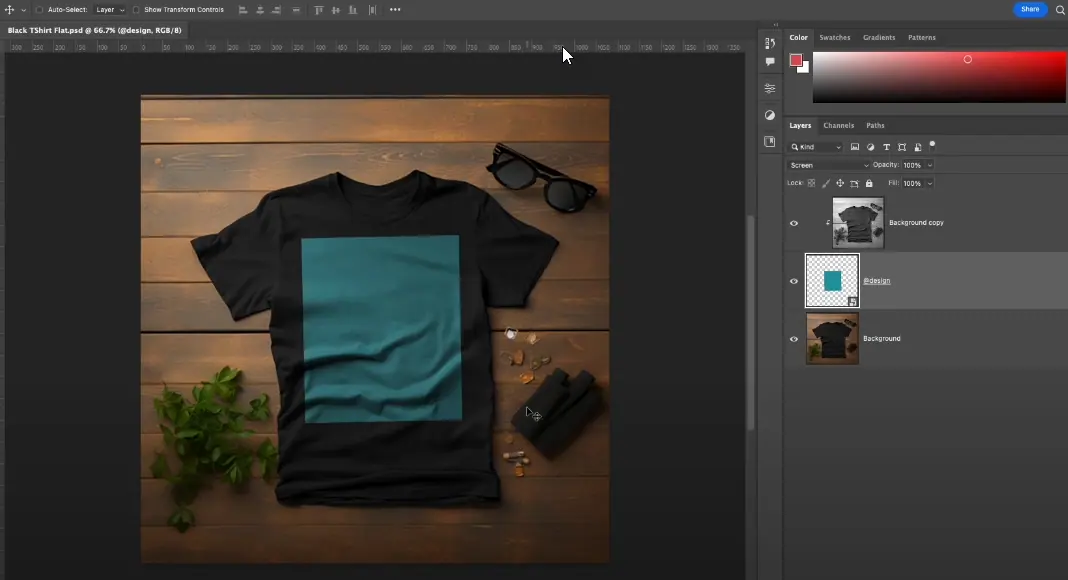
tshirt mockup PSD template

Step 1: Understand Your Design Requirements.

You may encounter t-shirt designs of the following conventional shapes.
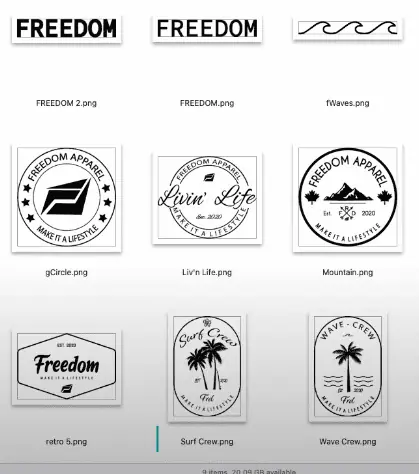
  • Landscape designs
  • Circular designs
  • Portrait designs
tshirt designs in different shapes

Our goal is to place each design correctly on the t-shirt’s print area. For instance, landscape designs should align with the top rather than the center. 
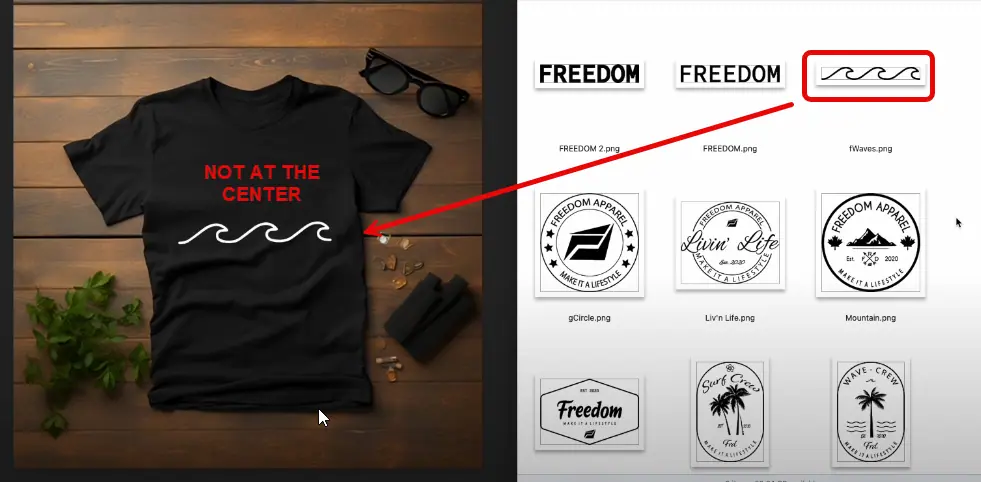
tshirt mockup design use case

To explain this, we will use a landscape design.

Step 2: Prepare Your Folder Structure.

Create the three standard folders in the same way you have done before.

Step 3: Configure Design Alignment.

This step makes sure our design goes in the right place in the t-shirt PSD templates.

Navigate to Settings > Design Layer and locate the “Align to Canvas” option. Select from nine anchor points.
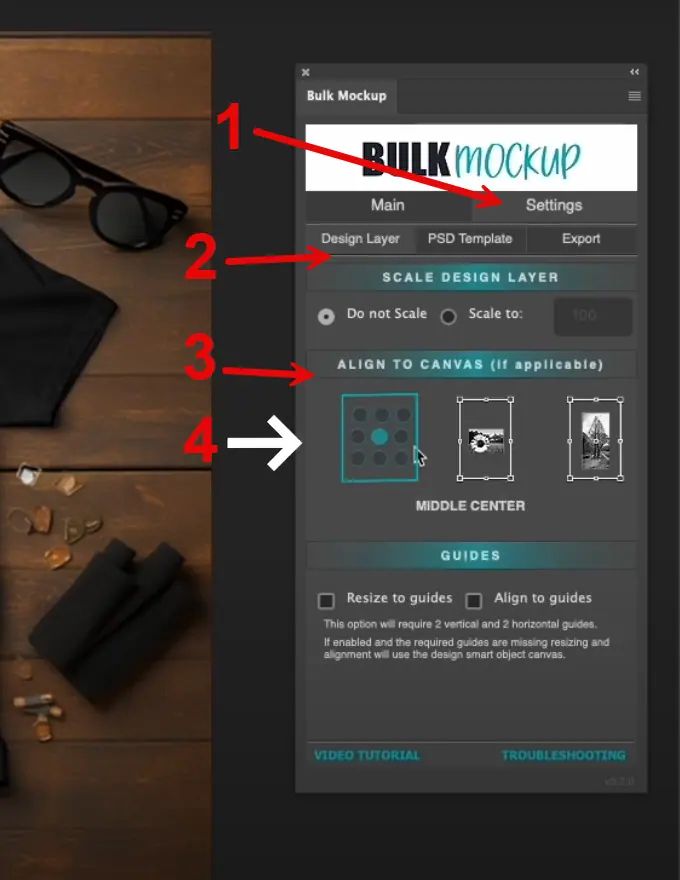
Configure Design Alignment

For this case, choose the top alignment point to ensure designs start from the top of the print area.
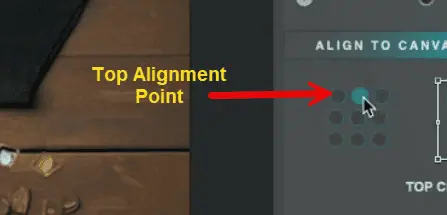
top alignment point for landscape tshirt design

Step 4: Configure Resize Settings

Select “Fit to Canvas without cropping” as your resize method. This ensures that designs maintain their proper proportions.
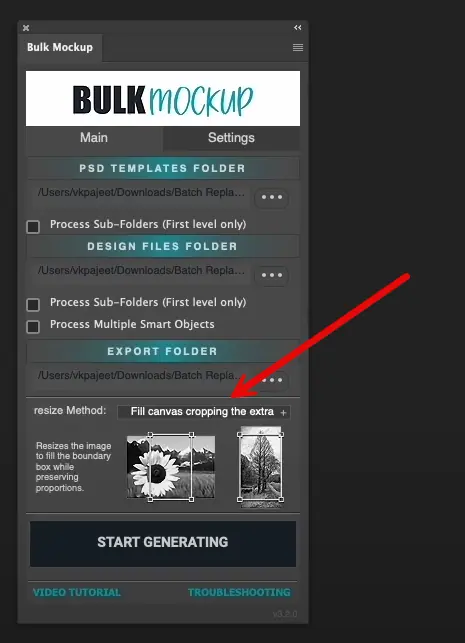
Configure Resize Settings

Step 5: Set up File Naming (Optional).

Go to Settings > Export. Use the naming parameters to set up your preferred file naming convention. This helps organize your final files systematically.

Step 6: Generate Your Mockups.

Return to the main window and click “Start Generating”.

The plugin will automatically generate t-shirt mockups by placing each design as per the settings made.

  • Landscape designs will align with the top
  • Circular designs will be properly centered
  • Portrait designs will maintain their orientation

Use Case 4: Confined Region Design Placement (Embroidery)

This use case will explain how to place an embroidery design in the confined space of a t-shirt template.

embroidery design tshirt PSD template

Step 1: Set Up Your Template Guides.

Open your t-shirt template with the embroidery region. Double-click on the smart object icon to open it in a new Photoshop window.
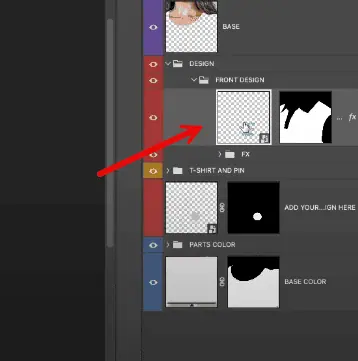
Set Up Your Template Guides

Add four guides to define your confined region:
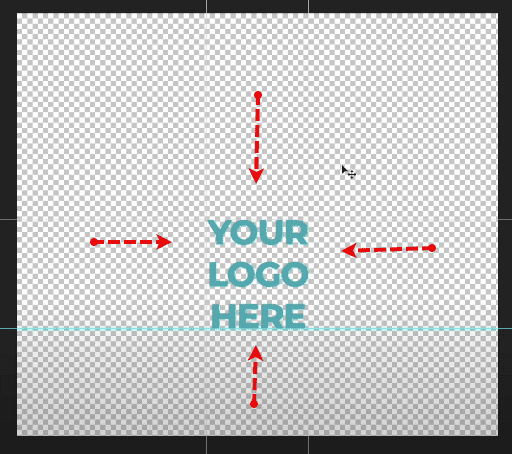
  • Place the first guide at the top of the embroidery area
  • Place the second guide at the bottom
  • Place the third guide on the left side
  • Place the fourth guide on the right side
Add four guides to define your confined region

These guides will create the intersection where designs will be placed.

Step 2: Configure Guide Settings.

Open the Bulk Mockup plugin and go to Settings. 

Enable two crucial options:
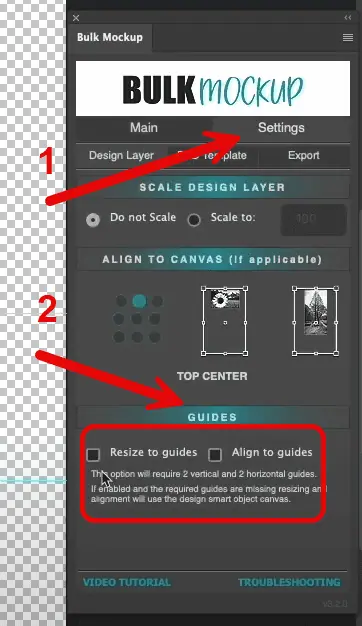
  • Check “Resize to guides”
  • Check “Align to guides”
Check "Resize to guides"
Check "Align to guides"

Step 3: Prepare Your Folders.

Create the standard three folders by following the same process.

  • Place your embroidery template in the template folder
  • Add all design files to the design folder
  • Keep the export folder empty

Step 4: Set Up the Plugin.

Input all three folder locations in the plugin. Double-check that both guide options are still enabled. Ensure your window settings are properly configured

Step 5: Generate Confined Embroidery Mockup Designs.

Click “Start Generating” and watch as each design is done automatically.

Generate mockups in batches faster than the embroidery mockup generators available online.

Use Case 5: Animated Tumbler Mockup with Nested Smart Object Layers.

This use case is a bit complex than the previous ones. I will explain it using a tumbler mockup template. You will see how this process can generate tumbler videos in bulk.
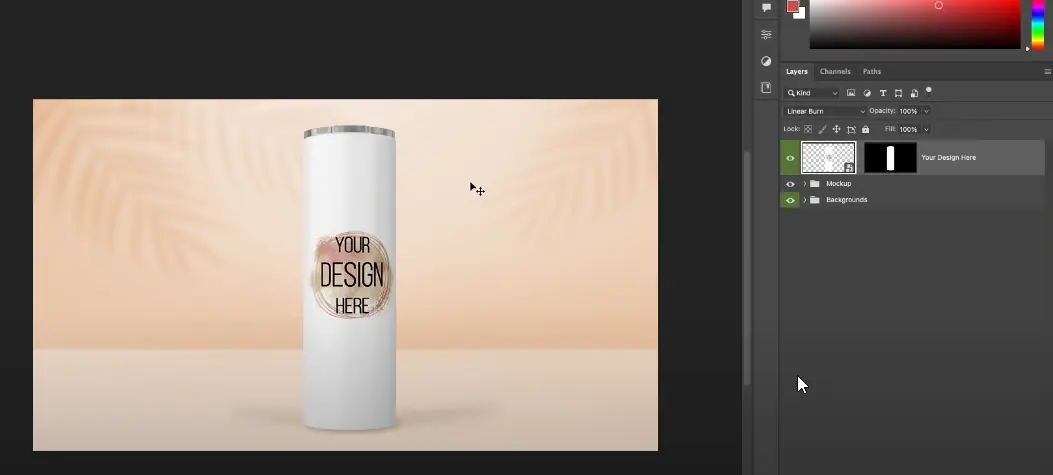
tumbler mockup PSD template

Step 1: Prepare Your Animated Tumbler Mockup Template.

Open your tumbler mockup template in Photoshop.  Go to Window > Timeline.

Open your tumbler mockup template on Photoshop

Verify the animation by clicking play. Note that this template has nested smart objects:
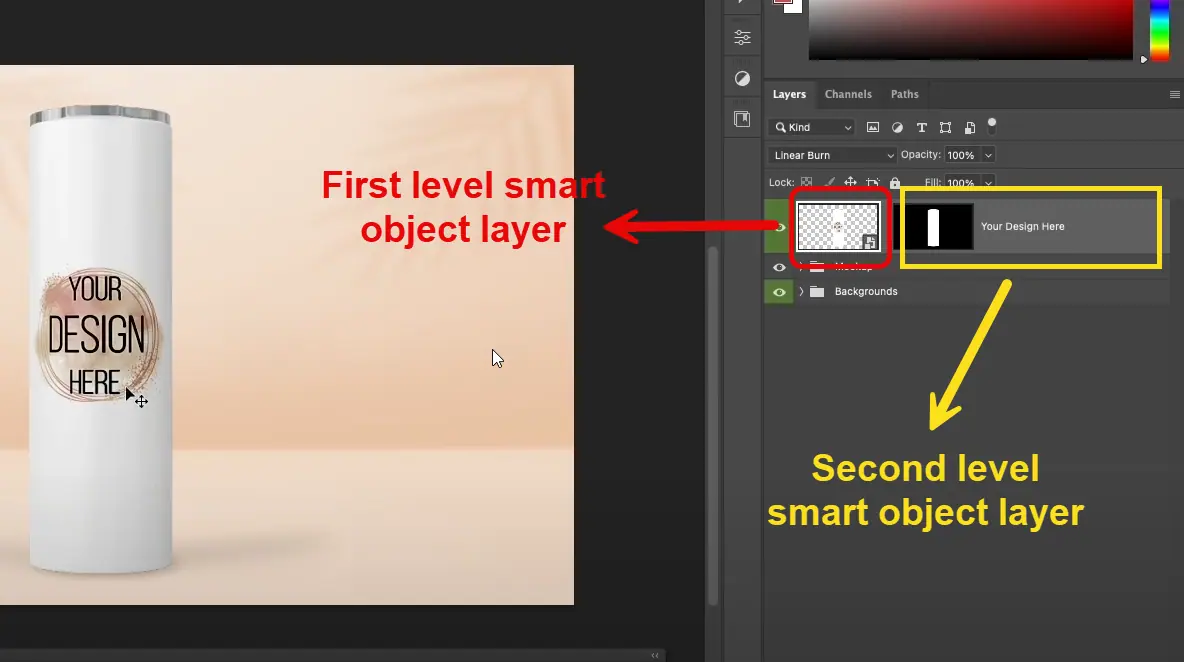
  • First-level smart object layer
  • Second-level smart object layer (“Your Design Here”)
Nested smart object layer

Step 2: Configure Smart Object Naming

Double-click the first smart object layer and rename it to “@design”. Next, open this layer and find the nested smart object and rename it “@nested”. Save the changes for both layers.

Step 3: Set Up Three Folders.

Create your three standard folders. Place the animated tumbler template in the template folder. Add all design files to the design folder. Keep the export folder empty.

Input all three folder locations by following the same process.

Step 4: Configure Export Settings.

Open the Bulk Mockup plugin. Go to Settings > Export. Select MP4 as your export format.

Configure Export Settings

This ensures your animations are preserved in the MP4 format.

Step 5: Generate Animated Tumbler Mockups.

Return to the main plugin window and click “Start Generating”.

The plugin will:

  • Handle both layers of smart objects
  • Maintain the animation
  • Export as MP4 files

Even advanced Etsy sellers use this simple process to generate such mockup videos in bulk in minutes.

Looking for the fastest mockup solution?

While most tools focus on templates, we focus on speed. See how bulk automation changes everything.

See the speed difference

Use Case 6: Pattern Fill Effect in Smart Object Layer

I will use a nursery kid’s room template to explain the pattern fill effect.
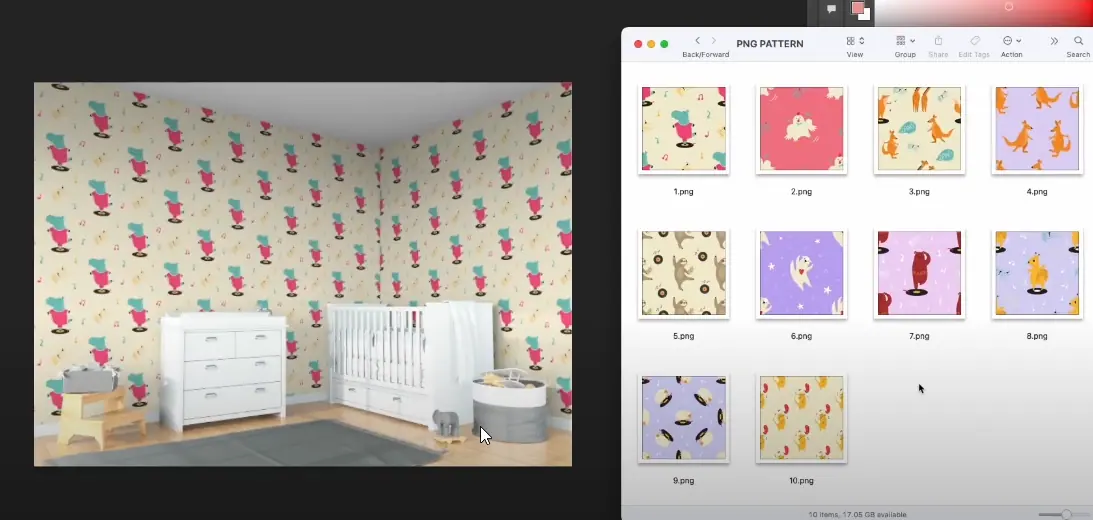
nursery kid's room PSD template

Step 1: Prepare Your Pattern Template.

Open your nursery template and locate the smart object layer with the current pattern. Follow the same nested template concept here.

Rename this layer to “@design”. 

Rename this layer to "@design"

Delete the existing pattern fill layer.
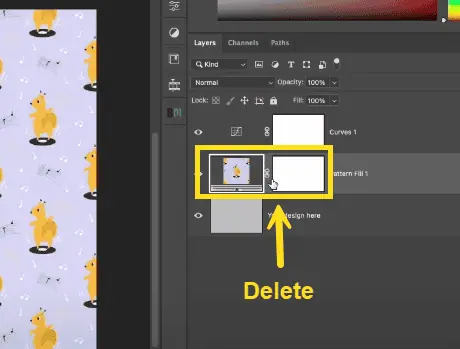
Delete the existing pattern fill layer

Select one pattern design from your collection.
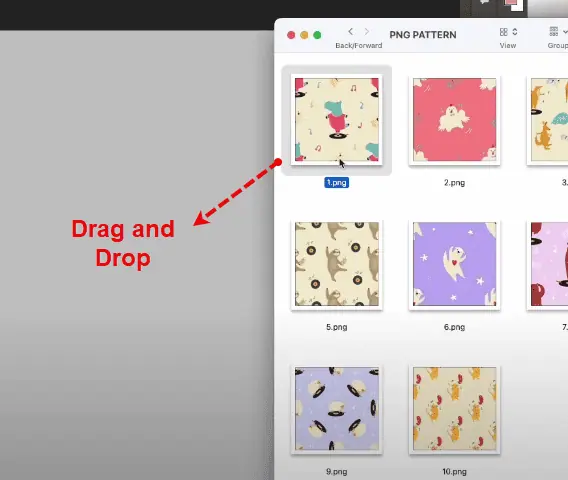
Select one pattern design from your collection

Step 2: Create a Pattern Arrangement.

Place your selected pattern on the left. Press Ctrl+J to duplicate the pattern and move the duplicate to the right.
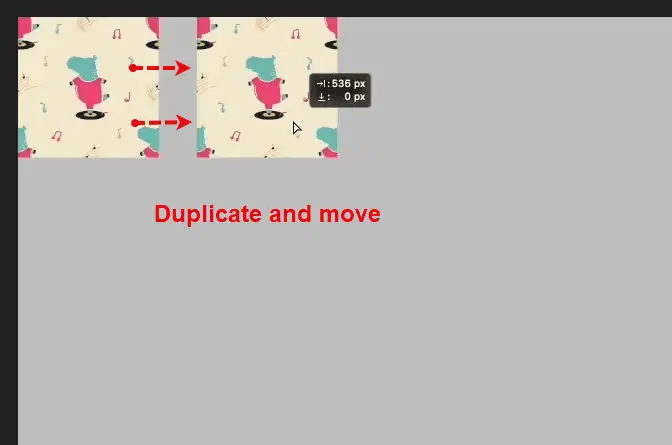
Press Ctrl+J to duplicate the pattern

Continue the same to fill the artwork layer. Next, select the smart object layer and rename it to “@nested”. Once done, save and close all layers.
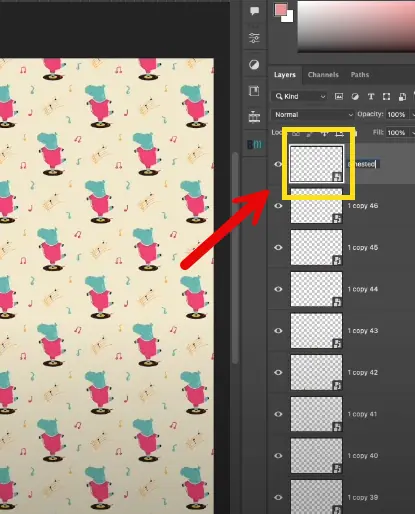
select the smart object layer and rename it

Step 3: Organize Your Files.

Follow the same process. Organize your PSD template, artwork or design, and export folders. Connect these file locations with the Bulk Mockup interface.

Step 4: Configure and Generate.

Open the Bulk Mockup plugin and click “Start Generating”. Watch as patterns are automatically applied across the wallpaper.

Use Case 7: T-Shirt with Front and Back Designs

We will use a t-shirt mockup template with multiple smart object layers to explain how to batch-replace.

Step 1: Prepare Your Folder Structure.

This time, we will create three folders differently. 

In the template folder, place both front and back t-shirt templates and make sure both templates have the same settings.
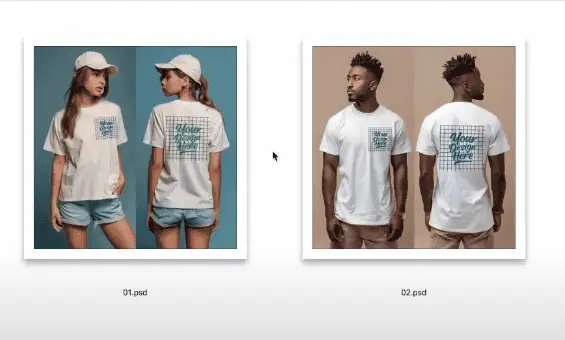
place both front and back t-shirt templates

In the design folder, create a subfolder named “back design” and keep the back designs in this subfolder. Place front designs in the main “design” folder.
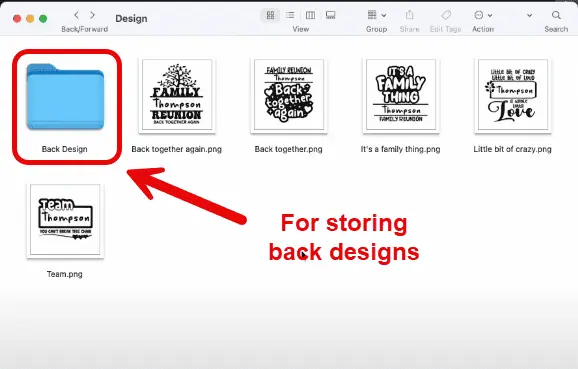
create a subfolder named "back design

The “export” folder will remain empty.

Step 2: Configure Multiple Smart Objects.

Open Bulk Mockup plugin. Input all three folder locations.

Important: Check “Process multiple smart objects”.
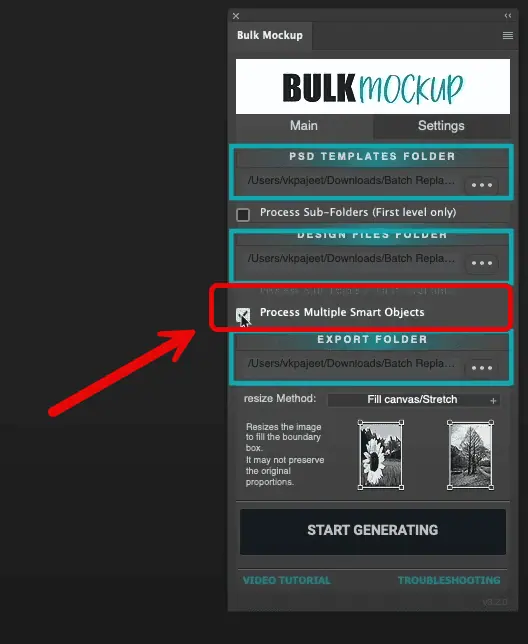
Check "Process multiple smart objects"

This setting allows handling both front and back designs simultaneously. Even if your template has more than two smart objects, Bulk Mockup can easily automate the batch-replace process.

Step 3: Generate Complete T-shirt Designs.

Click “Start Generating” and the plugin will automatically:
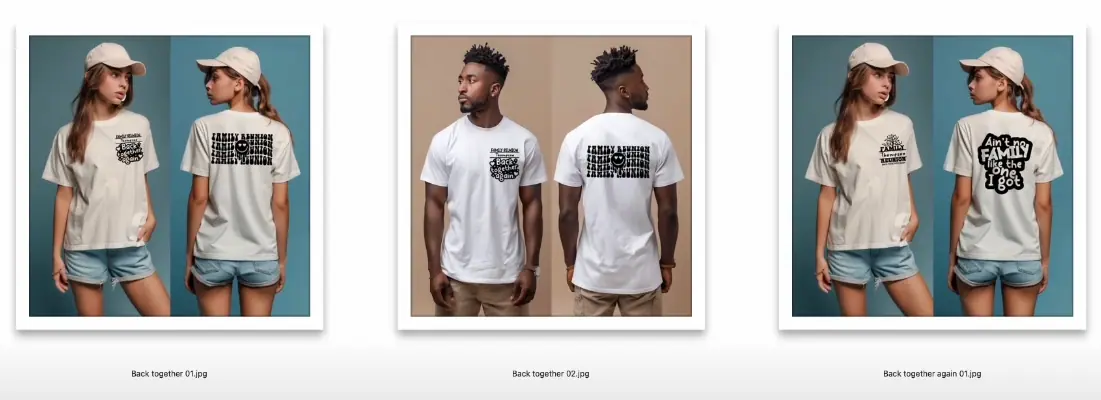
  • Match front designs with the front template
  • Match back designs with the back template
  • Create complete t-shirt mockups
Click "Start Generating" to automate mockup generation

Use Case 8: Table Card Video Template.

In this use case, I will explain how to replace smart objects in video templates of table cards.
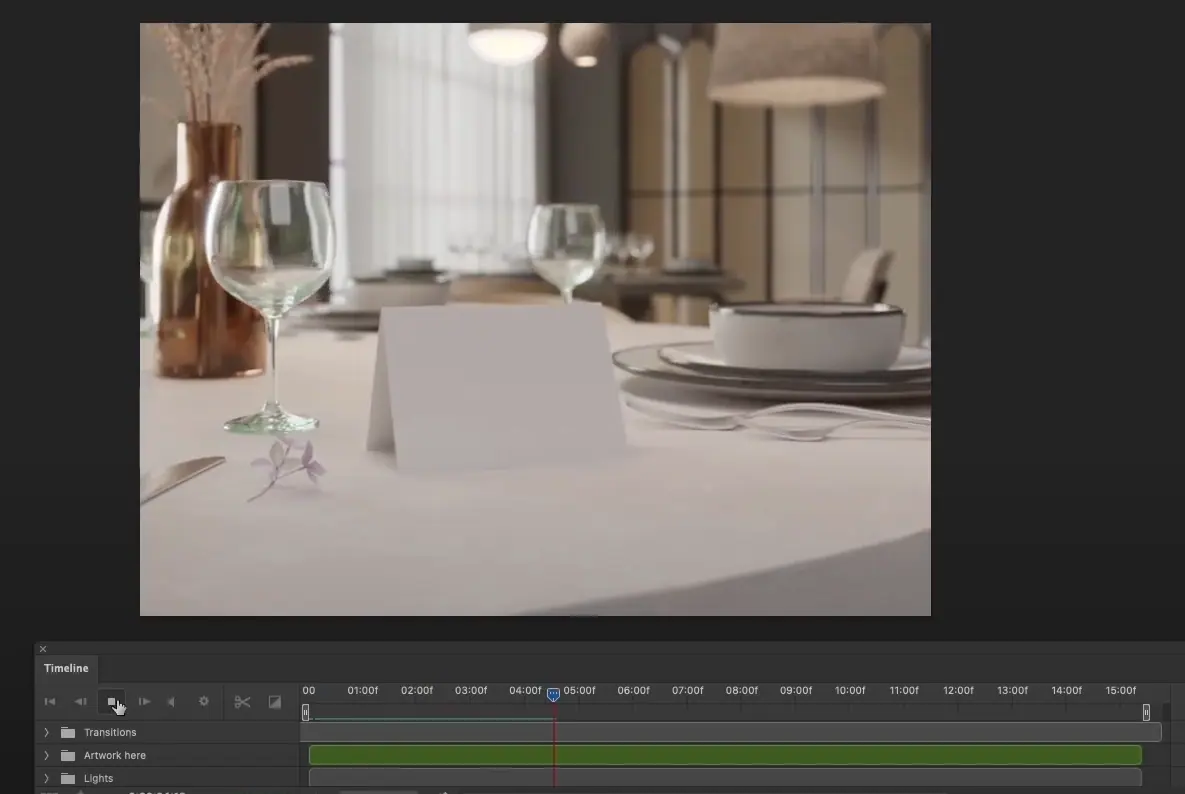
table card video template

Step 1: Prepare the Table Card Video Template.

Open your table card video template and check the smart object structure and:

Locate the first “artwork here” layer.
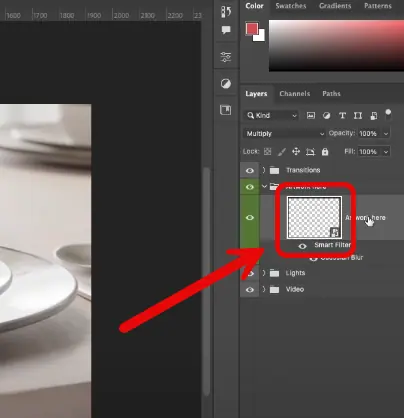
Locate the first "artwork here" layer

Double-click and open the “artwork here” layer to find the “nested artwork here” layer.
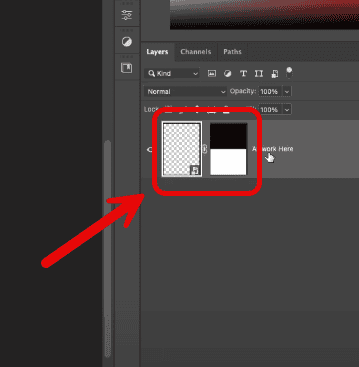
locate “nested artwork here" layer

Step 2: Configure Smart Object Names.

Double-click the first smart object layer and rename it to “@design”. 
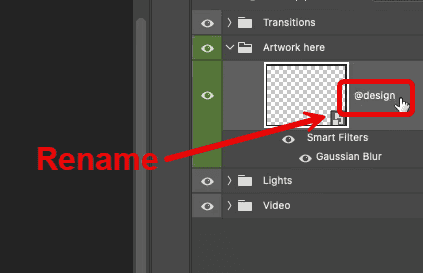
ename design smart object layer

Next, open and locate the nested layer and rename it to “@nested”. Save all changes.

rename nested smart object layer

Step 3: Set Up Folders.

Create three standard folders and place the video template in the template folder. Add all design files to the design folder and keep the export folder empty.

Step 4: Configure and Generate

Open the Bulk Mockup plugin and input all three folder locations. Ensure the video export settings are correct and click “Start Generating”. Your table card video mockups will be ready in no time.

Why This Works for Any POD Mockup

Bulk Mockup is designed to handle any number of Smart Object layers and multiple templates in one batch. It intelligently detects how many Smart Object layers to replace based on your folder setup. For example:

  1. If you include 2 subfolders in your design folder, the plugin knows there are 3 Smart Object layers in the template (the main @design layer plus 2 additional ones from subfolders).
  2. If you have 4 subfolders, it expects 5 Smart Object layers (main + 4).

In other words, Bulk Mockup can scale to templates containing multiple Smart Objects without breaking the layer structure. This makes it versatile for all kinds of products – business cards, posters, packaging, apparel, stationery, art prints, you name it.

All you have to do is avoid the common Smart Object mistakes and do these:

  1. Keep naming consistent: Ensure your Smart Object layer names (and any subfolder names) match exactly (e.g. use @design for the primary layer, and so on as needed).
  2. Follow the folder setup: Always organize your PSDs, design files, and output folder as described. This way, the plugin knows what to replace and where to save results. 

That’s it! You’re now ready to batch-replace Smart Object layers and create multiple mockups at a time with minimal effort.

Ready to automate your mockup workflow?

Join 5,000+ POD sellers who’ve eliminated manual mockup creation. Get unlimited mockups, install on 2 devices, and access our incredible support team.

100 mockups in 40 seconds
vs 15+ minutes manually
$15/month only
7-day money back guarantee
Works with 500+ templates
All major POD platforms
Get started today
Limited time: Save 66% on monthly subscription

FAQs

Can you batch replace Smart Objects in Photoshop without a plugin?

Photoshop doesn’t have a built-in feature to batch replace Smart Object layers. The “Replace Contents” option must be used manually on each Smart Object, which becomes extremely time-consuming when working with large batches. For high-volume workflows, this manual method is not practical.

Can Photoshop Actions batch replace Smart Object content?

You can partially automate Smart Object replacement using Actions, but it’s limited. Actions require consistent file names and Smart Object layers. While you can batch-run actions, setup is complex and easily breaks if anything changes. It’s not suited for diverse templates or multi-layer replacements.

Is there a script to batch replace Smart Objects in Photoshop?

Yes, batch replacement is possible using Photoshop scripting (like ExtendScript or JavaScript). However, this requires programming knowledge and comes with a steep learning curve. Scripts can be fragile, and Adobe’s documentation is sparse, making troubleshooting difficult for non-coders.

What is the fastest way to replace many Smart Object layers?

The most efficient solution is using a plugin like Bulk Mockup. It automates everything from inserting design files to exporting final mockups. Bulk Mockup can generate over 1,000 mockups in under 10 minutes, dramatically accelerating your workflow and eliminating manual effort.

Will Bulk Mockup replace multiple Smart Object layers in one template?

Yes, it supports templates with multiple Smart Object layers. By organizing your input designs into subfolders, the plugin matches each folder to its corresponding Smart Object layer. You just need to enable the “Process multiple smart objects” option to activate this capability.

How much time can Bulk Mockup save compared to manual work?

Bulk Mockup can save hours or even days, depending on the number of templates and designs. Users have reported cutting production time by over 90%. It not only speeds up repetitive tasks but also reduces human error, making it ideal for print-on-demand sellers and designers.

Get in Touch for End-to-End Assistance

As you can see, this batch replacement process of smart objects on PSD templates with our plugin has a nominal learning curve. Feel free to contact us for assistance related to installation or batch mockup processing.

Omit hours of tedious work by following this batch replace smart objects Photoshop guide to uplift your mockup shop or print-on-demand business to a new level.

Vikash Kr Prajapati
Vikash is the founder of Bulk Mockup, a specialized plugin that integrates with Photoshop to streamline mockup creation for print-on-demand sellers. Drawing from his experience running Putoos Graphics LLP, an image editing agency serving hundreds of e-commerce entrepreneurs, he recognized the time-consuming challenges of manual mockup production. Bulk Mockup was developed to automate this process, helping sellers save valuable time and resources while professionally presenting their products

Subscribe to Bulk mockup
weekly updates!

Accepted payment methods
Copyright © 2024 by Bulkmockup. All rights reserved.