

Managing product images takes a lot of time when you have hundreds of products in your Shopify store. Every new listing may require you to resize photos, remove backgrounds, create mockups, and upload images to the correct products.
For print on demand sellers, there is even more work. You may need to create several mockups of the same design for different products, colours, and styles. Doing this manually for every product can take hours.
With Shopify product image automation, you can reduce much of this manual work and spend less time preparing images for your store.
In this guide, we’ll look at different ways to automate product images, create mockups in bulk, and manage the process from image creation to publishing.
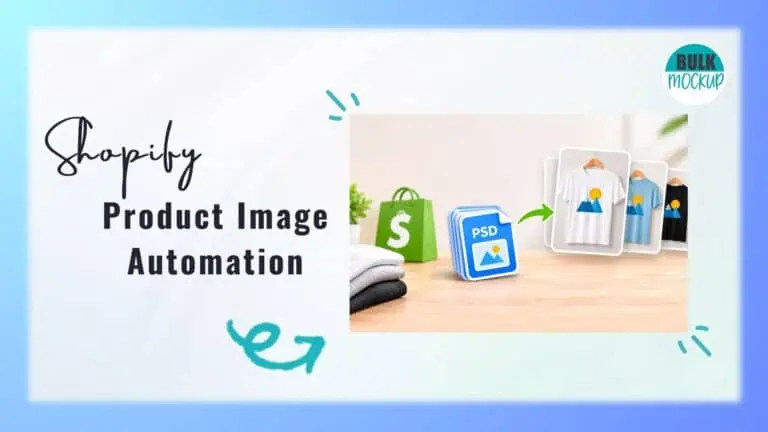
Shopify product image automation means using software, templates, and predefined rules to create, edit, organise, and upload product images with less manual work. Instead of handling every image separately, you can use automation tools to complete repetitive tasks across multiple products.
This can include several processes:
Some tools process images in batches, while others run automatically when specific conditions are met. However, creating images automatically does not mean they will also be published to Shopify. These tasks may require separate tools.
You can automate Shopify product images by setting up a workflow for preparing files, creating visuals, matching images to products, and publishing them.
The process works for both ecommerce stores using product photography and print-on-demand businesses creating mockups from digital designs. Follow these seven steps to get started.
Start by collecting your product photos, supplier images, artwork, and mockup templates in one place.
Create separate folders for original files, edited images, and final Shopify exports. This makes it easier to find the correct files without accidentally replacing your originals.
If you sell print on demand products, organise artwork by design name, product type, or SKU. Use a consistent naming system for every image.
For example:
These are examples, not Shopify filename requirements. The important part is keeping product identifiers consistent across your source files, mockups, and catalogue data.
Before editing images in bulk, decide how they should appear across your Shopify store.
Shopify recommends 2048 × 2048 pixels for square product images, although other dimensions and aspect ratios are supported. Choose the format that suits your products and store theme.
Keep the following elements consistent:
For print-on-demand products, select mockup templates that accurately show the items you sell. PSD templates with Smart Objects are useful because they allow you to replace artwork while keeping the original product presentation.
Make sure your templates work with your chosen automation tool. Also, prepare your printing artwork separately. An image suitable for a Shopify product gallery may not meet your POD supplier’s printing requirements.
You can automate image creation and editing using different tools, depending on the type of products you sell and the images you already have.
Print on demand sellers often need several mockups to display their designs on products such as T shirts, mugs, posters, and phone cases. Creating each mockup separately can take considerable time when working with multiple designs.
Bulk Mockup offers two ways to automate this process. Its Photoshop plugin works with compatible PSD templates and Smart Objects, while its web app lets you generate mockups directly in your browser without using Photoshop.
These tools can help you:
For sellers who also want to automate Shopify product creation, Bulk Mockup offers a separate Shopify app that combines mockup generation with product listing preparation and publishing.
If you use photographs from suppliers or your own photoshoots, batch image editing tools can help you prepare them for Shopify.
These tools can resize, crop, centre, and convert multiple images at once. Some also support automatic background removal and colour adjustments.
This helps maintain a consistent appearance across product listings, even when the original photographs have different dimensions or backgrounds.
AI image tools can help you create lifestyle visuals, replace backgrounds, or change the setting of an existing product photograph.
Shopify also provides AI assisted image editing features, including background generation and lighting adjustments.
However, AI generated images are not always accurate. Check the finished visuals to confirm that product colours, shapes, labels, and materials match the items you sell.
Once your images are ready, prepare their filenames and alt text before uploading them.
Descriptive filenames make it easier to identify products during bulk image management. You can create naming templates using details such as product name, colour, design, and viewing angle.
For example:
Alt text describes an image for people using screen readers and can help search engines understand its content.
You can use compatible Shopify product image optimization apps or automation tools to generate descriptions from product data. Some tools also support bulk editing Shopify product images and their associated alt text.
For print on demand listings, include the correct design and product colour when they are visible.
Check generated descriptions for accuracy. Avoid adding keywords repeatedly or mentioning product features that the image does not show.
After preparing the files, you need to connect each image to the correct product in your Shopify catalogue.
Image matching tools may use identifiers such as:
Before publishing, check for files that have no matching product, duplicate images, or identifiers that could match multiple listings.
Once you’ve matched your images, you can publish them through Shopify’s CSV import feature, a compatible Shopify app, or a custom API integration.
Shopify lets you import multiple product images using publicly accessible image URLs.
To do this:
Images stored only on your computer cannot be imported through local file paths in a product CSV.
If you regularly add print-on-demand products, an app that handles mockup generation and product publishing together may reduce the number of separate tasks.
Bulk Mockup’s Shopify app can generate mockups from your artwork and compatible templates, then create Shopify product listings with images, titles, descriptions, variants, and pricing.
The workflow involves adding your mockup templates, setting up a reusable product template, uploading artwork, and reviewing the generated listings before publishing.
After publishing, open the affected product pages in your Shopify admin and storefront.
A completed upload does not always mean every product image appears correctly.
Review the following:
For print on demand products, compare the published mockups with the actual product specifications. A design should appear in the correct position and on the intended colour or style.
If you find errors, identify which images or listings were affected before running the batch again. Keep your original files and a record of catalogue changes so you can correct individual problems without repeating the entire process.
There are three main ways to automate Shopify product images: using Shopify’s native features, installing automation apps, or building custom workflows with its API. Your choice depends on how often you update product images, the size of your catalogue, and the level of automation you need.
Shopify provides basic tools for managing product images directly from your admin. You can upload photos, crop or resize them, adjust backgrounds, and arrange images within product listings.
Shopify also offers AI assisted image editing through its media file editor. You can use text prompts to change backgrounds, lighting, or product settings. These features are available on supported Shopify plans.
For bulk uploads, Shopify supports product CSV imports. The CSV file uses product handles and image URL fields to associate photographs with existing or new listings. It also supports image ordering and alt text.
However, CSV imports only handle product data and image references. They cannot generate mockups, remove backgrounds, or edit the original photographs.
This method suits merchants who occasionally import products or already have prepared images that need uploading in a structured format.
Shopify apps can automate image editing, optimization, and uploading without custom development. You can choose an application based on the tasks you need to manage regularly.
For example, Hextom: Bulk Image Edit & SEO supports bulk resizing, cropping, background removal, image compression, and alt text editing. It also offers scheduled image processing. Pixc: AI Photo Resize automatically resizes product photos and can process newly uploaded images.
For Shopify product image optimization, TinySEO helps compress and resize images, update alt text, and improve filenames. These tools serve different purposes, so check their features before choosing one.
Print-on-demand supplier apps usually focus on product creation, printing, and fulfilment rather than advanced mockup editing. If your mockup software does not publish images directly to Shopify, you may need a separate app or import method to complete the process.
Shopify’s GraphQL Admin API allows developers to build image automation workflows around a store’s specific requirements.
For example, a business can connect its product database, image processing system, and Shopify catalogue. When product information changes, the integration can update the relevant media without requiring staff to manage each listing individually.
Shopify provides several API operations for managing images:
These operations can support recurring catalogue updates, although developers must manage authentication, access permissions, file processing states, API rate limits, and failed requests.
Custom API automation is generally more suitable for businesses with large catalogues, specialised product systems, or image workflows that standard Shopify apps cannot fully support.
Source: Shopify GraphQL Admin API documentation
Comparison of Shopify Product Image Automation Methods
| Capability | Shopify CSV | Shopify apps | Custom API |
| Bulk image uploads | Yes | Depends on app | Yes |
| Image creation | No | Some apps | Requires additional integration |
| Product matching | Requires mapped data | Depends on app | Customisable |
| Recurring updates | Requires external workflow | Depends on app | Can be developed |
| Coding required | No | Usually no | Yes |
| Best suited for | Structured imports | Regular image management | Custom workflows |
Automated image processing can produce errors when filenames, product details, mockup templates, or upload settings do not match. These problems may affect individual images or several Shopify product listings at once.
The table below covers common issues and how to fix them.
| Problem | Possible Cause | Recommended Solution |
| Images assigned to wrong products | Incorrect SKU or filename matching | Verify product identifiers and image assignments. |
| Mockup design appears incorrectly | Wrong template, artwork alignment, or positioning | Check Smart Object placement and source artwork. |
| Images appear blurry | Poor source resolution or excessive resizing | Use suitable original images and export settings. |
| Product appears cropped | Incorrect aspect ratio or cropping settings | Adjust image dimensions, fit settings, and padding. |
| Duplicate images appear | Repeated imports or existing media not checked | Review existing product images before uploading again. |
| Wrong colour variant displays | Incorrect variant media associations | Check variant IDs and their assigned images. |
| Images fail to upload | Unsupported format, file size, or inaccessible URL | Check Shopify’s media requirements and import errors. |
| AI images contain incorrect details | AI generated changes to product appearance | Compare images with approved product photographs. |
| Some files are missing | Interrupted processing or failed operations | Identify unsuccessful files and retry only those uploads. |
Creating mockups for a few products is manageable. But what happens when you have 50 new designs and each one needs images for different products and colours?
Bulk Mockup offers a way to handle this work directly through its Shopify app. You can upload your artwork, use compatible mockup templates, and generate product images in bulk without creating each one separately.
The app also lets you prepare Shopify listings using reusable product templates. You can set up titles, descriptions, variants, and pricing, then review the generated products before publishing them to your store.
Want to create more product mockups without spending hours on manual work? Book a demo to see how it works.
Shopify product image automation can reduce the time spent creating, editing, organising, and uploading product images. The right method depends on your store’s needs. Traditional ecommerce stores may benefit from batch photo editing, while print-on-demand sellers often need automated mockup generation.
If you regularly launch new designs across multiple products, Bulk Mockup can help reduce repetitive mockup creation.
Choose tools that solve your specific image management problems and fit your existing Shopify workflow.
Yes. Shopify offers AI image generation and editing features that can create backgrounds and modify existing product photos. For complete product mockups, you may need a separate automation app.
You can use Shopify’s product CSV import with accessible image URLs. Alternatively, compatible Shopify apps can upload multiple images and associate them with the correct product listings.
Yes. Shopify automatically generates different image sizes for storefront display. For bulk resizing to specific dimensions or aspect ratios, you can use compatible image editing apps.
Product media types
Shopify supports variant image assignments, but automatic matching by SKU or filename requires a compatible app or custom integration. You can also assign variant images through a product CSV.