


Shopify lets you import product images in bulk, so you don’t have to open every listing and attach photos individually. Whether you have 50 products or 5,000, there are ways to handle large image uploads without spending hours on repetitive work.
With millions of merchants operating across more than 175 countries, Shopify supports businesses managing catalogs of different sizes. But there’s one important detail: uploading photos to your store doesn’t automatically place them on the right product pages.
If you’re looking for how to bulk upload images to Shopify, you can use CSV files with publicly accessible image URLs or apps that match local image filenames to products. The right approach depends on where your images are stored and how your catalog is organized.
Ahead, we’ll cover Four methods to get your images uploaded and assigned to the correct products, without the manual work.
Best for: Print-on-demand sellers and Shopify merchants who want to create product mockups in bulk, prepare product details, and push products to their store from one workflow.
Bulk uploading product images is only one part of the process. Before products go live, you also need to prepare mockups, product names, descriptions, variants, pricing, and other listing details. When you are managing a large catalog, switching between different tools can slow everything down.
Bulk Mockup helps you handle this workflow in one place. Instead of creating mockups separately and then building listings manually, you can prepare your product setup, generate mockups in bulk, organize your files, and send finished products to Shopify. This makes it easier to manage high volume product creation while keeping your images and listing data structured.
Here is how the workflow works.
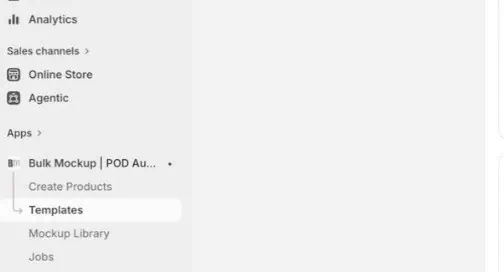
Start by going to Templates inside shopify app. You can either create a new template or continue with one you have already set up.
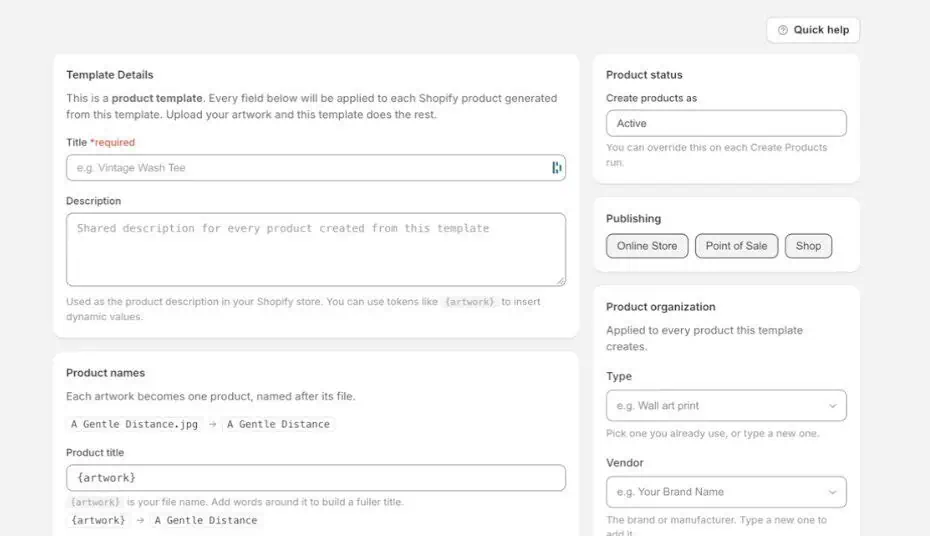
At this stage, add the basic product information you want Shopify to use. This can include the product title, product name, and description.
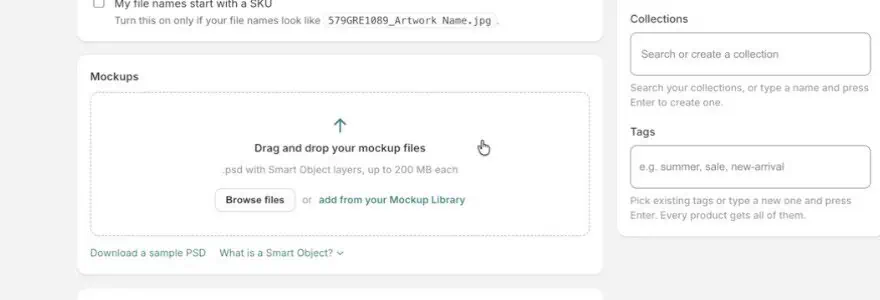
Next, you can upload your own custom mockup with a Smart Object, or select a mockup from the Bulk Mockup library.
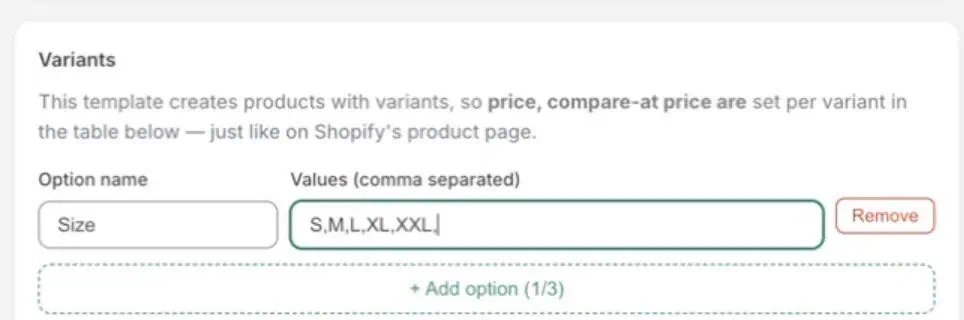
Once the visual side is ready, add your pricing and configure the product variants. After that, save the template.
After saving the template, go to Create Products and open Templates. Select the template you want to use, then continue with that setup.
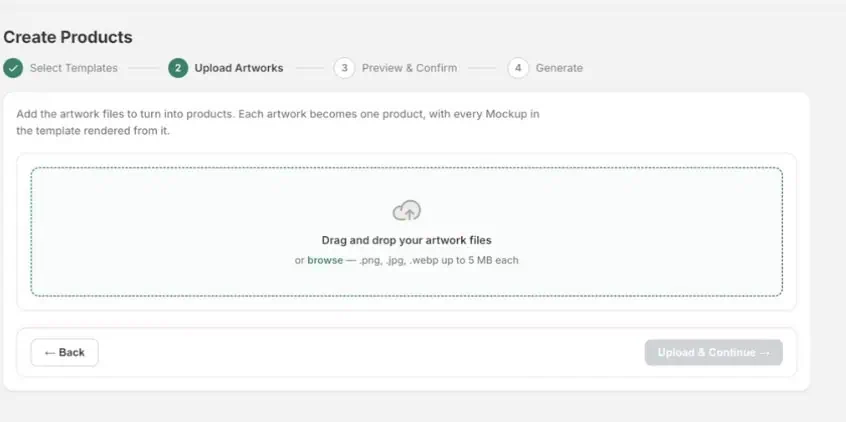
Click Upload and continue add the artwork files you want to use.
Before publishing anything, review the preview carefully. Check that the mockups look correct, product details are accurate, and your variants and pricing are set the way you want. After that, click on Create products.
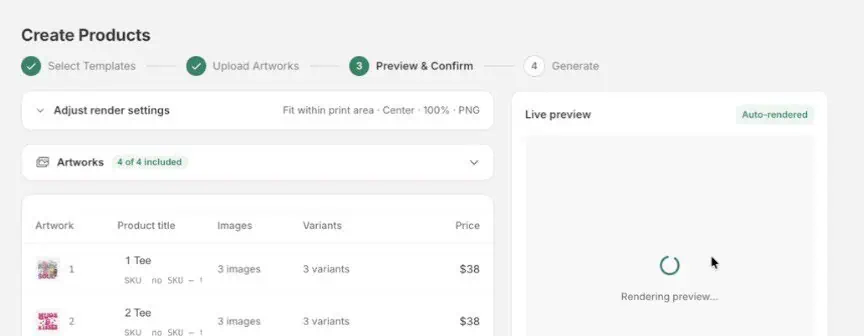
This review step helps you catch errors before products are sent to Shopify.
Best for: Merchants with hundreds or thousands of product images stored on their computers who want to attach them to existing Shopify products without handling each listing separately.
A Shopify bulk image uploader app can reduce manual work by matching image filenames with product identifiers such as SKUs, handles, or product IDs. Instead of searching for every product yourself, you can let the app identify where each image belongs, provided it supports your chosen matching method.
Here’s how the process works.
Visit the Shopify App Store and look for an app ( Matrixify, CS Smart Bulk Image Upload, Bulk Image Editor & Optimizer) designed to bulk upload product images Shopify merchants can attach to existing listings. You can also use free app.
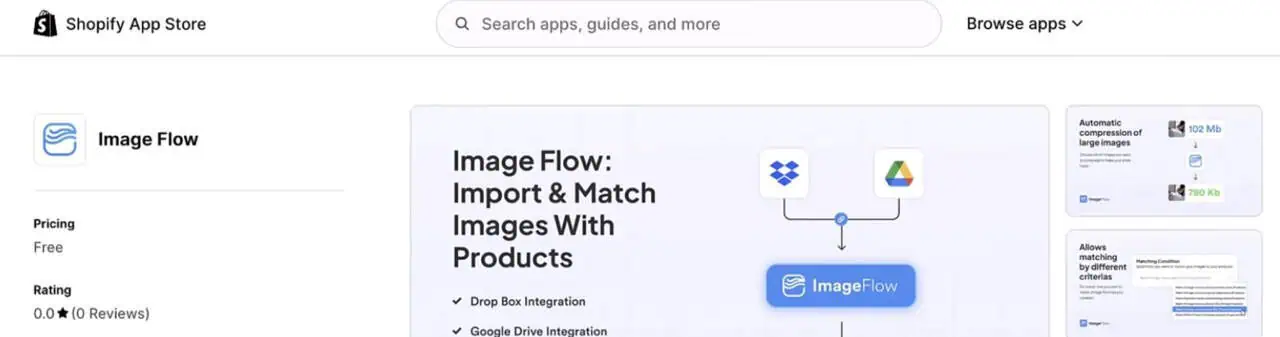
Before installing, check whether the app supports matching images using SKUs, product handles, barcodes, or product IDs. Also, confirm that it can add images directly to product galleries rather than simply uploading files to Shopify storage.
In your Shopify admin, go to Products > Export. Choose the products you want to update, select the CSV format, and export the file.
Open the spreadsheet to review product handles, variant SKUs, and other relevant details. These values will help you organize your images according to the matching rules supported by your app.
Your image filenames should contain the identifier that connects them to the correct product.
For example, if a product has the SKU TS100, you might name its three images:
TS100_1.jpg
TS100_2.jpg
TS100_3.jpg
Here, TS100 identifies the product, while the numbers distinguish its images. Some apps can use these numbers to determine gallery order, but you must check the app’s supported naming format before renaming files.
Once your files are organized, open the selected app and import your images.
Depending on its features, you may be able to select multiple image files, upload an entire folder, or submit a ZIP archive.
For a large Shopify bulk image upload, divide files into manageable batches if the app has upload limits.

Choose the identifier that the app should use to associate uploaded images with products. For example, if your filenames contain SKUs, select SKU matching when available.
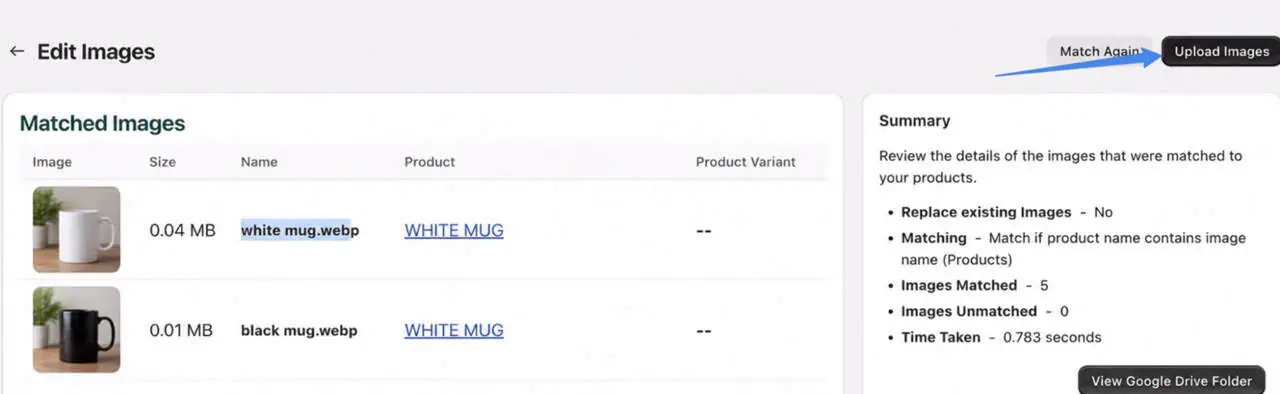
Review the matching results before continuing. Pay particular attention to unmatched files, duplicate identifiers, and images assigned to unexpected products.
If your catalog contains multiple product variants, confirm whether the app attaches images to the overall product gallery or supports assigning a specific image to a variant.

Before starting the import, decide what should happen to images already attached to your Shopify products.
Depending on the app, you may have options to:
These settings matter because Shopify uses the first media item as the product’s main image.
Click on match now.
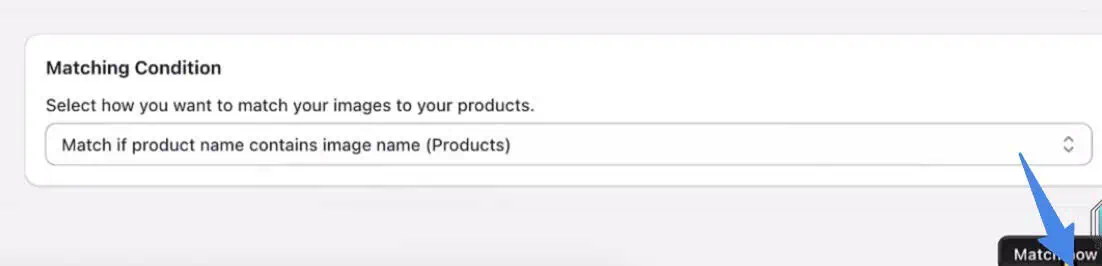
After matching images upload them.
Best for: Merchants with product images already hosted online, supplier catalogues with image URLs, or stores moving products from another platform.
Open your Shopify admin, navigate to Products > Export, and select the products you want to update.
Download the CSV file and open it in Google Sheets or Excel. Keep the existing product titles, URL handles, and variant information intact, as these details help Shopify recognize your current listings during import.
Unlike an app that accepts image files directly, Shopify’s CSV importer needs links to images available online. A file path from your computer won’t work because Shopify cannot retrieve the image from your local storage.

Find the Product image URL column in the current Shopify CSV format and paste the corresponding link beside each product’s URL handle.
For products with multiple images, insert additional rows using the same handle. Each image needs its own row.
The Image position column controls the gallery sequence. Position 1 identifies the first image, while 2, 3, and subsequent numbers determine the remaining order.
Once your spreadsheet is ready, return to Shopify admin > Products > Import.
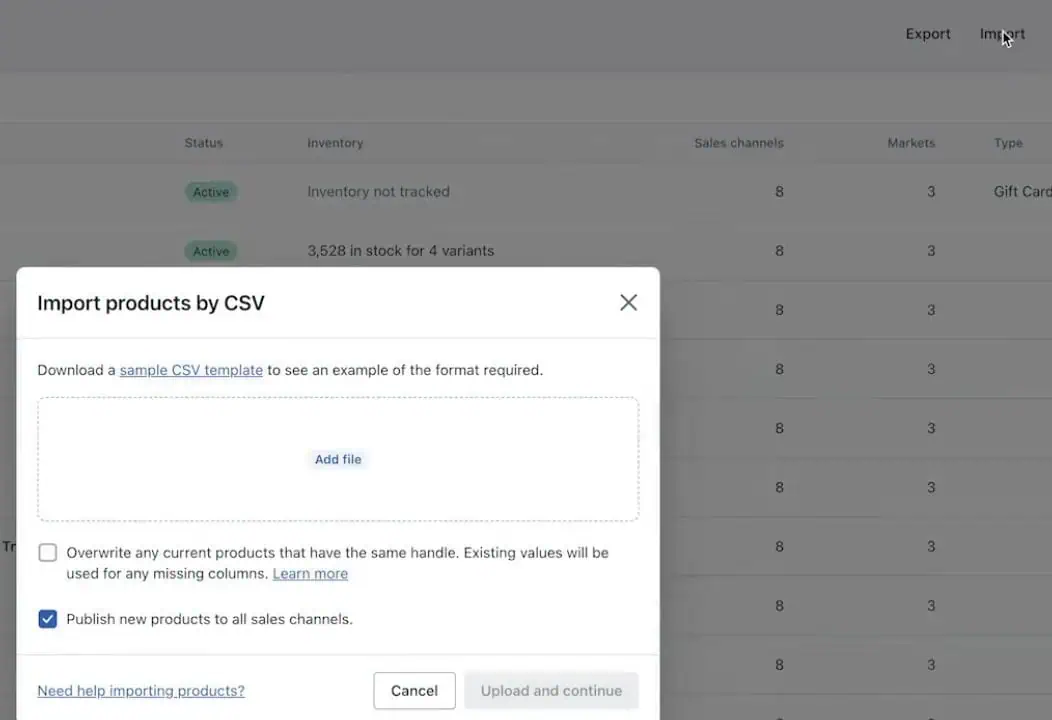
Select Add file, choose your CSV, and follow the prompts to review and begin importing.
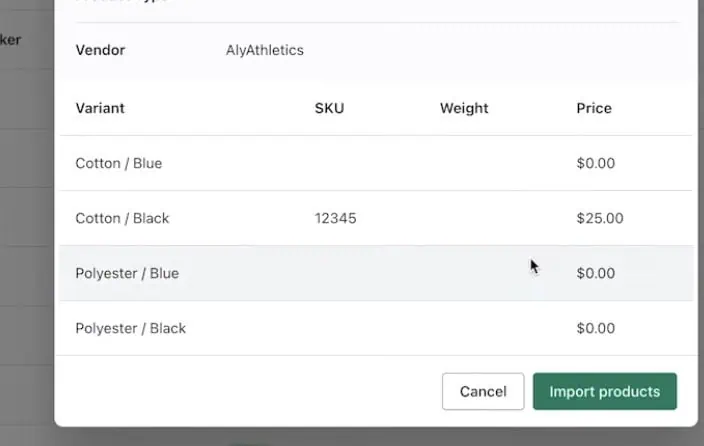
When updating existing products, select Overwrite products with matching handles so Shopify can apply the imported changes to those listings.
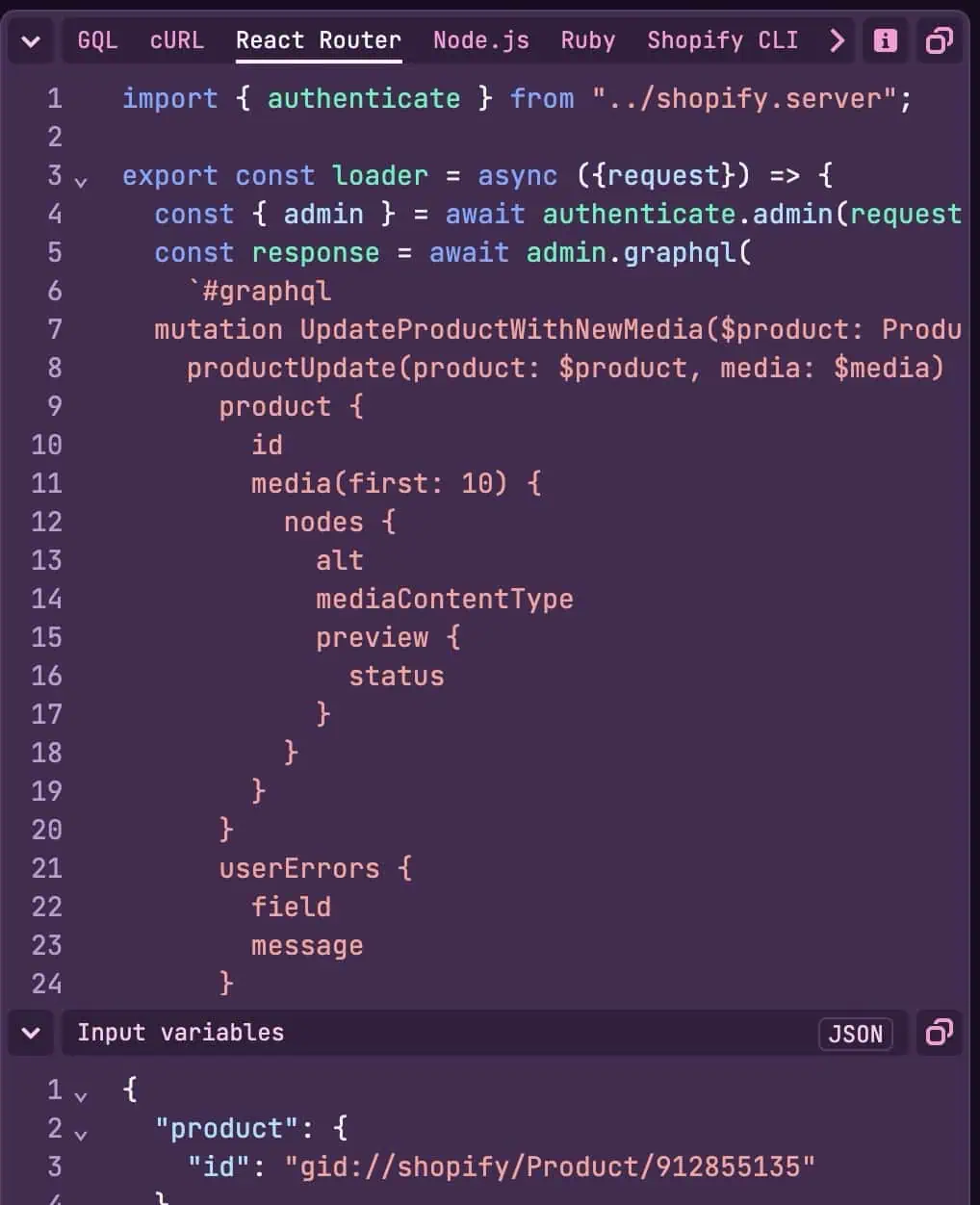
Create or configure a Shopify app with the required API permissions, including write_products, to manage product media.
Use the GraphQL Admin API to identify the products receiving images. Match SKUs or other identifiers with their corresponding Shopify product IDs.
Use publicly accessible image URLs or upload local files through Shopify’s stagedUploadsCreate mutation.
Use supported GraphQL mutations such as productUpdate to associate images with the correct products. Avoid the deprecated productCreateMedia mutation.
Check media processing results, API errors, and rate limits. Configure retries for failed operations.
Review the updated product galleries to confirm that images are attached correctly and no files are missing or duplicated.
Even when a bulk import finishes successfully, some product images may be missing, misplaced, or displayed in the wrong order. The table below covers common Shopify bulk image upload problems and how to resolve them.
| Problem | How to Fix It |
| Images upload but don’t appear on products | Check whether you uploaded them to Shopify Files without attaching them to product listings. File storage and product attachment are separate operations. |
| CSV images fail to import | Confirm that each URL opens a publicly accessible image file. Check supported image formats, CSV headers, and required fields. |
| Images attach to the wrong product | Review the product handles, SKUs, or IDs used for matching. Look for duplicate identifiers or incorrect associations. |
| Some images remain unmatched | Compare filenames with the app’s required naming format. Make sure the selected matching field contains the correct values. |
| Additional images are missing | Check that each extra image has its own CSV row with the correct product handle. For apps, review image limits and attachment settings. |
| Featured image changes unexpectedly | Inspect the Image position values in your CSV or the gallery ordering settings in your app. |
| Existing images disappear | Review CSV overwrite settings or the app’s media replacement options. Restore affected images from your backup if necessary. |
| Variant images display incorrectly | Check whether images were added to the general product gallery or assigned to specific variants. Verify the Variant image URL values when using CSV. |
Uploading product images to Shopify doesn’t have to involve editing every listing manually. Whether you choose a dedicated bulk uploader, CSV import, or GraphQL API, the best method depends on your image source and how you manage your store.
But if you’re creating new products from multiple designs, why handle mockups and listings separately? Bulk Mockup lets you generate product mockups, prepare titles, descriptions, pricing, and variants, and publish products directly to Shopify.
Ready to simplify your Shopify product creation? Explore Bulk Mockup and turn your designs into ready-to-publish listings in bulk.
Yes. You can upload multiple images to Shopify using a compatible bulk uploader app. If you’re creating new products, Bulk Mockup also lets you upload artwork, generate mockups, and publish listings directly to Shopify.
Shopify’s native CSV import associates images with products using URL handles, not filename matching. For automatic SKU or filename matching, you’ll need a compatible third party app that supports your chosen naming convention.
Absolutely. Shopify allows multiple images per product. With CSV imports, add separate rows containing the same product handle and different image URLs. You can also use compatible apps to attach several photos together.
Yes, provided you choose the appropriate import settings. Many bulk uploader apps offer options to add images while preserving existing galleries. For CSV imports, review overwrite behavior carefully before updating your products.