
How to Add Products to Shopify

How to Add Products to Shopify (5 Easy Methods)

Shopify lets you start selling with a single product or build a catalog containing hundreds of items. In survey, Shopify accounted for 32.1% of identified ecomm...
Vikash Kr Prajapati
October 19, 2026
read

Shopify lets you start selling with a single product or build a catalog containing hundreds of items. In survey, Shopify accounted for 32.1% of identified ecommerce systems worldwide in October 2026, showing how widely merchants use the platform.

You can add products manually, duplicate existing listings, import CSV files, or connect supplier apps. The right method depends on the size of your catalog and whether your product information is already prepared.

In this guide, you’ll learn how to add products to Shopify using Five different methods, so you can choose the most suitable way to get your products ready for sale.

5 Different Methods to Add Products to Shopify

There are 5 ways to add products to your Shopify store: manually create a listing, duplicate an existing product, import products using a CSV file, or connect a supplier app. Each method serves a different purpose, depending on your catalog size and where your product information comes from.

Method 1: Create and Upload Shopify Products in Bulk With Bulk Mockup

It is best for sellers who want to create multiple Shopify products, generate mockups, and publish listings without managing each item separately.

Adding products in bulk involves more than uploading images. You also need to prepare titles, descriptions, prices, variants, and other details before your listings are ready for customers. Managing these tasks individually becomes time-consuming when you have hundreds of designs.

Bulk Mockup for Shopify brings these tasks into a single workflow. You can create reusable product templates, generate mockups for multiple designs, and publish completed listings directly to your store without preparing separate CSV files.

Here’s how to get started.
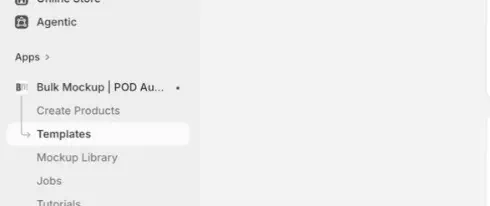
Step 1: Select a Product Template

  1. Open the Bulk Mockup Shopify app and navigate to Templates.
    Click on template

    2. Select an existing template or create a new one.

    3. Enter the basic listing information, including the product title, name, and description.
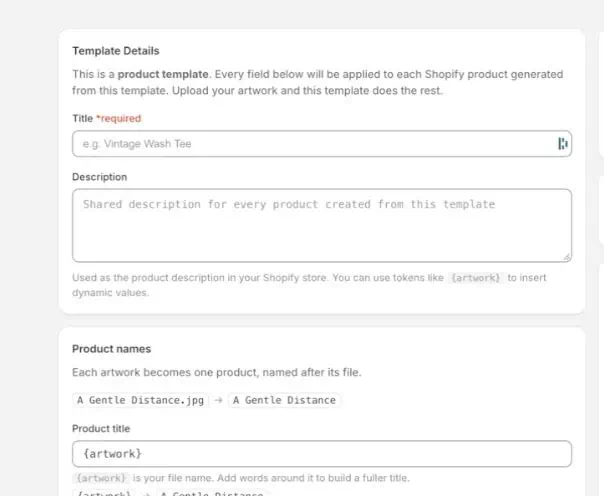
    Fill template details

    These details form the foundation of your product template, which you can reuse when creating additional listings.
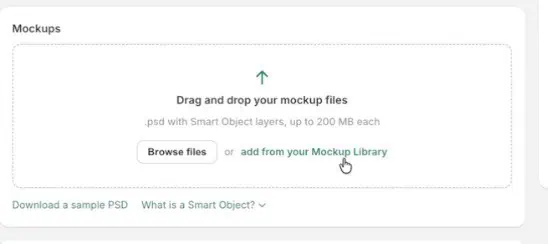
    Step 2: Configure Mockups, Pricing, and Variants

    1. Upload a custom mockup containing a Photoshop Smart Object or choose one from the Bulk Mockup library.
    Choose mockup from mockup library

    2. Enter the selling price for your product.

    3. Configure the available variants, such as sizes, colours, or other options.
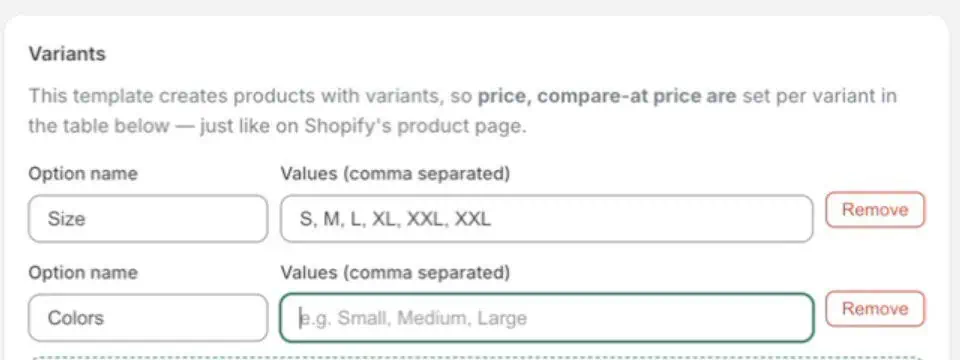
    Add variants

    4. Save the completed template.

    Next, navigate to Create Products > Templates and select the template you just prepared. 

    Step 3: Upload Your Design Files

    Select the artwork files. Once you’ve added your designs, continue to the next stage.

    Bulk Mockup uses your selected template to generate product mockups with the uploaded artwork, allowing you to prepare multiple listings without replacing each design manually.

    Step 4: Preview and Create Products

    Review the generated products before sending them to your Shopify store. Check that each design appears correctly on its mockup and that the product names, descriptions, prices, and variants match your requirements.

    When you’re satisfied with the preview, click Create products to generate the listings in Shopify.
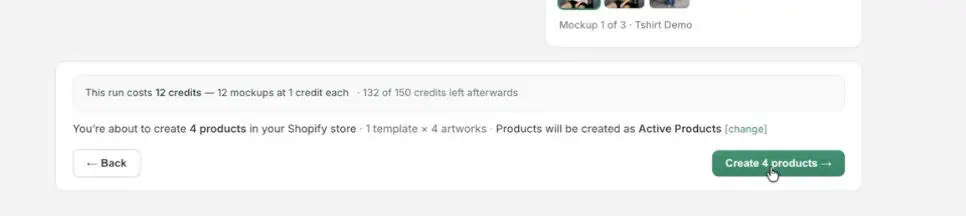
    Click on create products

    This final review helps you identify incorrect artwork placement or listing information before creating products in your store.

    Method 2: Add Products to Shopify Manually

    Manual product creation gives you control over everything customers see, including descriptions, images, pricing, and available options. Here’s how to do it.
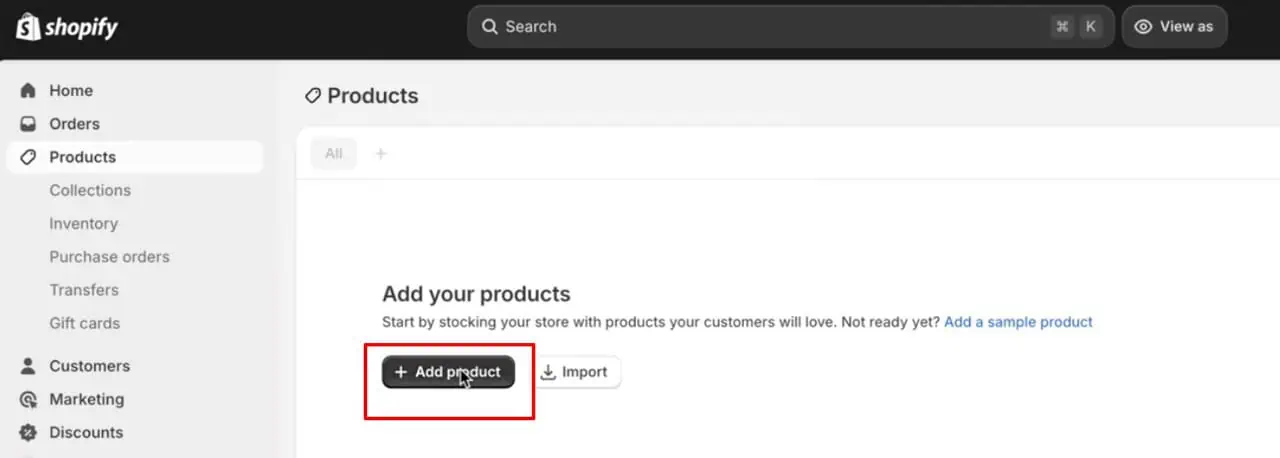
    Step 1: Open the Shopify Product Editor

    1. Log in to your Shopify admin dashboard.
    2. Click Products in the left sidebar.
    3. Select Add product to open the product editor.
    Click products and then add products

    This page contains the fields and settings for creating your listing, managing inventory, and controlling where customers can purchase the product.

    Step 2: Enter the Product Details and Upload Images

    Start with the information customers need to understand what you’re selling.
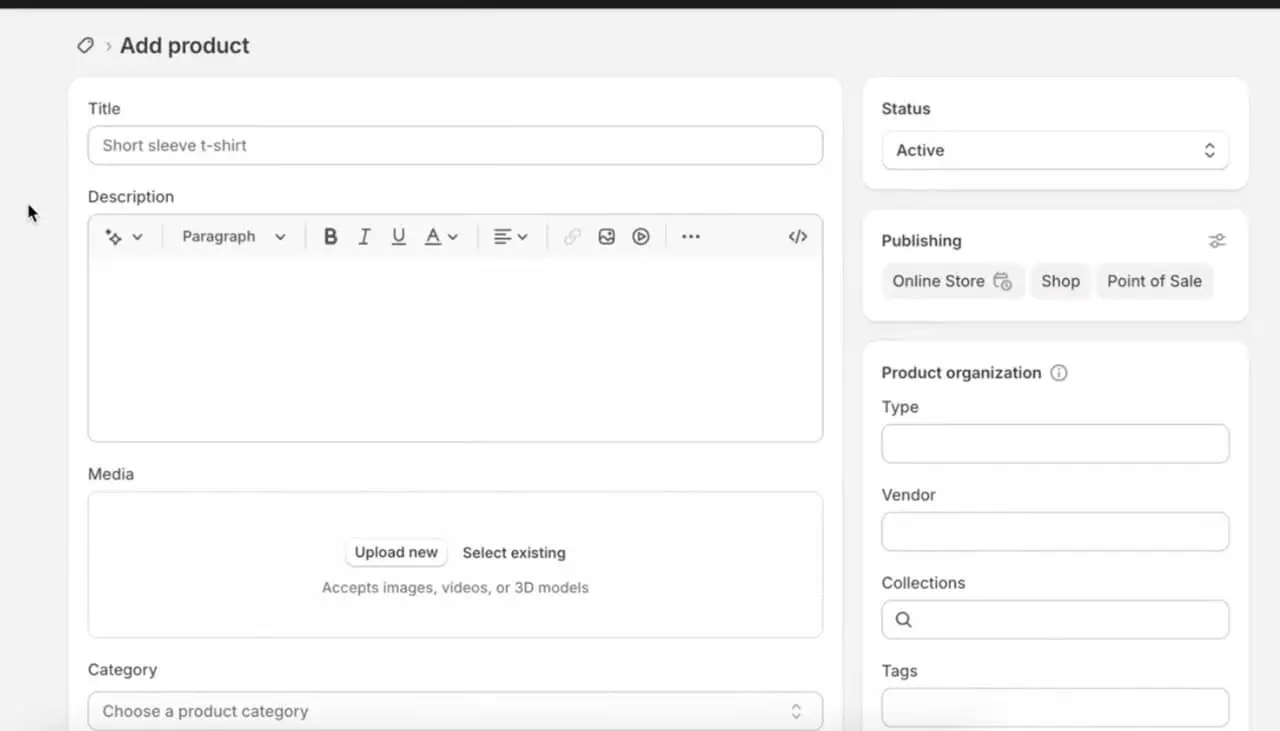
    1. Title: Enter a specific product name that clearly identifies the item.
    2. Description: Explain its features, materials, dimensions, benefits, and other relevant details.
    3. Media: Upload clear product photos, lifestyle images, mockups, or videos that show what customers will receive.
    4. Category: Select the most appropriate classification from Shopify’s standard product categories.
    Enter the product details

    Shopify allows up to 250 media items per product, including images, videos, and 3D models. The first item becomes the featured media by default, although you can rearrange it later.

    Step 3: Configure Pricing, Inventory, and Shipping

    Once you’ve added the main details, configure how the product will be priced, stocked, and delivered.
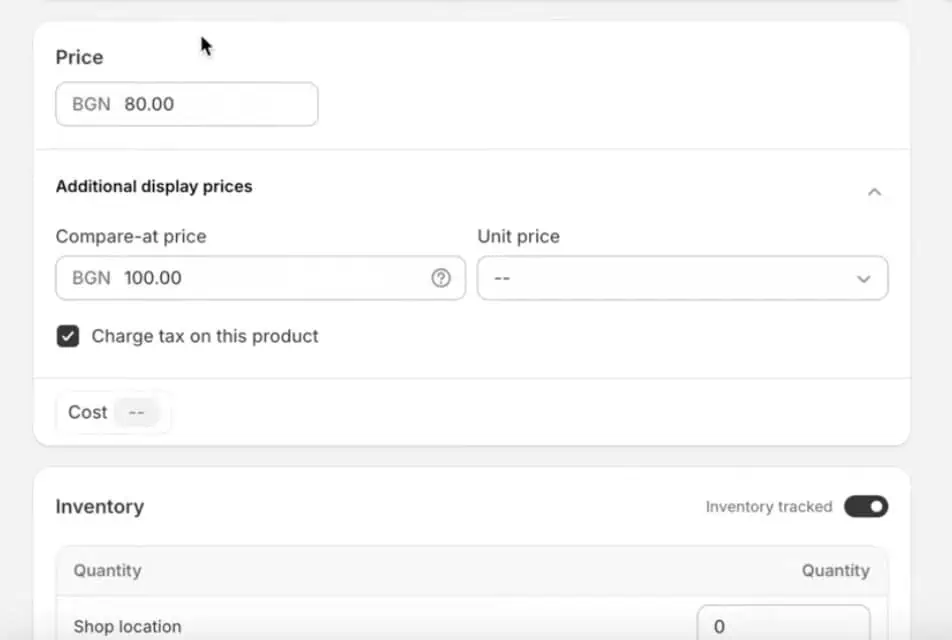
    1. Pricing: Enter the selling price. If you’re offering a discount, use the Compare at price field to display the original price. You can also record your cost per item for margin calculations.
    2. Inventory: Add a unique SKU and barcode where applicable. Enable inventory tracking and enter the available quantity.
    3. Inventory location: If you hold stock at multiple warehouses or stores, assign quantities to the correct locations.
    4. Shipping: For physical items, enable the physical product setting and enter relevant shipping details, such as weight. For digital downloads or services, turn off the physical product setting.
    Fill the pricing

    Make sure your inventory quantities reflect the stock you can actually fulfil. Incorrect values may lead to orders for products that are unavailable.

    Step 4: Add Variants and Organize the Product

    If your product comes in different sizes, colours, or materials, use the Variants section to let customers choose their preferred option.
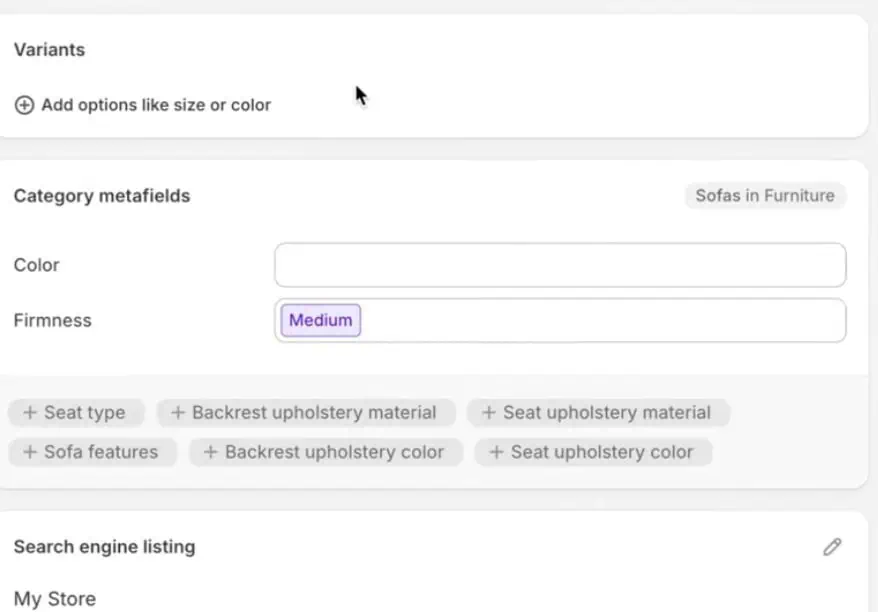
    1. Click Add options like size or color in the Variants section.
    2. Enter an option name, such as Size, and add its available values.
    3. Add other options if needed. Shopify supports up to three options and 2,048 variants per product.
    4. Set the appropriate price, SKU, and inventory quantity for each variant.
    5. Fill in the Product organization fields, including vendor, product type, collections, and tags.
    6. Complete any relevant category metafields, such as fabric or colour.
    7. Under Search engine listing, click the edit icon to customize your SEO page title, meta description, and URL handle.
    Add size, color in the variants section

    For example, a T shirt available in four sizes and three colours creates 12 combinations. You can manage each combination separately without creating 12 product pages.

    Step 5: Set Product Status, Save, and Publish

    Before making your listing available to customers, decide how it should appear in your store.
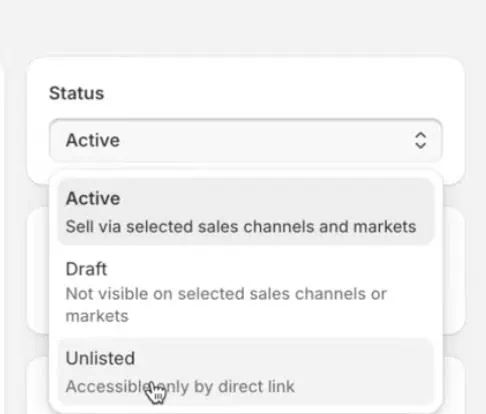
    1. Find the Status field in the product editor.
    2. Choose Active to make the product available for sale, Draft to keep it unpublished, or Unlisted to allow access through a direct product URL without normal storefront discovery.
    Choose status

    3. In the Publishing section, select the sales channels where you want the product to appear, such as your Online Store.

    4. Click Save to apply your settings.

    5. Use Preview to check the product page as customers will see it.

      Method 3: Add Products to Shopify by Duplicating Existing Products

      If you’re selling similar items, you don’t need to enter the same details each time. Shopify lets you copy an existing listing and modify the information that makes the new item different.
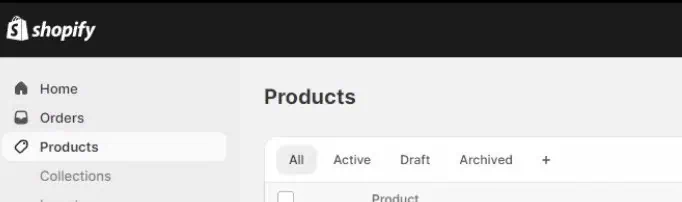
      Step 1: Select the Product to Duplicate

      1. From your Shopify admin, go to Products.
      Select the products

      2. Open a product that has similar specifications or settings to the new item.

      3. Click More actions > Duplicate.
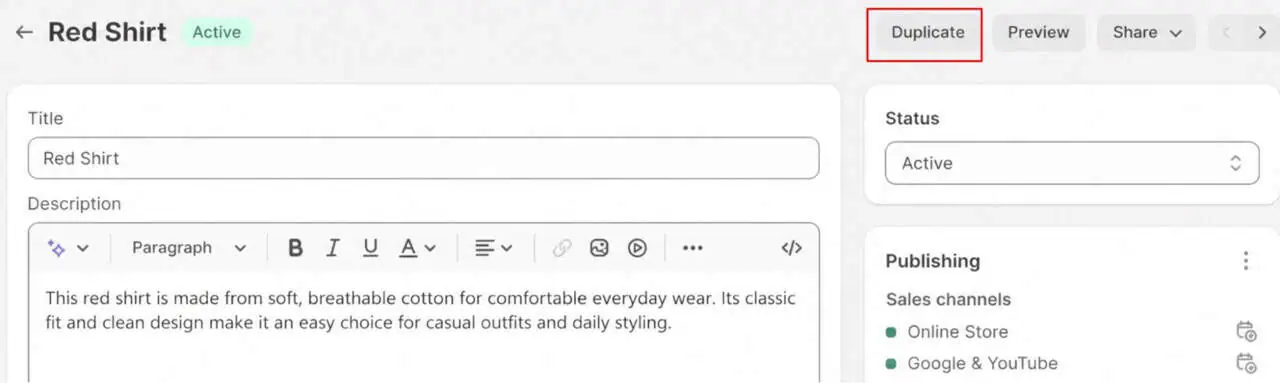
        click on duplicate

        This opens the duplication settings, where you can decide what information to carry over.
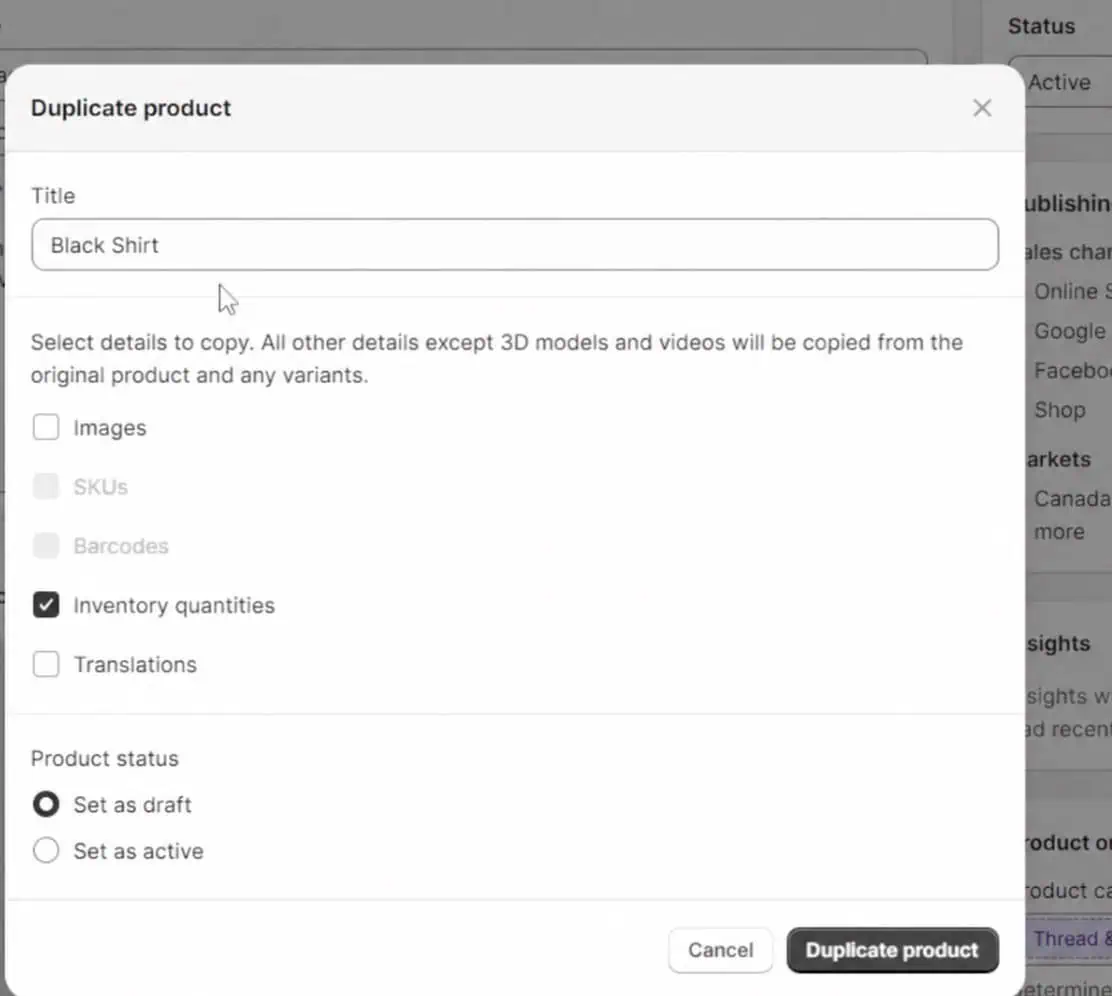
        Step 2: Create and Customize the Duplicate

        1. Enter a title for the new product.
        2. Choose which details you want to copy from the original listing.
        3. Select a product status: Draft, Active, or Unlisted.
        4. Click Duplicate product to create the new entry.
        Duplicate the products

        5. Replace any information that should be different, including product images, descriptions, prices, SKUs, and variant details.

        Pay particular attention to copied inventory settings and product identifiers. The new item may need its own stock quantities and SKU to prevent inventory errors.

        Step 3: Save and Verify the New Listing

        Before publishing, confirm that the copied information accurately describes the new item. Review its assigned collections and availability across your selected sales channels.

        Once everything is correct, click Save and preview the storefront listing to make sure the updated content appears as intended.

        Method 4: Add Products to Shopify in Bulk Using a CSV File

        A CSV file lets you import multiple listings in one operation instead of creating each one separately. You can prepare your catalog in Excel or Google Sheets and upload it directly to Shopify.

        Step 1: Download and Prepare Shopify’s Product CSV Template

        CSV template
        1. Download the sample product CSV template from Shopify’s Help Center.
        2. Open the file in Google Sheets or Excel and remove the sample entries.
        3. Fill in the relevant columns, including Title, URL handle, Description, Price, SKU, and Product image URL.
        4. For items with multiple variations, create separate rows for each combination and use the same URL handle to associate them with the correct product.
        5. Add publicly accessible image URLs so Shopify can retrieve the photos. Local computer file paths won’t work.
        6. Save the completed spreadsheet in CSV format using UTF8 encoding.

        Step 2: Import the CSV Into Shopify

        Once your spreadsheet is ready, follow these instructions:

        1. Go to Shopify Admin > Products > Import.

        2. Click Add file and select your CSV document.
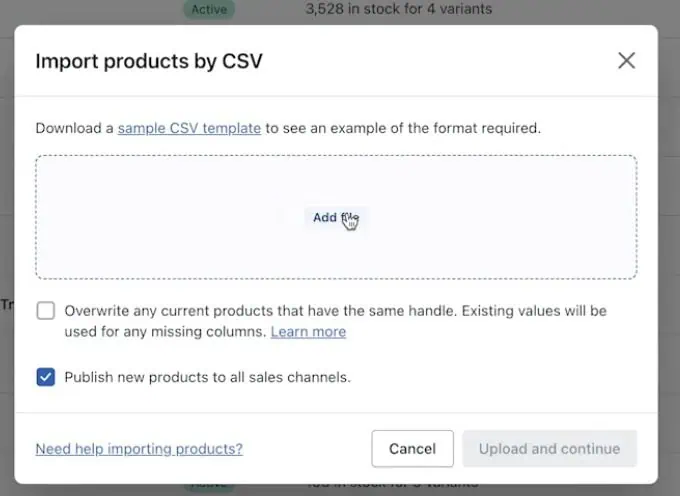
        Import products by CSV

        3. Review the option to publish new products across all sales channels. Deselect it if you only want them available on your online store.

        4. If you’re updating existing items, enable Overwrite products with matching handles only when you intend to replace their information.

        5. Click Upload and continue.

        6. Check the import summary, then select Import products.
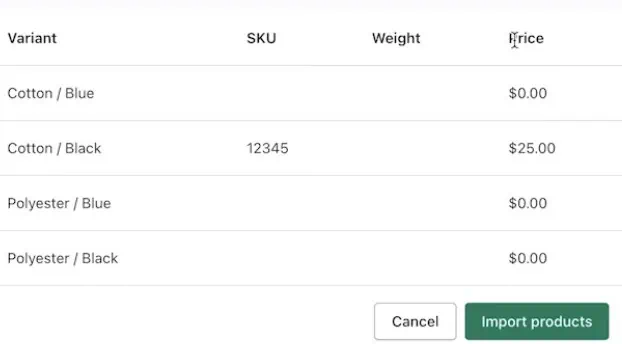
          click on import products

          Method 5: Add Products to Shopify Using Dropshipping or Print on Demand Apps

          Dropshipping and print on demand (POD) apps let you source products from suppliers and transfer their details to your Shopify store. Depending on the integration, the supplier also handles production, packaging, and shipping after a customer places an order.
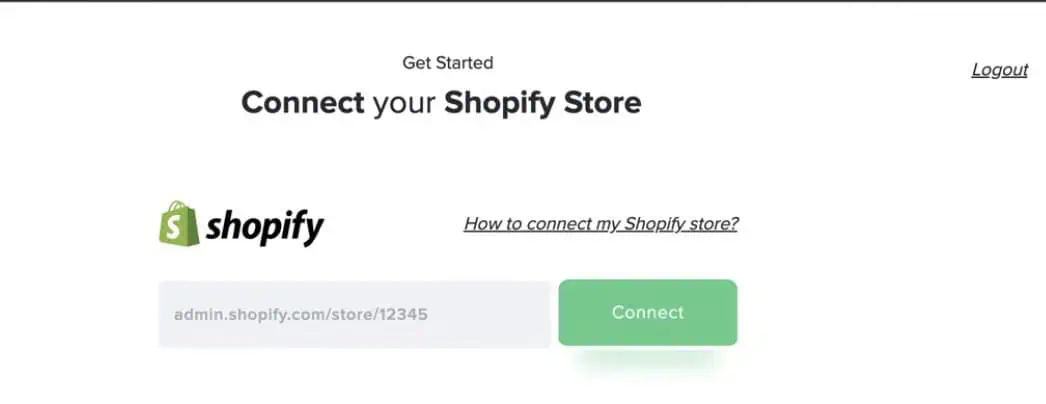
          Step 1: Install and Connect a Product Sourcing App

          1. Open the Shopify App Store.
          2. Search for a suitable supplier integration.
          3. Review the app’s product selection, fulfilment locations, shipping options, and fees.
          4. Click Install and approve the requested permissions.
          5. Create or connect your supplier account and complete the required setup.
          Connect shopify store

          Once connected, you can manage supplier products through the app without entering all their information from scratch.

          Step 2: Select or Create Products in the App

          The next steps depend on whether you’re reselling ready made items or creating custom merchandise.

          1. Browse the supplier’s catalog and select an item you want to offer.
          2. Choose the available sizes, colours, materials, or other supported options.
          3. For POD products, upload your artwork and adjust its placement on the product.
          4. Select the product mockups you want customers to see.
          5. Set your retail price and complete any additional product information supported by the app.

          Step 3: Publish Products to Shopify

          After preparing the items in your supplier app:

          1. Click the app’s Publish, Add to store, or equivalent option.
          2. Open the newly created listing in your Shopify dashboard.
          3. Review the description, images, prices, SKUs, and available variations.
          4. Check that inventory and product information synchronize correctly where the integration supports these features.
          5. Confirm that the supplier connection is active and that incoming orders will reach the correct fulfilment service.

          Which Method Should You Use to Add Products to Shopify?

          The right approach depends on your catalog size, where your products come from, and whether you need to create mockups or prepare listing information.

          MethodBest suited forMain advantage
          Bulk Mockup Shopify appSellers managing multiple designs and product listingsGenerates mockups and creates Shopify products in bulk using reusable templates
          Manual product creationFirst products or unique listingsProvides control over individual product details
          Duplicate existing productsSimilar productsReuses information from existing listings
          CSV importLarge catalogs or store migrationsUploads multiple products through a single file
          Dropshipping or POD appsProducts sourced from external suppliersTransfers supported product data from the supplier to Shopify

          Why Are My Newly Added Products Not Showing on Shopify?

          If a product appears in your Shopify admin but not on your storefront, check its visibility and publishing settings before creating the listing again.

          • Product status: Open the item under Products and check whether its status is Active, Draft, or Unlisted. Draft products aren’t published, while Unlisted products are generally accessible through direct links rather than normal store navigation.
          • Sales channel availability: Check the Publishing section and confirm that Online Store or your intended sales channel is selected. An Active product won’t appear on a channel where it hasn’t been made available.
          • Collection settings: If the item is missing from a collection page, confirm that you’ve added it to the correct manual collection or that it meets the conditions of an automated collection.
          • Markets and catalogs: Review your Shopify Markets and catalog settings to ensure customers in the relevant regions can access the product.
          • Theme settings: Check your storefront’s product templates, collection displays, and navigation. A product may be published but remain difficult to find because it isn’t linked or displayed where expected.
          • Supplier synchronization: For products added through external apps, check whether the supplier integration has completed synchronization or changed the item’s availability.

          Conclusion

          Now that you know how to add products to Shopify, you can choose from five methods based on your needs. Manual creation and duplication suit smaller catalogs, while CSV imports and supplier apps help manage larger inventories and print on demand products.

          Regardless of your approach, check product details, publishing settings, and storefront appearance before accepting orders.

          If you regularly create products using multiple artwork designs, book a demo to see how Bulk Mockup helps you generate mockups, prepare listings, and publish Shopify products in bulk from one place.

          FAQs

          How do I upload products to Shopify from Excel?

          Save your Excel spreadsheet as a CSV file using Shopify’s required column format. Then go to Products > Import in your Shopify admin and upload the file.

          How many products can I add to Shopify?

          Shopify generally allows unlimited products across its standard plans. However, certain limits apply to product variants, CSV file sizes, and daily variant creation for large catalogs.

          Can I import products from another website to Shopify?

          Yes. Export product information from your existing platform into a compatible CSV file, then import it into Shopify. You can also use supported migration apps.

          How do I add products to Shopify collections?

          Open Products > Collections, select a manual collection, and add the desired items. For smart collections, configure conditions that automatically include products matching your chosen criteria.

          Vikash Kr Prajapati
          Vikash is the founder of Bulk Mockup, a specialized plugin that integrates with Photoshop to streamline mockup creation for print-on-demand sellers. Drawing from his experience running Putoos Graphics LLP, an image editing agency serving hundreds of e-commerce entrepreneurs, he recognized the time-consuming challenges of manual mockup production. Bulk Mockup was developed to automate this process, helping sellers save valuable time and resources while professionally presenting their products

          Subscribe to Bulk mockup
          weekly updates!

          Accepted payment methods
          Copyright © 2026 by Bulkmockup. All rights reserved.