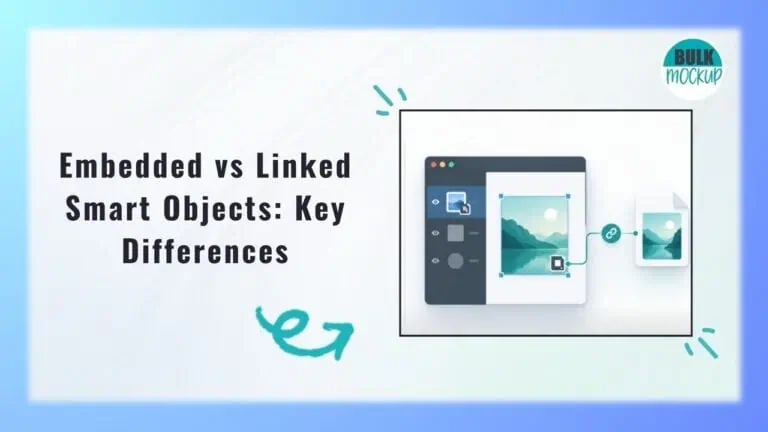


If you work with Photoshop Smart Objects regularly, you will eventually run into the choice between embedded vs linked smart objects.
At first, both can feel almost identical. You can transform them, apply Smart Filters, and use them in mockups without damaging the original content. The difference becomes noticeable when you start updating files, sharing PSDs, or reusing the same asset across several documents.
For a simple one file project, the choice may barely matter. For mockups, reusable designs, and larger production workflows, it can affect how much manual work you deal with later.
This guide breaks down the difference clearly so you can choose the better option for the way you actually work.
Neither option is better for every Photoshop project. Your choice depends on whether you want the PSD or PSB to contain the source content itself, or whether you want the document to keep referring to a separate file.
| Factor | Embedded Smart Object | Linked Smart Object |
| Source location | Inside the PSD or PSB | In a separate external file |
| External file required | No | Yes |
| Changes to original source reflected | No connection to the original external file | Yes, the linked content can be refreshed when the source changes |
| Portable as one PSD | Easier | Source files also need to be managed |
| Central updates across multiple PSDs | Limited | Strong, since several documents can reference the same source |
| Missing link risk | No external link to break | Yes |
| Typical PSD size | Often larger | Can be smaller, depending on the source and document |
| Best for standalone templates | Strong | Less convenient |
| Best for reusable master assets | Limited | Strong |
| Can be converted later | Yes | Yes |
Adobe allows you to convert an embedded Smart Object into a linked one and embed a linked object later, so the choice does not have to be permanent.
One detail is worth keeping in mind when comparing file size. Linked Smart Objects can reduce the size of a Photoshop document, but the savings vary because Photoshop still keeps display data for the linked content.
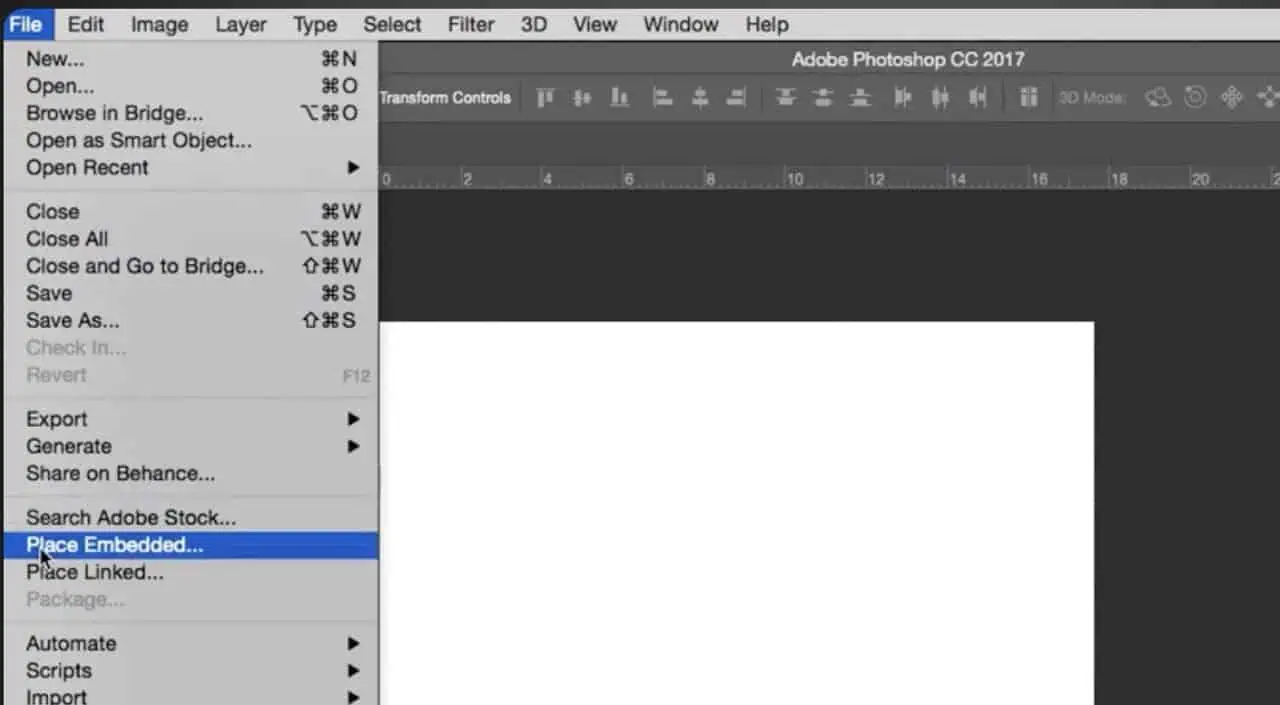
An embedded Smart Object stores its source content directly inside the Photoshop document. You can create one by choosing File > Place Embedded and selecting the file you want to add.
After placement, that content becomes part of the PSD or PSB rather than staying connected to the original file on your computer. If you later move, rename, delete, or edit the original file, the embedded Smart Object inside Photoshop remains unchanged.
You can edit the embedded content by opening the Smart Object from the Layers panel. When you save those changes, Photoshop updates the Smart Object inside the current document.
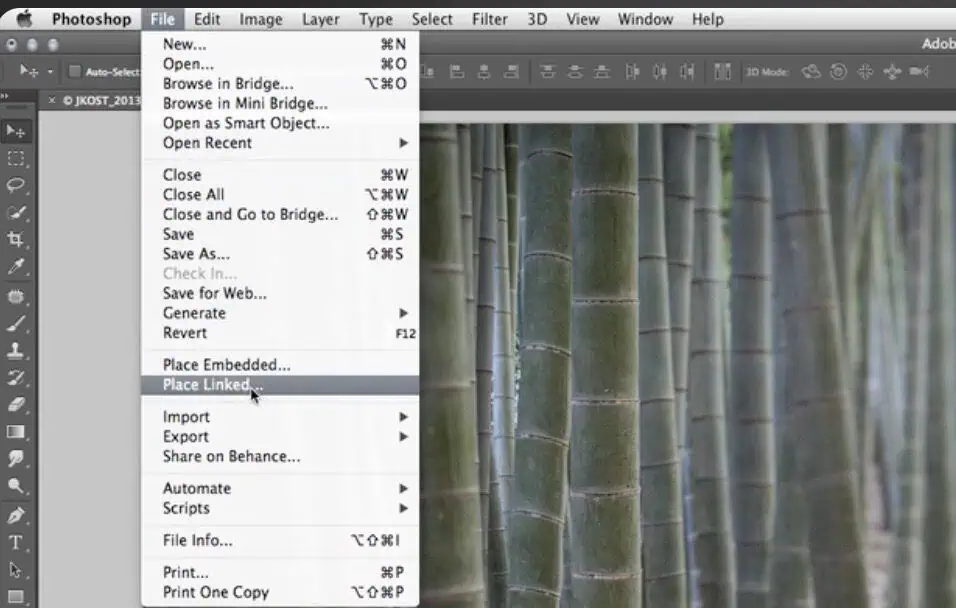
A linked Smart Object keeps a connection to a separate source file outside the Photoshop document. You can create one through File > Place Linked.
For example:
master artwork.psd
↓
shirt mockup.psd
hoodie mockup.psd
tote mockup.psd
All three mockups can reference the same artwork file. If you edit and save master artwork.psd, Photoshop can update the linked content in each document that uses it.
This setup is useful when you need one logo across several files, reusable campaign artwork, Illustrator packaging artwork shown inside Photoshop, or multiple mockups that should display the latest version of the same design.
With an embedded Smart Object, the source content stays inside the PSD or PSB. Once embedded, it no longer follows changes made to the file that was originally placed.
A linked Smart Object continues to use an external file as its source. If that source changes while the Photoshop document is open, Photoshop can refresh the linked content automatically. After reopening a document, you may need Update Modified Content or Update All Modified Content for changed links.
Use embedded when the PSD should control the asset. Use linked when the external file should remain the master source.
Embedded Smart Objects can make a PSD or PSB larger because their source data is stored inside the document.
Linked Smart Objects may reduce duplicated data, especially when large assets are reused across several Photoshop files. However, the result depends on the document and source file.
Photoshop still stores a flattened and scaled representation of linked content for display. In some cases, that stored data can reduce or even cancel out the expected file size savings. For this reason, linking does not automatically produce a very small PSD.
Embedded Smart Objects are easier to move or send because the Photoshop file does not rely on separate source files.
Linked Smart Objects can lose access to their source if a file is renamed, moved, or deleted. Photoshop can restore the connection through Relink to File. When searching for a source, it first checks the last known relative location, followed by the last known absolute location and other available locations.
For linked projects, keep source files inside a clear and consistent project folder instead of spreading them across unrelated locations.
Linked Smart Objects are especially useful when the same asset appears in many Photoshop documents.
Suppose 20 mockups all use the same brand logo. With embedded copies, each PSD contains its own version, so changes have to be managed separately. With a linked setup, all 20 documents can reference one master logo file. Photoshop can then update those linked instances when the source changes.
This works well for branding systems, product presentations, catalogs, campaign artwork, and mockup libraries that reuse the same current asset.
Embedded placeholders work well when the mockup should function as a complete PSD without separate source files. Photoshop stores the Smart Object content inside the document, so the recipient does not need access to the file originally used to create it.
They are a practical choice for:
For these cases, embedded content keeps delivery simpler and avoids missing link problems.
Linked Smart Objects are more useful when several mockups need to use the same current artwork. Photoshop lets multiple documents reference one external source file, so changes to that source can be reflected in the linked documents.
For example, one design could be linked across a T-shirt, hoodie, tote, poster, and mug mockup. Instead of maintaining a separate embedded copy in every PSD, you can keep one master artwork file as the shared source.
This works well for repeated artwork, logos, campaign graphics, and other assets used across a mockup library. Linking only handles shared source management, though. Once you are producing hundreds of designs across many templates, file naming, exports, template structure, and automation also need to be managed separately.
Duplicating a Smart Object is different from creating a linked Smart Object. A regular duplicate of an embedded Smart Object can share the same internal source content within the current PSD. If you edit that shared content, the other instances update as well.
When you need separate content, use Layer > Smart Objects > New Smart Object Via Copy. Photoshop creates an independent embedded Smart Object, so editing the new copy does not change the original.
For example, if the front of a mockup needs Artwork A and the back needs Artwork B, independent Smart Objects prevent edits to one placeholder from changing the other.
A linked Smart Object works differently because it references an external file. Duplicating a linked layer does not create a new external source file. Both instances can continue pointing to the same linked source.
If a linked source file goes missing, select the affected layer and use Relink to File to reconnect it. Keeping the PSD and its linked assets inside one organized project folder reduces the chance of broken links when files are moved.
Before sharing or archiving a linked project, use File > Package. Photoshop creates a package containing a copy of the main document and its linked source files, which is useful when handing work to a client or moving it to another computer.
You can also change how a Smart Object is stored:
The better choice depends on how the Photoshop file will be used. Embedded Smart Objects suit files that need to work independently, while linked Smart Objects are better when several documents need to reference the same external source. Adobe supports both workflows and lets you convert between them later if needed.
| Workflow | Better Starting Choice | Why |
| Downloadable Photoshop mockup | Embedded | Keeps the template self contained |
| Client PSD | Embedded or packaged linked | Makes delivery easier to manage |
| One logo across many PSDs | Linked | Lets multiple files reference one source |
| One artwork across several mockups | Linked | Keeps the same artwork connected across documents |
| Packaging artwork maintained in Illustrator | Linked | The Illustrator file can remain the source |
| Self contained archive | Embedded | Removes reliance on external files |
| Large modular project | Linked | Makes shared assets easier to manage |
| PSD moved frequently between computers | Embedded or packaged linked | Helps avoid broken file paths |
| Template sold to unknown users | Embedded | Reduces external file requirements |
Photoshop can package a linked project with its source files, which is useful when you need to move or deliver a linked setup without breaking its connections.
Smart Object setup matters more as your catalog grows. With 100 designs, 20 templates, and 5 product variants, you can end up creating thousands of product visuals.
At that scale, opening templates, replacing artwork, resizing designs, naming files, and exporting every variation manually takes too much time.
With Bulk Mockup, you can create mockups in bulk, automate repetitive creation tasks, process larger numbers of designs and variations, and organize exports more efficiently.
This can be useful for print on demand sellers, ecommerce businesses, designers with large mockup collections, and teams producing many product variations.
The main difference between embedded vs linked Smart Objects comes down to where you want the master source to live. Embedded content works well when the finished PSD needs to stay portable and self-contained. Linked content is better suited to assets that must remain connected across multiple documents.
You can also switch between the two later, so your working setup does not have to match your final delivery format.
Plan your Smart Object structure around how each asset will be edited, reused, shared, and delivered.
No. After the content is embedded, it becomes part of the Photoshop document and no longer follows changes made to the original external file. You must edit the embedded content separately.
They can, especially when large assets are kept outside the document. However, Photoshop still stores display data for linked content, so the actual reduction varies and may sometimes be small.
Yes. Several Photoshop documents can reference the same external source file. When that source changes, the linked content in those documents can be updated to reflect the new version.
Use embedded Smart Objects when a mockup should work as a self contained PSD. Linked Smart Objects are more suitable when several mockups need to keep referencing the same external artwork or asset.