
Fix the “There Is No Smart Object in Layer in This Template” error
This error means Bulk Mockup Photoshop Plugin could not find a usable Smart Object in your PSD template. In most cases, the PSD does not contain a real Smart Object, the wrong design layer is being used, or the template needs the multiple smart object workflow.
Before you start, make sure you are using Adobe Photoshop CC 2022 or later and a Smart Object-based PSD template. If needed, review Pre-Requisites For Working With Bulk Mockup, Which Software Does Bulk Mockup Work On?, and Creating First Mockup With Photoshop Plugin Bulk Mockup (Complete Beginner Guide).
Step 1: Confirm the PSD has a real Smart Object
Open the PSD template in Photoshop.
In the Layers panel, find the layer where your design should go.
Look for the small Smart Object icon on the layer thumbnail.
If there is no Smart Object icon, Bulk Mockup Photoshop Plugin cannot replace that layer.
If the file is only a flat JPG, PNG, or background layer, use a Smart Object-based PSD template instead.
Step 2: Check the design layer or design location
Select the Smart Object layer that should receive your artwork.
If your template uses one main Smart Object, rename that layer to
@design.Save the PSD after renaming.
Run the same PSD again in Bulk Mockup Photoshop Plugin.
If your template contains one Smart Object only, naming it @design makes the design location clear and helps avoid selecting the wrong layer.
Step 3: Check whether the Smart Objects are linked
Double-click one Smart Object layer to open it.
Make a small visible change.
Save and close the Smart Object.
Check the main template to see whether the other Smart Object layers changed too.
If all Smart Objects update together, they are linked. In that case, Bulk Mockup Photoshop Plugin can usually treat them as one Smart Object. If the other Smart Objects do not update, they are independent and may need the multiple smart object workflow.
Step 4: Use the multiple smart object workflow when your template has separate design areas
If your PSD has separate Smart Object layers that should receive different designs, set up the file for multiple smart object processing.
Rename the main Smart Object layer to
@design.Leave the other Smart Object layer names clear and consistent.
Create matching subfolders in your design folder for the additional Smart Object layers.
Run the PSD with the correct folder structure.
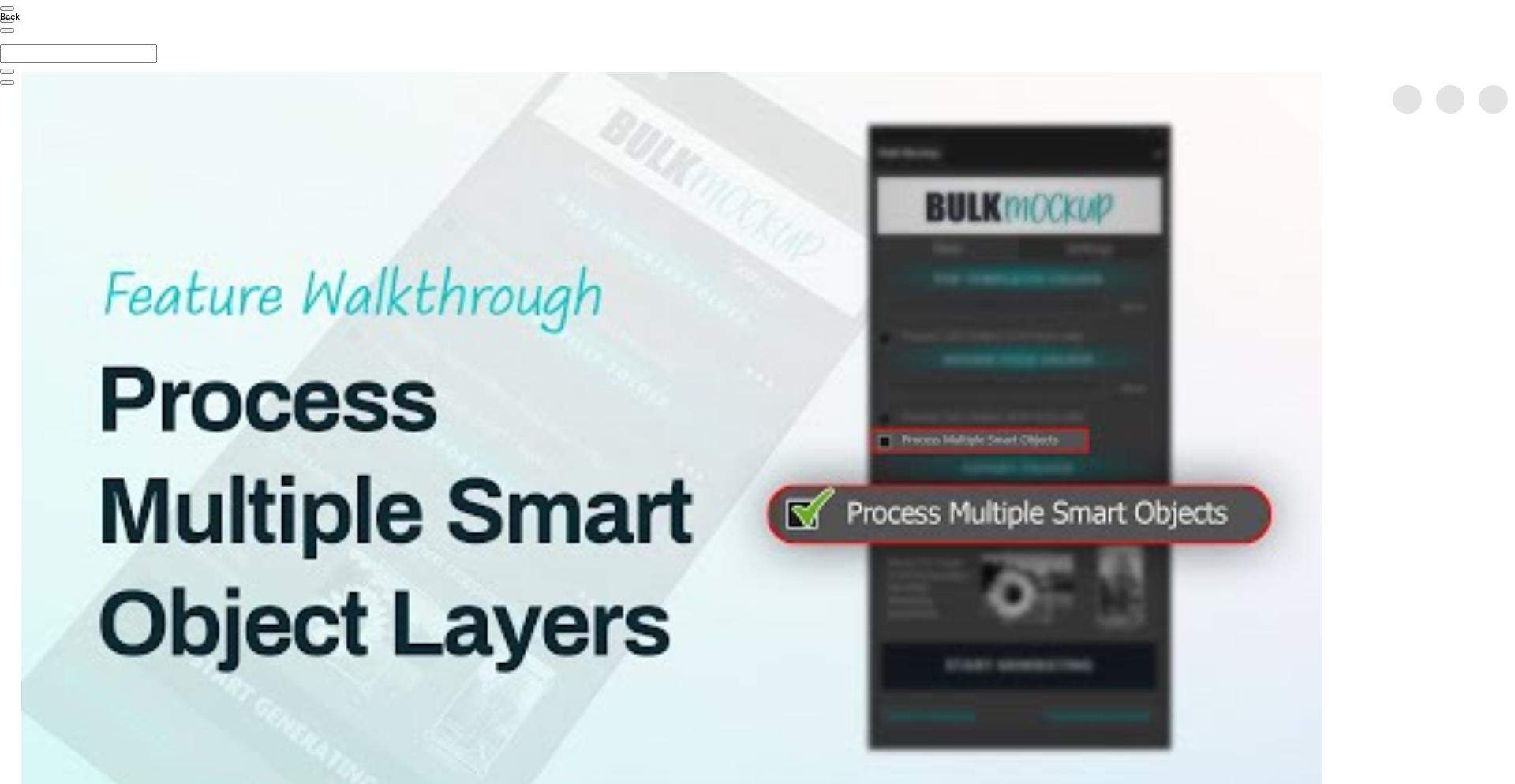
For the full setup, see How to Process Multiple Smart Object Layers in Bulk Mockup.
Step 5: Run the template again
Save the PSD.
Open Bulk Mockup Photoshop Plugin again.
Load the same PSD template and start the process.
If you still see the error, the PSD is usually missing a valid Smart Object or the design location is not set correctly.
Need More Help?
If you have questions about export folder settings or encounter any issues, contact the Bulk Mockup support team at [email protected].