
Fix "Not a Valid Photoshop Document" Error in Bulk Mockup
Overview
If you see the error "Could not open because it is not a valid Photoshop document" when running Bulk Mockup, temporary files in your folders are likely the cause. Mac systems generate hidden temporary files (starting with a dot) that interfere with Bulk Mockup's file processing. This tutorial shows you how to identify and remove these files to resolve the error.
Step 1: Configure Bulk Mockup
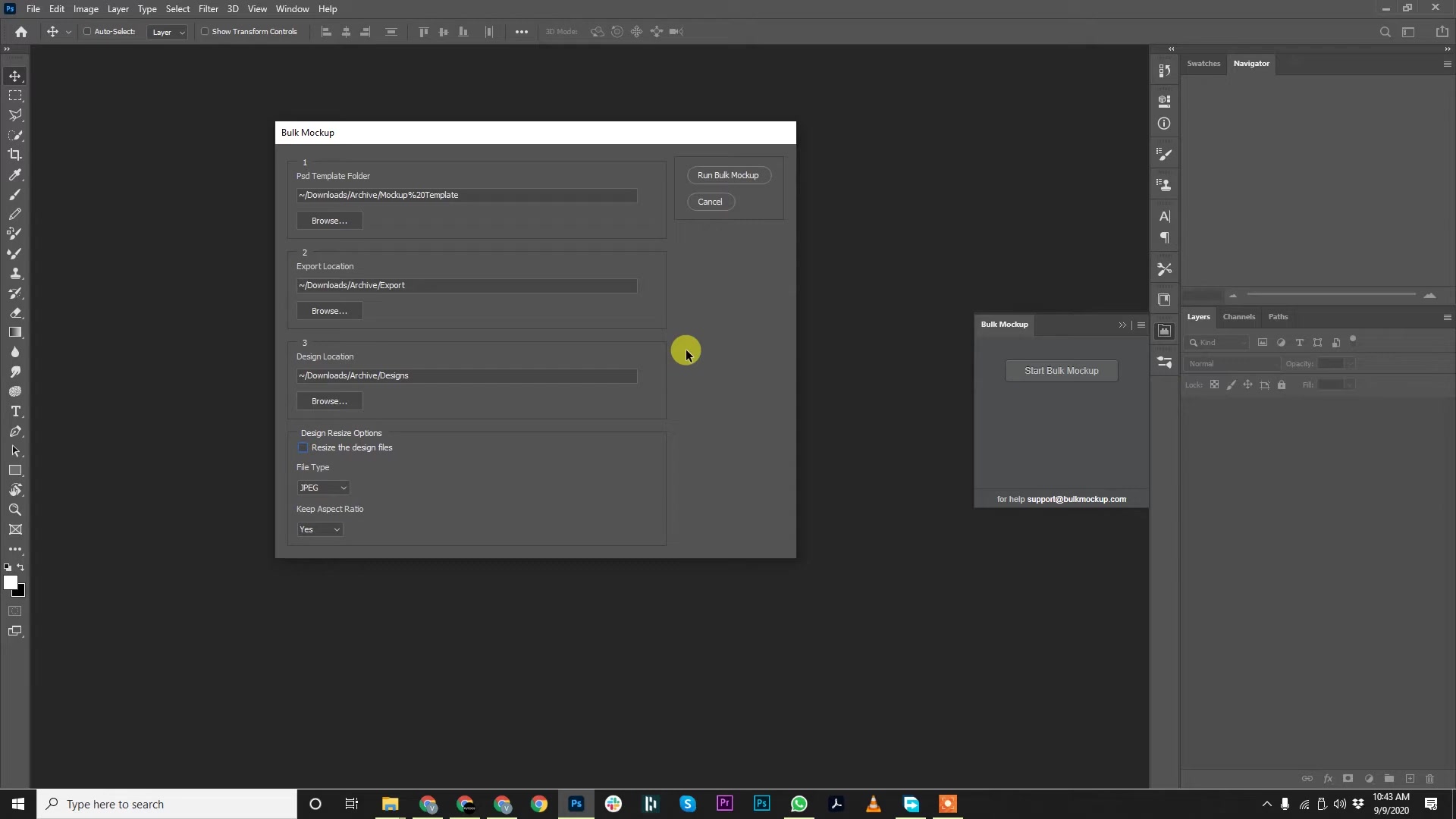
Open the Bulk Mockup panel in Photoshop and configure your folders:
PSD Template Folder - Select the folder containing your mockup templates with smart objects
Design Location - Choose the folder with your design images (PNG/JPG files)
Export Location - Set where you want the final mockups saved
Click Run Bulk Mockup to start processing.
Step 2: Identify the Error
If temporary files exist in your folders, Photoshop will display an error message during processing:
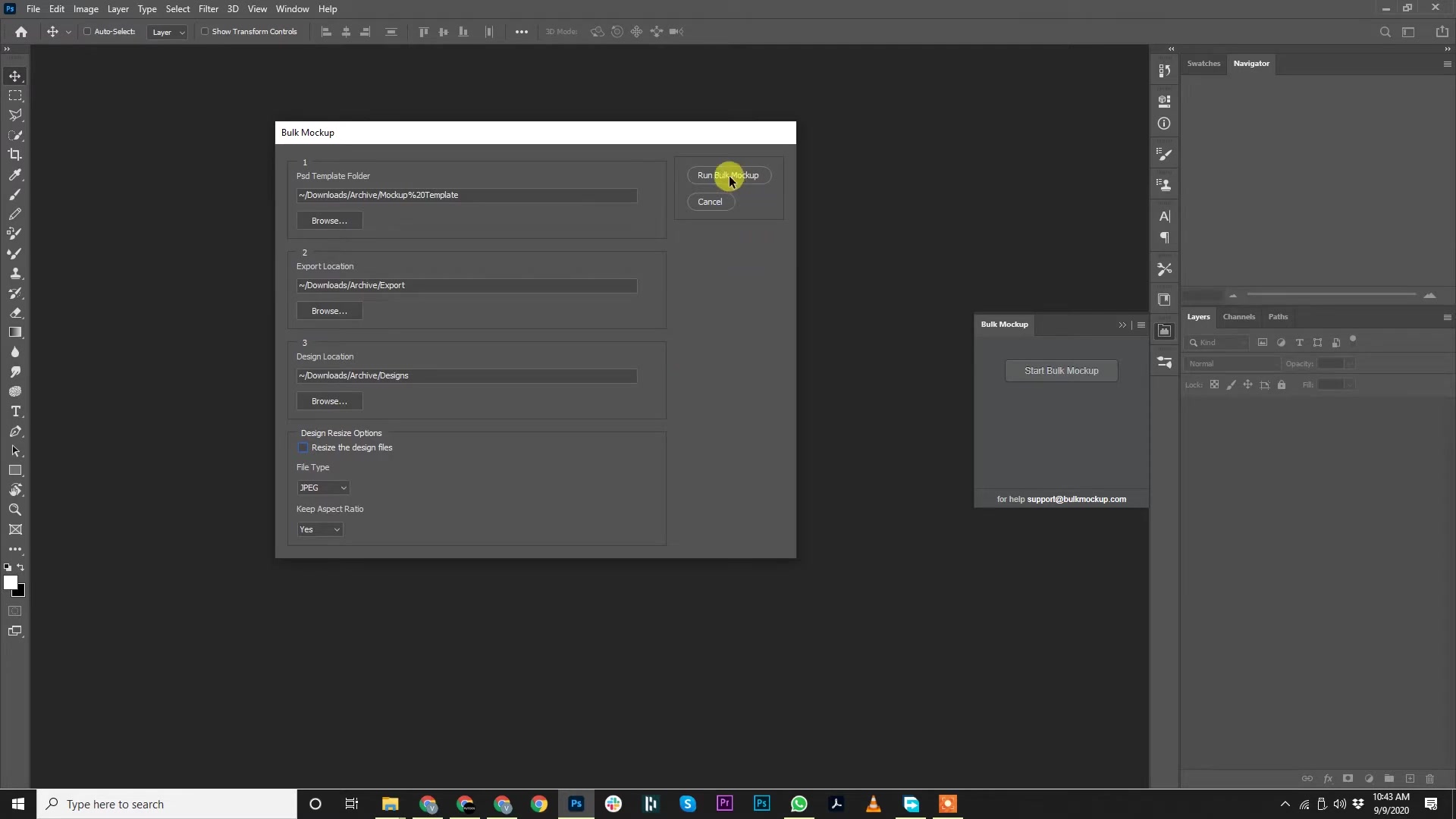
The error message often shows a filename starting with "._" followed by your actual file name. This indicates a Mac-generated temporary file is blocking the process.
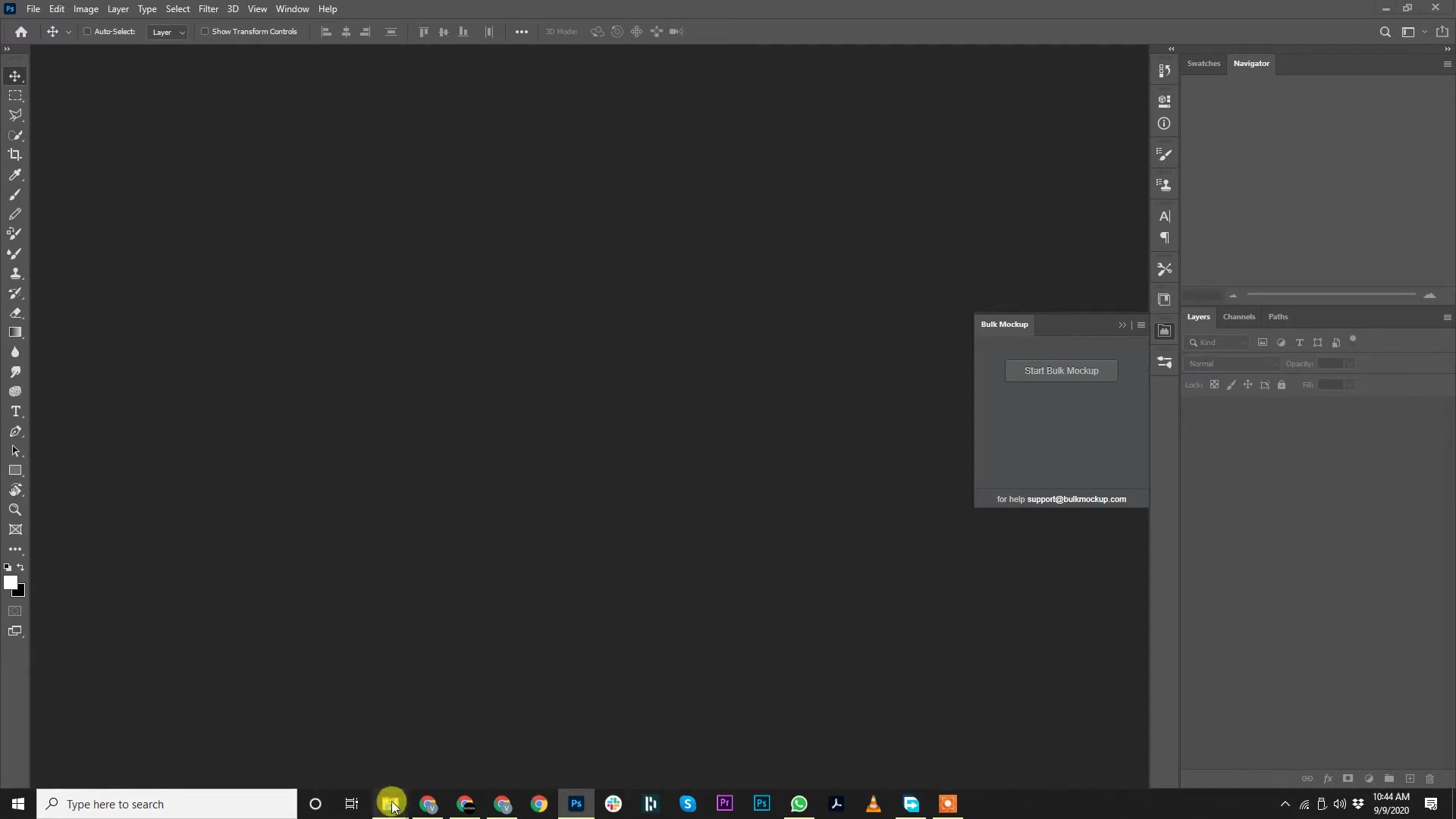
Step 3: Locate Temporary Files in Template Folder
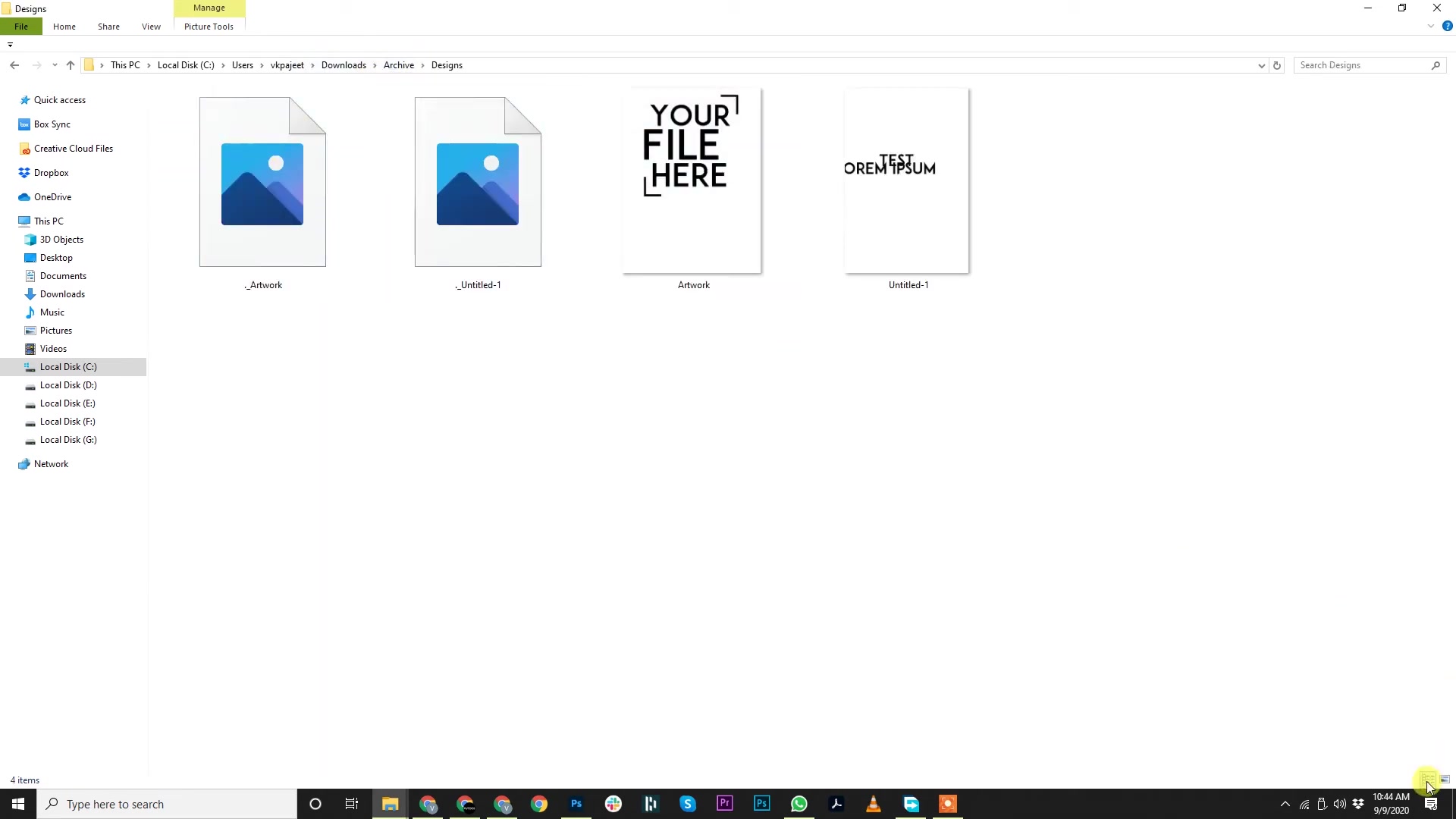
Navigate to your PSD Template Folder and look for files with these characteristics:
Filename starts with a dot (e.g.,
._filename.psd)File size is approximately 4KB
These files may be hidden by default on Mac systems
On Mac, press Cmd + Shift + . (period) in Finder to show hidden files and locate these temporary files more easily.
Step 4: Locate Temporary Files in Design Folder
Check your Design Location folder for the same type of temporary files. They will have the same dot-prefix pattern and small 4KB size.
Step 5: Delete Temporary Files
Select all temporary files (those starting with a dot and sized at 4KB) in both your template and design folders, then delete them:
Select the temporary files with dot-prefixed names
Press Delete or move them to Trash
Confirm the deletion if prompted
These temporary files contain no actual data, so deleting them is safe and won't affect your mockup templates or design files.
Step 6: Re-run Bulk Mockup
Return to Photoshop and run Bulk Mockup again:
Verify your folder settings are still correct
Click Run Bulk Mockup
Processing should now complete without errors
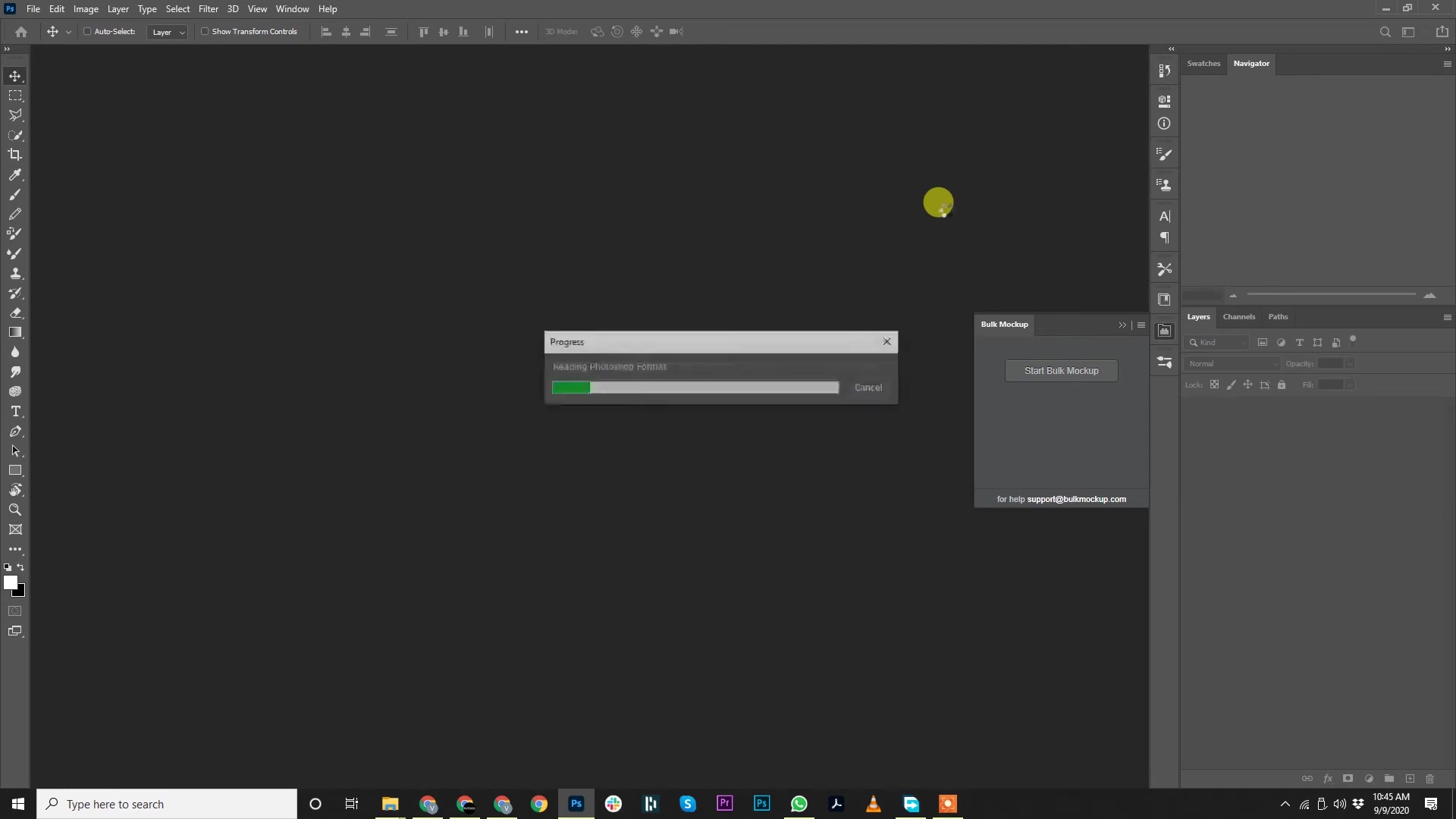
Step 7: View Your Results
Once processing completes successfully, check your Export Location folder. You'll find subfolders (named after your design files) containing the generated mockups.
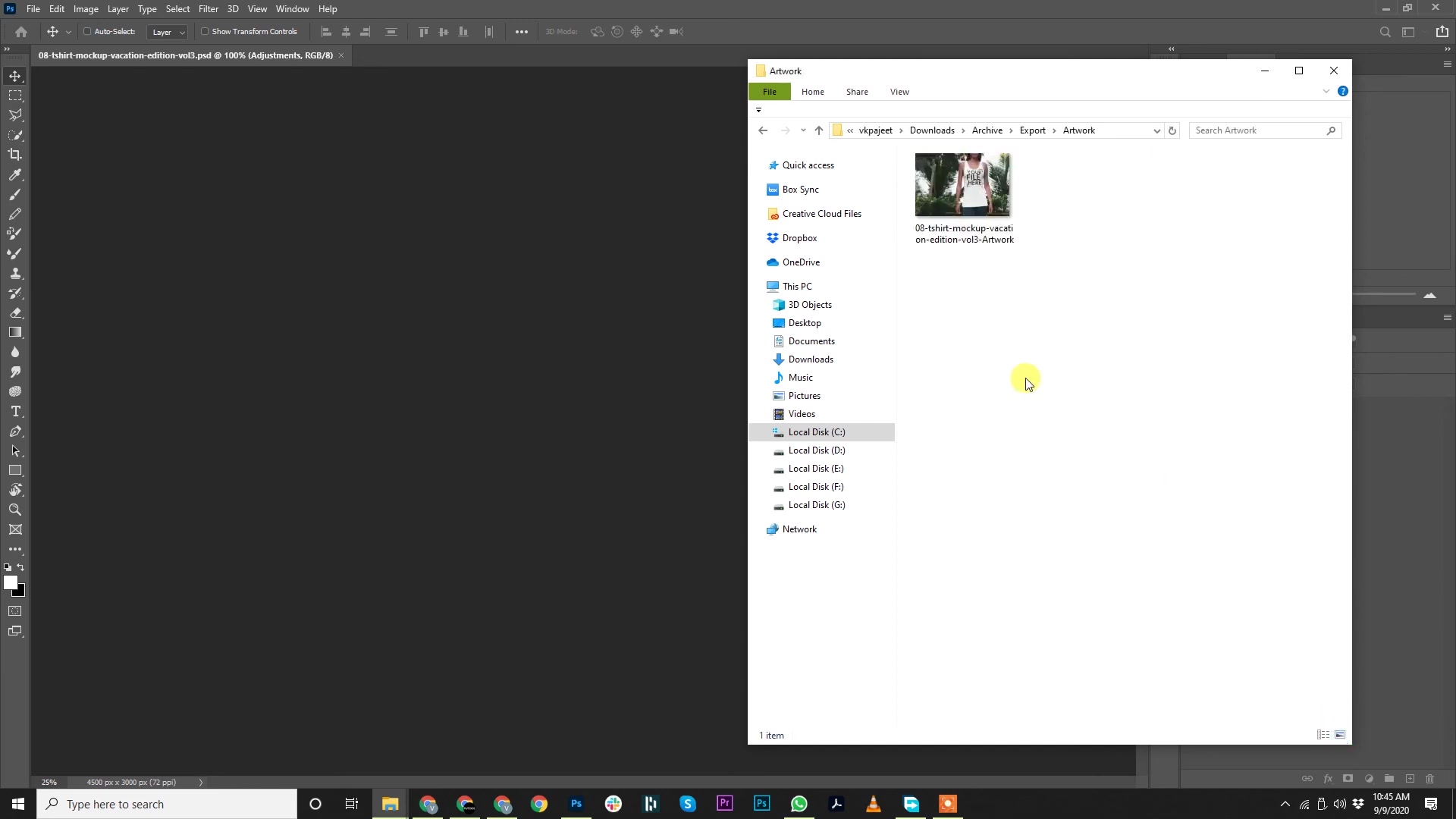
Each design file will have been processed with each template, creating individual mockup files ready for use.
This issue occurs specifically on Mac systems. If you transfer files from Mac to Windows, temporary files may carry over and cause the same error on Windows machines.
Related Resources
For more information on using Bulk Mockup effectively:
Need More Help?
If you have questions about this error or encounter any issues, contact the Bulk Mockup support team at [email protected].
Watch Similar Videos
Explore more Bulk Mockup tutorials and use cases on the support site.