
Can multiple smart objects be replaced with the same design?
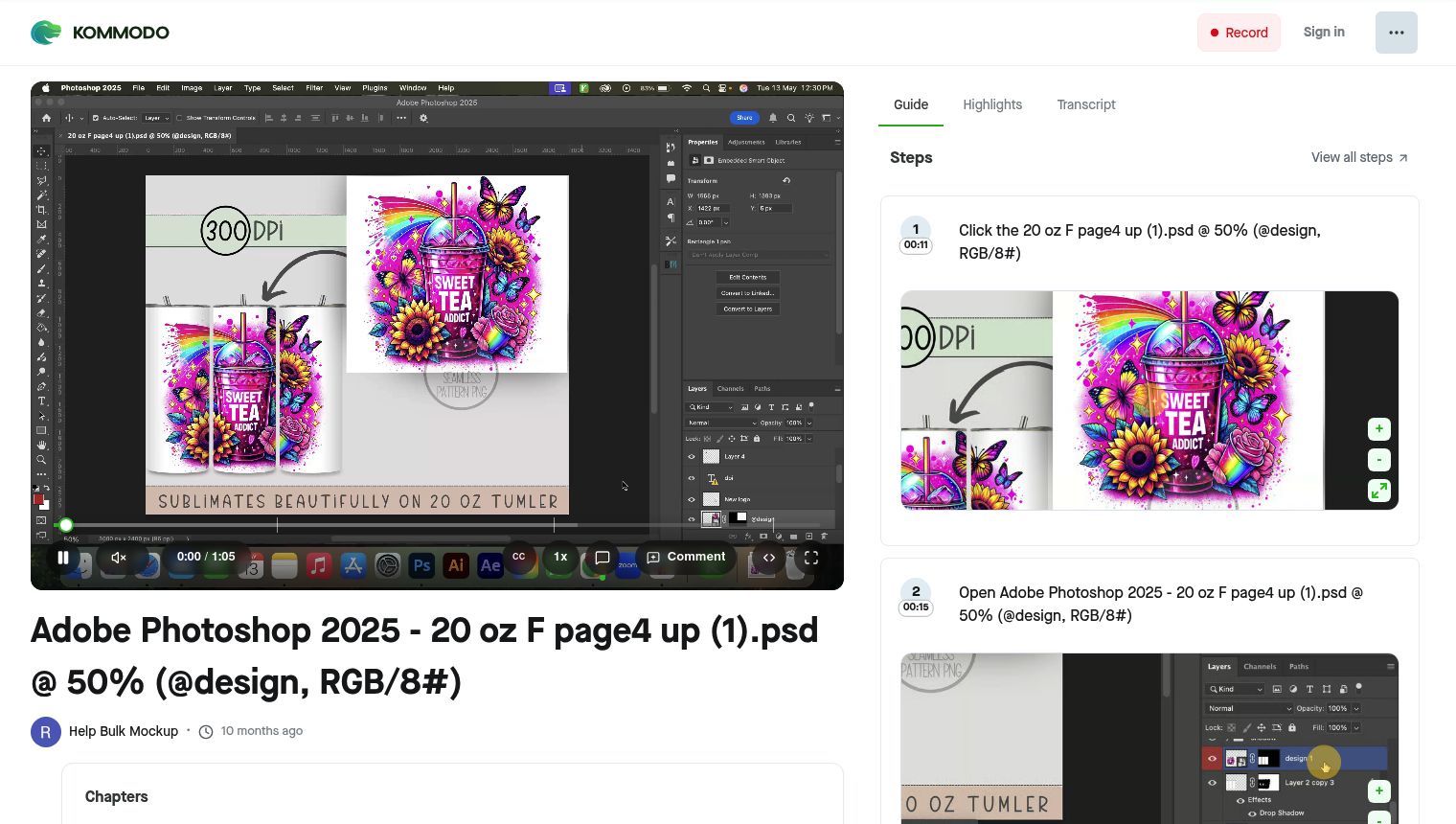
Yes. If the smart objects are linked, one design will update all of them. This is the easiest setup when you want the same design on every view of the product.
Use this workflow when your mockup shows the same product from multiple angles, like a tumbler, mug, or T-shirt.
How it works
Bulk Mockup Photoshop Plugin checks the smart object setup in your PSD. If the smart objects are linked, replacing the design in one smart object updates every linked copy.
Follow these steps
Open your PSD mockup in Photoshop.
Double-click one smart object layer to open it.
Place your design inside that smart object.
Save the smart object and close it.
Go back to the main PSD and check the other views.
If the same design appears in all smart objects, your setup is correct.
If only one smart object changes
Your smart objects are independent. In that case, the same design will not update all views automatically.
You have two options:
Recreate the smart objects as linked copies if every view should always use the same design.
Keep them separate and use How to Process Multiple Smart Object Layers in Bulk Mockup if each smart object needs its own file setup.
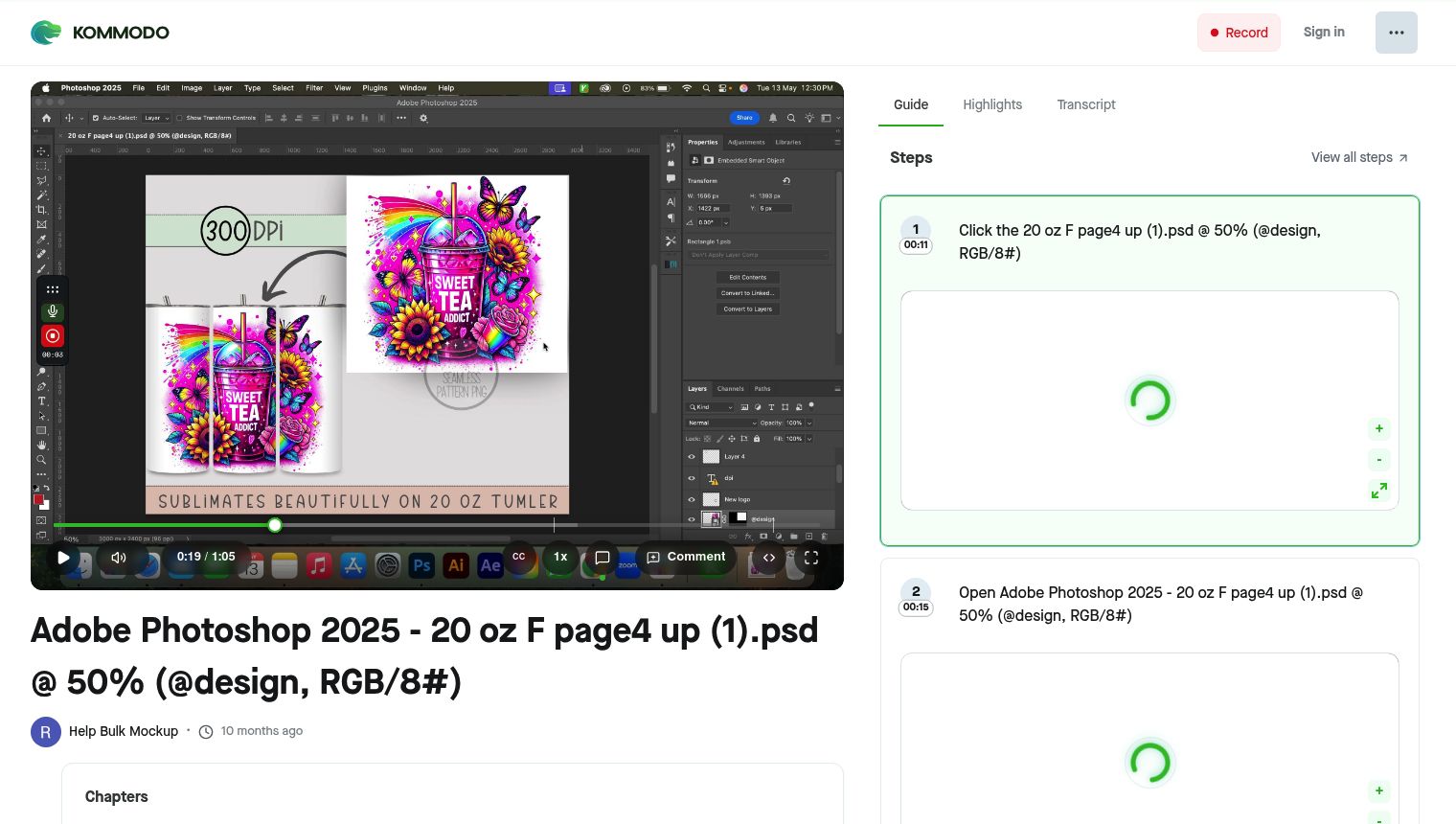
To test whether smart objects are linked, add a visible change inside one smart object, save it, and check whether the other smart objects update too.
Using Bulk Mockup Photoshop Plugin
If all smart objects are linked, you do not need to enable multiple smart object processing. The plugin will replace the design once and Photoshop will update the linked copies for you.
If the smart objects are not linked, use the multiple smart object workflow instead.
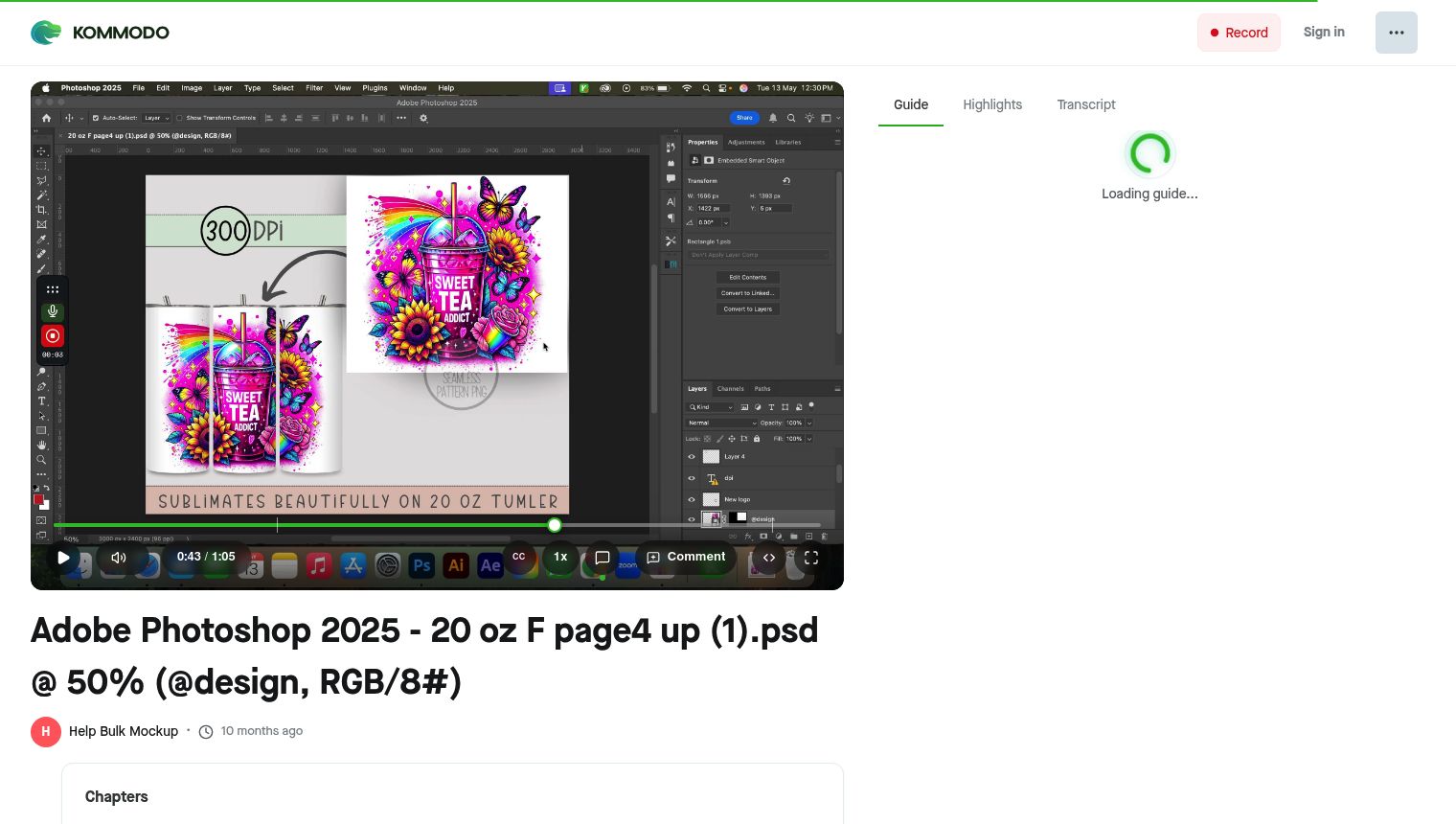
Watch Similar videos:
Use Cases:
Front and side product views that should show the same artwork
Tumbler mockups with repeated design placement
Mug and apparel mockups with matching multi-angle previews
Need More Help?
If you have questions about export folder settings or encounter any issues, contact the Bulk Mockup support team at [email protected].