Feature Walkthrough

How to Use Resize Methods in Bulk Mockup for Wall Art

This tutorial shows you how to use Bulk Mockup's 7 resize methods to create perfect wall art mockups. You'll learn when to use each method and how to avoid common issues like distortion and cropping.

Before You Start

Make sure you have:

  • Photoshop installed with the Bulk Mockup plugin

  • Your design files organized in a folder (PNG or JPG format)

  • A PSD template with smart object layers

  • Photoshop units set to pixels (Edit > Preferences > Units)

Set up your folder structure before starting: one folder for templates, one for designs, and one for exports. This keeps your workflow organized.

Understanding Resize Methods

Bulk Mockup offers 7 different ways to resize your designs into smart objects. Each method handles aspect ratio and canvas space differently.

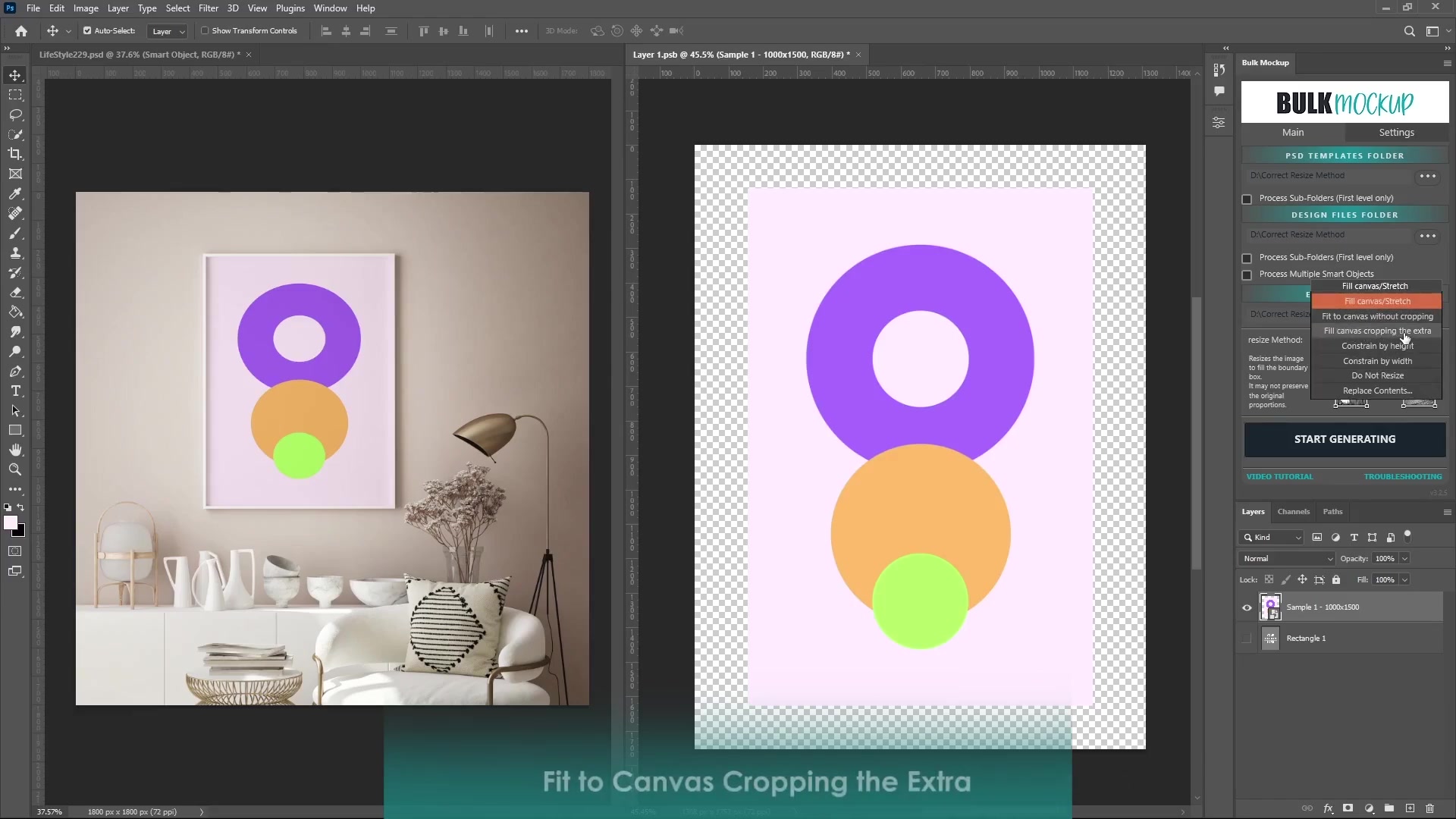
Dual Photoshop windows: Left lifestyle mockup frame; right Bulk Mockup with open Resize Method dropdown listing Fill canvas/Stretch, Fit to canvas without cropping, Fill canvas cropping the extra, geometric circles design on checkered transparency background, and bottom text Fit to Canvas Cropping the Extra.

Here's what each method does:

1. Fill Canvas/Stretch

Stretches your design to fill the entire smart object canvas. This may distort the aspect ratio but ensures no gaps.

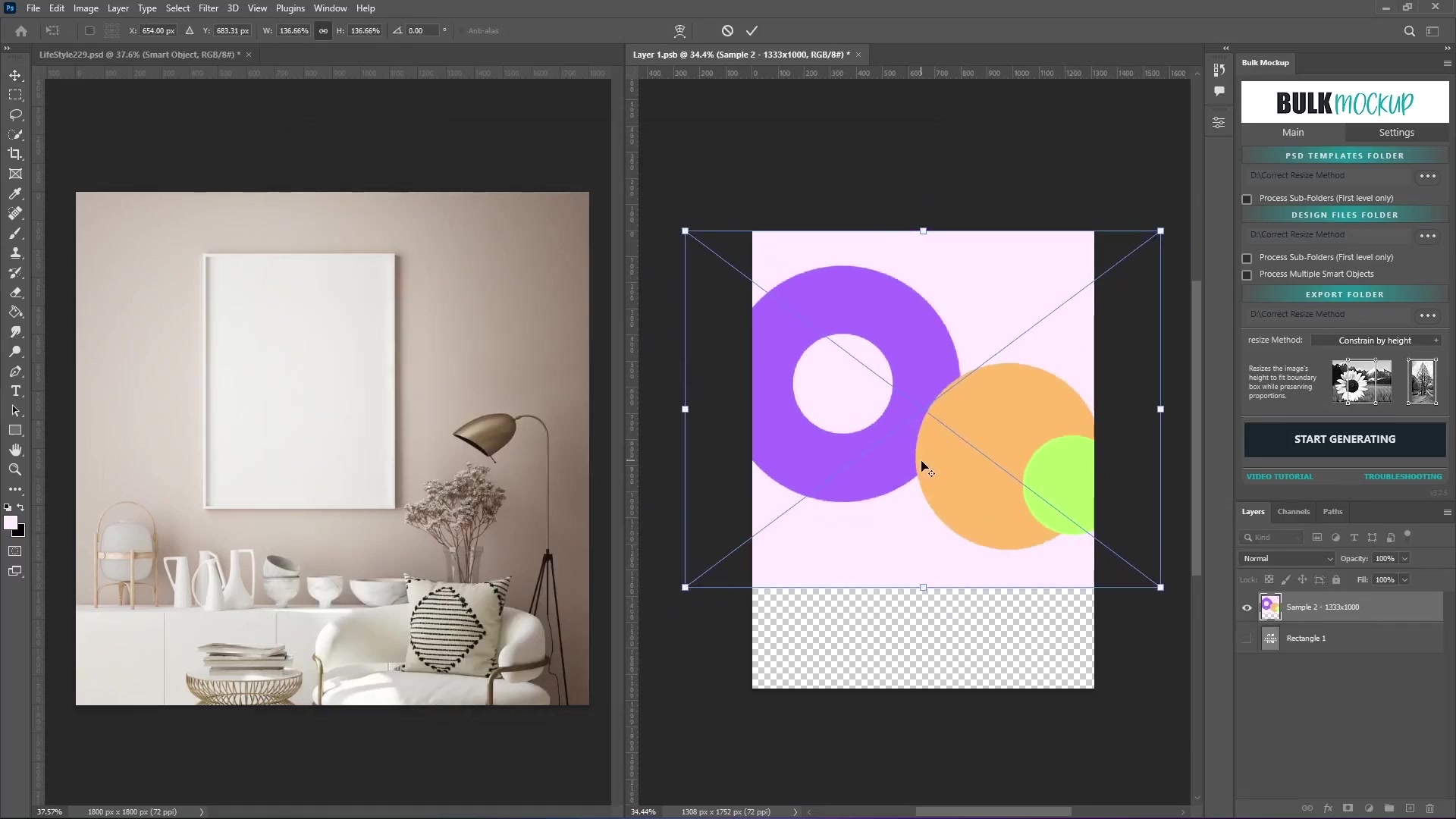
Split Photoshop view: Left shows living room lifestyle image with blank frame; right shows Bulk Mockup panel with folder paths, resize checkboxes, and active document of purple/orange/green overlapping circles. Layer panel displays Sample 2-1333x1000 and Rectangle 1.

Best for: Wall art frames where you need complete coverage and don't mind slight distortion.

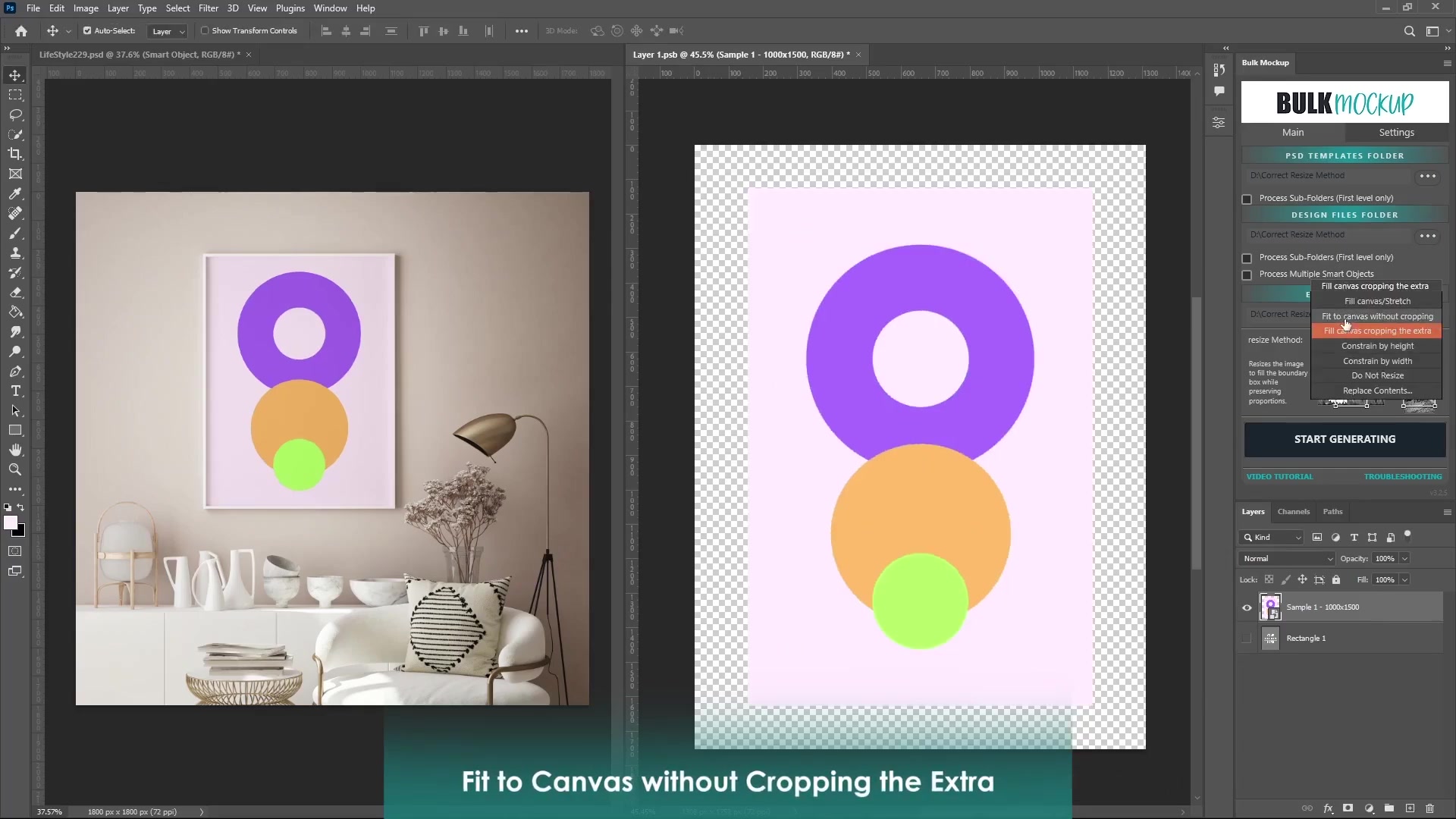
2. Fit to Canvas Without Cropping

Scales your design to fit within the canvas while keeping the original proportions. This may leave empty space on the edges.

Split-screen Photoshop: Left is living room mockup with purple/orange/green circles frame; right shows Bulk Mockup panel with Fit to canvas without cropping selected, file paths, smart object checkbox, and green overlay text Fit to Canvas without Cropping the Extra. Timeline and rulers visible.

Best for: Designs where maintaining exact proportions is critical, like logos or text-based artwork.

3. Fill Canvas Cropping the Extra

Scales your design to fill the canvas completely while preserving aspect ratio. Crops any excess parts that don't fit.

Best for: Full-coverage wall art where you want no distortion and can afford to lose some edges.

This is the most popular method for wall art mockups because it balances coverage with quality.

4. Constrain by Height

Matches your design's height to the canvas height while maintaining proportions. Leaves gaps on the sides if needed.

Photoshop split: Left minimalist living room mockup with white frame on beige wall, sofa, lamp; right Bulk Mockup panel with Constrain by Height dropdown highlighted, settings, layer/channels panels visible.

Best for: Tall portrait designs in vertical frames.

5. Constrain by Width

Matches your design's width to the canvas width while keeping proportions intact. May leave gaps at top and bottom.

Tilted Photoshop interface for Bulk Mockup showing Constrain by Width overlay, Main/Settings tabs, folder paths, Process Sub-Folders checkbox, Resize Method options like Fit to canvas without cropping on textured grey background.

Best for: Wide landscape designs in horizontal frames.

6. Do Not Resize

Places your design at its original size and aspect ratio, centered in the canvas. The result depends on PPI and dimensions.

A 300 PPI design appears smaller than a 72 PPI design of the same pixel dimensions. Match PPI settings between your design and template for predictable results.

Best for: When you've pre-sized your designs to exact template dimensions.

7. Replace Content

The fastest method—directly swaps the design without opening the smart object. Requires exact dimension match to avoid issues.

Best for: Batch processing when all designs match template dimensions perfectly.

Step-by-Step: Create Wall Art Mockups

Step 1: Set Up Your Template

Create a new PSD file with your desired canvas size (example: 2000x2000px at 72 PPI).

  1. Draw a rectangle where you want your design to appear (example: 1500x1500px)

  2. Fill it with a color to visualize the area

  3. Right-click the rectangle layer and select "Convert to Smart Object"

  4. Name the layer with "@design" in the title

The "@design" tag tells Bulk Mockup which layer to replace with your designs.

Step 2: Configure Bulk Mockup

Open the Bulk Mockup panel in Photoshop (Window > Extensions > Bulk Mockup).

  1. Set your PSD Templates Folder path (where your template file is saved)

  2. Set your Design Files Folder path (where your artwork files are stored)

  3. Set your Export Folder path (where final mockups will save)

  4. Choose your Resize Method from the dropdown

Bulk Mockup panel in Photoshop with Main and Settings tabs, PSD Templates Folder, Design Files Folder, and Export Folder paths. Resize Method dropdown set to Fit to canvas without cropping with explanatory text and small preview images. Checkboxes for sub-folders and smart objects. Teal callouts highlight Fill canvas stretch and Fit canvas without cropping options. Textured background with BULK MOCKUP watermark.

Step 3: Select the Right Resize Method

Choose based on your needs:

  • For frames/mats with full coverage: Use Fill Canvas/Stretch or Fill Canvas Cropping the Extra

  • For designs that must maintain exact proportions: Use Fit to Canvas Without Cropping

  • For specific orientation control: Use Constrain by Height or Constrain by Width

  • For pre-matched dimensions: Use Replace Content

Step 4: Process Your Batch

Click the Process button in the Bulk Mockup panel. The plugin will automatically:

  1. Open each template PSD

  2. Replace the smart object with each design file

  3. Apply your chosen resize method

  4. Export the final mockup to your export folder

Bulk Mockup can process 100+ mockups per minute, saving hours of manual work.

Advanced Options

The first 5 resize methods support additional controls for precise placement.

Split Photoshop: Left lifestyle mockup with purple/orange/green circles frame above credenza; right Bulk Mockup panel with scale/alignment/guides options, video tutorial link, toolbar/menus, blank canvas with artwork.

Scale to Percentage

Reduce your design size by a specific percentage (example: 90% creates uniform spacing around edges).

  1. Enter a percentage value in the Scale Design Layer field

  2. The design shrinks from the center while maintaining aspect ratio

Use case: Creating matted frames with consistent borders.

9 Anchor Points

Control where your design aligns within the canvas (top-left, center, bottom-right, etc.).

  1. Click the desired anchor point in the alignment grid

  2. Your design aligns to that position after resizing

Use case: Top-aligned artwork in gallery wall layouts.

Resize/Align to Guides

Confine your design to a specific sub-area defined by guides.

Photoshop view: Left minimalist interior mockup frame; right Bulk Mockup with Scale Design Layer and Guides options, cyan guide rectangle on grey canvas, Resize to Guides & Align to Guides overlay text, layers panel.
  1. Enable rulers in Photoshop (Ctrl+R / Cmd+R)

  2. Drag 4 guides to create a rectangle (left, right, top, bottom edges)

  3. Make sure Photoshop units are set to pixels

  4. Check "Resize/Align to Guides" in Bulk Mockup

  5. Your design resizes to fit within the guide boundaries

Use case: Complex templates with multiple design areas or mats.

Working with Nested Smart Objects

For templates with perspective or oblique angles, nested smart objects automate deep editing.

Photoshop canvas with abstract landscape artwork (orange sun, brown/beige mountains, teal/blue hills) on checkered transparency, Layers panel showing Layer 1 in Multiply mode at 100% opacity/fill, Color panel with green hue, rulers, 1806x3159px at 72ppi, 25% zoom.

Setup

  1. Name your outer smart object layer with "@design" in the title

  2. Open the outer smart object

  3. Name the inner smart object layer with "@nested"

  4. Save and close the outer smart object

Bulk Mockup will now automatically navigate into both layers during batch processing.

Perspective effects apply at the template level. The nested structure lets you maintain design quality while applying 3D transformations.

Avoiding Common Issues

Pixelation

Problem: High-resolution designs look pixelated in mockups.

Solution: Create larger smart object rectangles before converting. A larger canvas preserves more detail when compressing high-res artwork.

Aspect Ratio Mismatch

Problem: Design looks stretched or has unwanted gaps.

Solution: Either match your design dimensions to the template, or choose a resize method that handles the mismatch (Fill/Crop or Fit Without Cropping).

PPI Conflicts

Problem: Design appears too small or too large when using "Do Not Resize."

Solution: Match PPI between design files and template, or use a different resize method that scales automatically.

Use Cases

Batch create mockups for Etsy, Amazon, or your online store. Use Fill Canvas methods for frames and mats to generate hundreds of product images in minutes.

Product Launches

Test multiple design variations across different mockup styles. Generate A/B testing assets for new product lines at scale.

Social Media Content

Create consistent branded graphics for posts. Use Constrain methods to preserve logo and text proportions across different aspect ratios.

Photography and Apparel

Apply designs to complex angles like t-shirts on mannequins. Nested smart objects handle perspective transformations while maintaining design quality.

Watch Similar Videos

Use Cases

Need More Help?

If you have questions about export folder settings or encounter any issues, contact the Bulk Mockup support team at [email protected].

Was this helpful?