
“The command “Edit Contents” is currently not available” in Photoshop
This error appears when you try to open a layer that is not editable as a Smart Object. In most Bulk Mockup Photoshop Plugin workflows, it means the selected layer is not a valid Smart Object, the template uses the wrong layer, or the mockup is not set up for Smart Object editing.
Before you start, make sure you are using a Smart Object-based PSD template in Adobe Photoshop. If you are not sure, read Pre-Requisites For Working With Bulk Mockup.
Step 1: Check that you selected the correct layer
The Edit Contents command only works on Smart Object layers.
Open your PSD mockup in Photoshop.
In the Layers panel, click the layer where your design should go.
Look for the Smart Object icon on the layer thumbnail.
If the layer does not show the Smart Object icon, Photoshop cannot open Edit Contents for that layer.
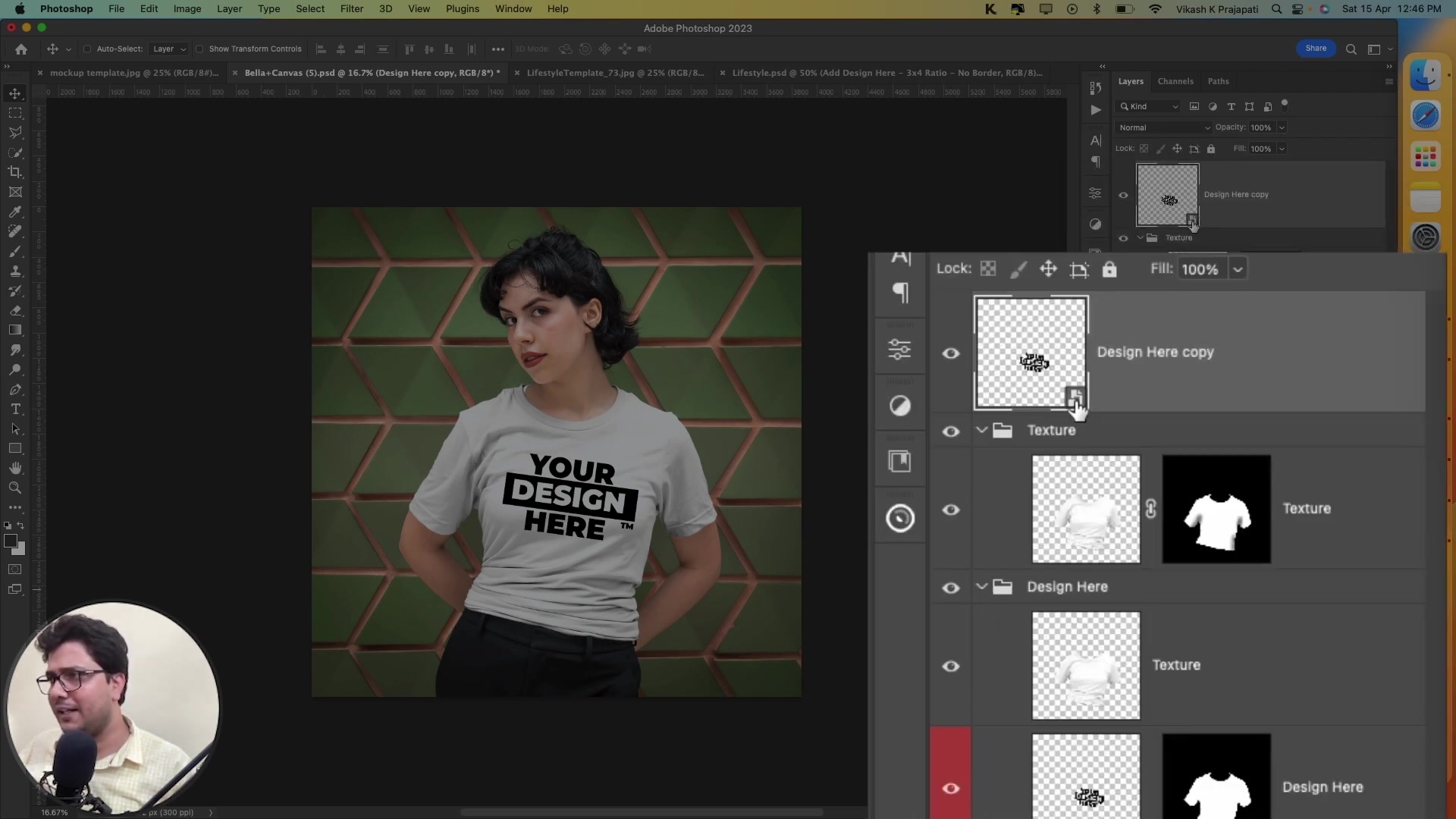
Step 2: Open the Smart Object correctly
After you select a valid Smart Object layer, open it using the standard Photoshop method.
Double-click the Smart Object thumbnail in the Layers panel.
Or right-click the Smart Object layer and select Edit Contents.
If Photoshop opens a new tab, the layer is working correctly.
If the Smart Object opens in a new tab, the template is ready for manual editing and for Bulk Mockup Photoshop Plugin workflows.
Step 3: Confirm the mockup is a Smart Object template
Some mockups are flat JPG-style files or raster layers. These look editable, but they do not contain Smart Objects.
Check whether the file has multiple editable layers.
Check whether the design area uses a Smart Object layer instead of a normal pixel layer.
If the file only has flat image layers, use a different PSD template.
Bulk Mockup Photoshop Plugin only works with Smart Object-based templates. If your template is flat, the plugin cannot replace designs automatically.
Step 4: Check whether the Smart Object was rasterized or replaced
If the template worked before and now shows this error, the Smart Object may have been changed.
Look at the layer name and thumbnail in the Layers panel.
If the Smart Object icon is missing, the layer may have been rasterized.
Undo the change if possible, or reopen the original PSD template.
If you rasterize a Smart Object layer, Photoshop removes the embedded editable content. Edit Contents will no longer work.
Step 5: Test another Smart Object layer in the same file
If your template contains more than one Smart Object, test another one to isolate the problem.
Select a different Smart Object layer.
Try opening it with Edit Contents.
If another Smart Object opens, the issue is limited to the original layer or its setup.
If you work with more than one design area, see How to Process Multiple Smart Object Layers in Bulk Mockup.
Step 6: Use a clean original PSD template
If none of the steps above work, the PSD template itself is likely the problem.
Download or reopen the original PSD file.
Check the Smart Object layer again before making any edits.
Use that clean file in Bulk Mockup Photoshop Plugin.
This is the fastest fix when a template has broken Smart Object layers, missing links, or unsupported setup.
What to do next
Once Edit Contents opens correctly, you can continue your normal mockup workflow. If you run into a different Photoshop file error during batch processing, read Fix "Not a Valid Photoshop Document" Error in Bulk Mockup.
Need More Help?
If you have questions about export folder settings or encounter any issues, contact the Bulk Mockup support team at [email protected].
Watch Similar videos:
Pre-Requisites For Working With Bulk Mockup
How to Process Multiple Smart Object Layers in Bulk Mockup
Use Cases:
Fixing Photoshop template issues before running Bulk Mockup Photoshop Plugin
Checking whether a POD mockup file supports Smart Object editing
Troubleshooting broken or flattened PSD mockup templates